
Table of Contents
- Roles and access
- What is Competence Gap analysis?
- Step 1: Define Your Goals
- Step 2: Set the targets
- Step 3: Find the gap
- Step 4: Bridge the gap
- FAQ
Roles and access
| Access | Role |
|---|---|
| Run a Gap analysis and manage profiles | System role: Competence → Competence management or User role: See and edit → Competence |
| Run a Gap analysis on your own competence | All employees — available under "Your competence" |
💡 Gap analysis is also available directly from a team or location page, and from an employee's profile under the Competence tab.
What is competence Gap analysis?
A Gap analysis in Huma lets you compare the competence your employees actually have against a defined target. The result is a clear visual picture of where gaps exist, and what needs to be developed or recruited.
You can run a Gap analysis at different levels:
- Your own competence — available to all employees under "Your competence"
- A specific employee — from their profile under the Competence tab
- A team or location — from the group page
- The entire organisation — from the Gap analysis tab in the Competence module
Step 1: Define Your Goals
Before running a Gap analysis, it helps to be clear on what you are trying to achieve.
You can set goals at an organisational level, for a specific group or department, or for individual employees. In practice, you will often have a combination of goals across different parts of the organisation.
Step 2: Set the targets
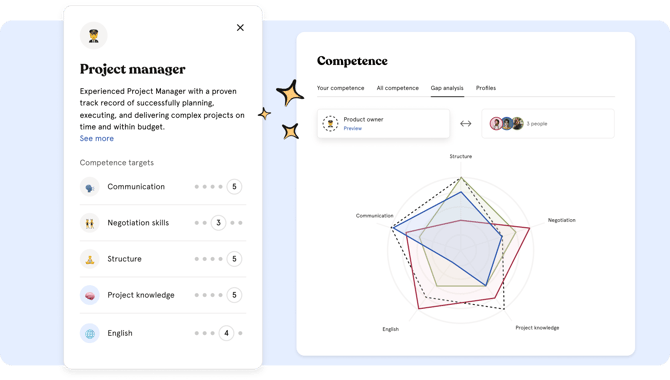
Targets define what competence is needed and at what level. In Huma, targets are set using competence profiles.
A competence profile describes the competence requirements for a specific role or purpose, for example "Project Manager" or "Senior Developer". A profile can contain up to 25 competences, each with a desired level.
Profiles can be set to:
| Setting | Who can see it |
|---|---|
| Public | All employees — anyone can run a gap analysis against a public profile on their own competence |
| Private | Only users with competence management access |
💡 Keeping profiles public empowers employees to take ownership of their own development. They can see what is required for other roles in the organisation and identify their own gaps.
To create a competence profile:
- Go to the Competence module
- Navigate to the "Profiles" tab
- Click "Add profile"
- Fill in a name, description and optionally an icon
- Choose whether the profile should be public or private and click "Next"
- Add competence targets — select a competence type and set the desired level for each
- Click "Save"
💡 You can also run a Gap analysis without a profile by adding targets manually when setting up the analysis.
Step 3: Find the gap
With your targets defined, you can run the Gap analysis.
- Go to the Competence module
- Navigate to the "Gap analysis" tab
- Select a competence profile, or add targets manually and set the desired level for each
- Choose who should be included in the analysis — a specific group or individual people
- The radar chart and table appear, showing the gap between the target and the current status
💡 When running a Gap analysis from a team, location or employee profile, the group or person is predefined and cannot be changed.
1. Reading the results
Each competence in the analysis shows one of the following statuses per person:
| Status | What it means |
|---|---|
| Current level | The level registered for that competence |
| Warning | Something needs attention — such as an expired certification, missing documentation or a missing required field |
| No competence | The competence has not been registered for this person yet |
💡 For competence types without levels, such as certifications,the target is displayed as level 5 in the chart. Either the employee has a valid certification or they do not.
2. Individual vs average gap analysis
By default, the chart shows the average for the selected group. To view the gap for a specific person, click on their name in the table below the chart. Their individual gap appears as a separate area in the radar chart. You can select multiple people at the same time to compare them directly.
3. Add missing competence directly from the analysis
If the analysis reveals that an employee is missing a competence, you can add it without leaving the Gap analysis. Find the employee and the missing competence in the table, click "View details" and then "Add competence" to register it directly.
Step 4: Bridge the gap
Once you have identified the gaps, the next step is to determine the most suitable approach for addressing them. This might mean training, recruitment, mentoring or role changes. In Huma, you can add missing competence directly from the analysis, or use the Processes module to set up structured follow-up plans for competence development.
🔗 Read more about Processes in Huma.
FAQ
Is there a limit on how many competence profiles I can create?
No. You can create as many competence profiles as you need.
How many competences can I add to a profile?
Each profile can contain a maximum of 25 competences.
How many people can I include in a gap analysis at the same time?
You can run a gap analysis on a maximum of 25 people at the same time.