
Table of Contents
- Locations
- Roles
- Set up locations
- Delete, edit or convert location
- Add or remove members from locations
- Introduction video in norwegian
Locations
In Huma, “Locations” is the feature that allows you to organize your company by different physical sites, offices, or departments. This is useful because
-
You get a clear overview of where employees belong, and can easily manage who works where.
-
Locations can be customized with their own access permissions, so only relevant people can view or edit the data connected to each site.
-
It makes the organizational structure visible to all employees, helping them understand their place in the company.
-
It becomes easier to manage absence, tasks, competence, documents, or other HR tasks sorted by location.
-
Locations are also helpful if the company uses different payroll systems, time tracking, or HR rules at different sites.
- An employee can belong to multiple locations simultaneously.
- All users can view the list of locations, but access to documents, news, and other content is restricted to those with the appropriate permissions.
Locations in Huma make HR administration, information sharing, and daily operations much simpler, especially if you have employees across multiple sites or departments.
Roles
To create, edit, and delete locations, and to manage their members, you need a "System role with access to Group management."
To grant extended permissions over company members to other users, you also need access to Group grants.
| Access | Role |
|---|---|
| Add, update and delete locations, add and remove members | System role: Groups: Group management |
| Grant extended permissions over members | System role: Groups: Group grants |
Set up locations
- Go to the "People module"
- Navigate to the "Locations tab"
- Click "Add location"
- Enter the location details and assign members to the location
- Click "Continue"
When a location is created you can
- Add more details and urls specified for the location
- Reassign or update members at any time.
- Adjust access permissions to control who can view or edit information for each location and ensure sensitive data remains accessible only to authorized users.
- Get an overview over the location´s members, insights, documents and news shared with the team etc.
Delete, edit or convert location
Delete
Once a location is deleted, it cannot be recovered.
- Go to the "People module"
- Navigate to the location and click on it
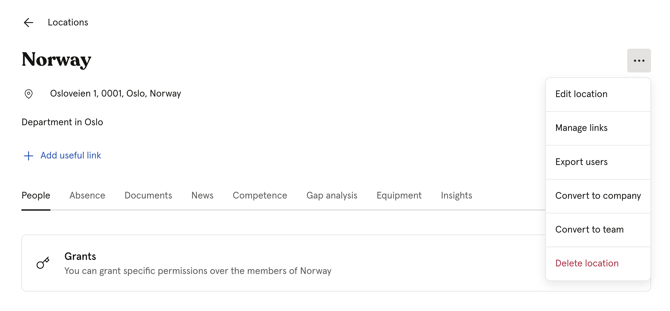
- Click on the three dots in the top right corner
- "Delete"
Edit
To edit details for the location you must
- Go to the "People module"
- Navigate to the "Locations tab"
- Navigate to the location and click on it
- Click on the three dots in the top right corner
- Choose to "Edit location"
Convert
You can convert your location to become a "Company" or a "Team"
- Go to the "People module"
- Navigate to the "Locations tab"
- Navigate to the location and click on it
- Click on the three dots in the top right corner
- Choose to "Convert to company or team"
Add and remove members
Add members to a location:
- Go to the People module
- Navigate to the "Locations" tab
- Click on the location you want to manage
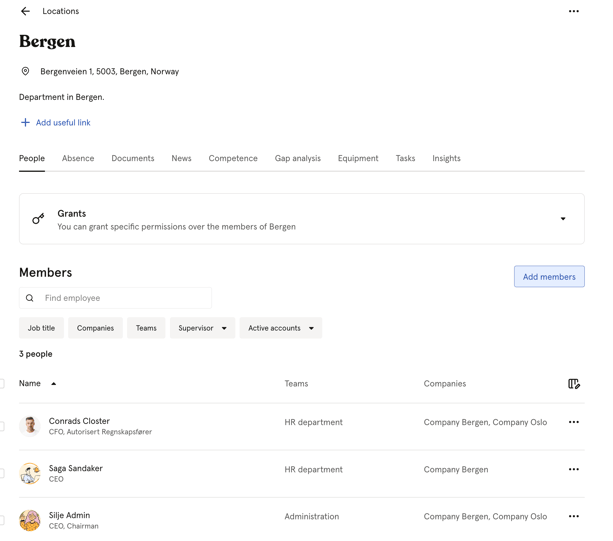
- Click "Members" in the top navigation
- Click "Add members"
- Search for and select the employees you want to add
- Click "Add [number] people"
Remove a member from a location:
- Go to the People module
- Navigate to the "Locations" tab
- Click on the location you want to manage
- Click "Members" in the top navigation
- Find the member you want to remove
- Click the three dots next to their name
- Click "Remove [name] from [location name]" and confirm
💡 Employees can belong to multiple locations at the same time. Removing someone from a location does not affect their other group memberships or their account in Huma.
Introduction in norwegian
Watch this informative video to learn about how Team and Location function and how you can grant special access to members. (Fast forward to 01:55 min) Note: The video is in Norwegian.