
Table of Contents
Roles and access
| Who | What they can do |
|---|---|
| System role with full access to Organization | Set up, edit and disconnect the Webhook integration that Twine uses |
| Twine | Receives the data and passes it on to your other systems |
What is Twine?
Twine is a Swedish service, focused on the Nordics, that connects different HR and payroll systems so they work together.
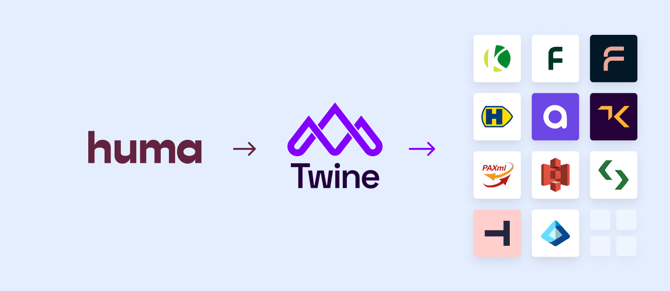
When data changes in Huma, Twine can pass it on to the systems you have connected in Twine. You avoid entering the same data twice.
How it works
Twine does not have its own integration in Huma. It uses the Webhook integration. Huma sends a message to Twine every time something changes, for the data types you have turned on.
| Setting in the Webhook integration | What is sent to Twine |
|---|---|
| Users: Create, update and delete in Webhook when updated in Huma | New users, changes to supported profile fields, changed email addresses and deleted users. Salary is sent as part of the profile. |
| Absence: Create, update and delete in Webhook when updated in Huma | Absence that is registered, updated (for example approved or rejected) and deleted. All absence types are sent. |
| Positions: Create, update and delete | Positions that are created, updated and deleted |
| Groups: Create, update and delete | Companies, locations and teams that are created, updated or deleted, and members added or removed |
💡 You can only turn on absence when the Absence module is set up in Huma.
💡 Data that already exists in Huma is not sent automatically. Use the export on the Webhook integration page to send it.
Get started
Step 1: Contact Twine
Reach out to Twine. They help you set up your account and give you the details you need to connect Huma.
Step 2: Set up the Webhook integration in Huma
- Go to Integrations in Huma and open Webhook.
- Enter the Target URL from Twine.
- If Twine has given you a Client secret or an Access token, enter them too. Both are optional.
- Turn on the data types Twine should receive (see the table above).
- Turn on Use the POST HTTP method for all messages only if Twine asks you to.
- Save.
Step 3: Export existing data
Use the export on the Webhook integration page to send the current data to Twine. For absence, you choose a time period, which employees and which absence types to include.
⚠️ User profiles are only exported when the Users setting is turned on.
Supported systems
Twine connects to systems such as:
- Kleer
- Flex HRM
- Agda PS File
- HogiaLön Plus
- Kontek
- Fortnox
- Skovik
- Talentech (PeopleCore) – API exists but not yet implemented
- Microsoft Entra ID
- AWS S3 Compatible – for handling import/export files
- PAXml – reads and creates PAXml files for manual import/export
- And more
FAQ
Do I need to install anything in Huma for Twine?
No. Twine uses the Webhook integration that is already in Huma. You only enter the details from Twine.
Is existing data sent when I connect?
No. Only changes made after you connect are sent automatically. Use the export to send existing data.
Can I choose which data Twine receives?
Yes. Turn users, absence, positions and groups on or off separately in the Webhook integration.
Is salary sent?
Yes. The current salary is sent as part of the user profile when the Users setting is on.
Who do I contact if data does not arrive in the other system?
Check the Error log in the Webhook integration first. Twine has 1 second to respond to each message, otherwise it times out. If the message was sent from Huma, contact Twine.