
Table of Contents
- Roles and access
- What is a work schedule?
- Create a work schedule
- Assign employees to a work schedule
- Edit a work schedule
- Reassign employees to a different work schedule
- Delete a work schedule
- FAQ
Roles and access
| Access | Role |
|---|---|
| Create, edit and delete work schedules | System role: Absence → Absence management |
What is a work schedule?
A work schedule defines which days are working days and which public holiday calendar applies for your employees. It determines how absence days are counted, for example, whether weekends and public holidays count as absence days or not.
Every employee must be assigned to a work schedule for absence to be counted correctly. If an employee is not assigned to any work schedule, their absence days will not be calculated.
💡 Huma supports a wide range of country-specific public holiday calendars, making it easy to accommodate employees in different countries.
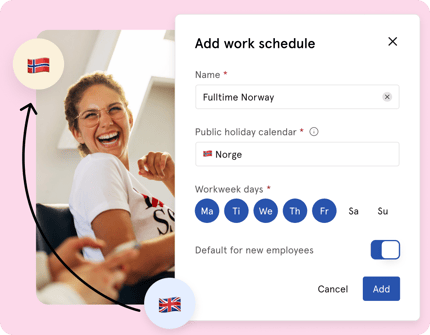
Create a work schedule
- Go to the Absence module
- Navigate to "Settings"
- Click "Add work schedule"
- Fill in the details (mentioned below in table)
- Click "Add"
- Assign employees to the work schedule (see below)
| Setting | Description |
|---|---|
| Name | A descriptive name — e.g. "Standard Monday–Friday" or "Norway — 5 days" |
| Public holiday calendar | Select a country-specific holiday calendar, or choose no calendar if no public holidays should be included |
| Workdays | Select which days of the week are working days for this schedule |
| Default for new employees | If enabled, new employees will automatically be assigned to this work schedule |
⚠️ Workdays cannot be changed after the work schedule has been created. If you need to change the working days, you must create a new work schedule and reassign employees to it.
💡 Public holidays are predefined in the selected holiday calendar and cannot be edited manually.
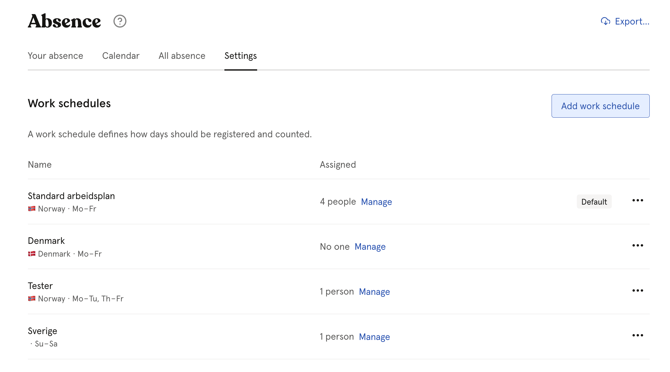
Assign employees to a work schedule
After creating a work schedule, you can assign employees directly:
- After clicking "Add", a new window will open automatically
- Click "Assign people"
- Select the employees you want to assign
- Set an effective date if needed
- Click "Continue"
You can also assign employees later:
- Go to the Absence module → Settings
- Click the three dots next to the work schedule
- Click "Manage assigned people", or "Manage" under "Assigned"
- Click "Assign people" and follow the same steps
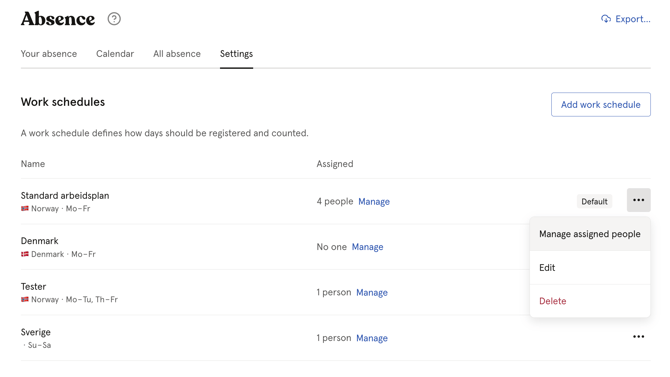
Edit a work schedule
You can edit the name of a work schedule at any time. However, workdays and the public holiday calendar cannot be changed after creation.
- Go to the Absence module → Settings
- Click the three dots next to the work schedule
- Click "Edit"
- Update the name and click "Save"
💡 To change the default work schedule, set another work schedule as default first, you cannot remove the default status without replacing it.
💡 If you need to change workdays or the public holiday calendar, create a new work schedule and reassign employees to it.
Reassign employees to a different work schedule
When you reassign an employee to a different work schedule, all existing absence registrations from the effective date onwards will be automatically recalculated according to the new work schedule's rules.
- Go to the Absence module → Settings
- Click the three dots next to the work schedule you want to reassign from
- Click "Manage assigned people"
- Find the employee and click "Reassign work schedule"
- Select the new work schedule
- Set an effective date
- Click "Reassign"
⚠️ If you set an effective date in the past, any overlapping work schedule assignments will be shortened or fully removed. Huma will ask you to confirm that you understand the consequences before proceeding.
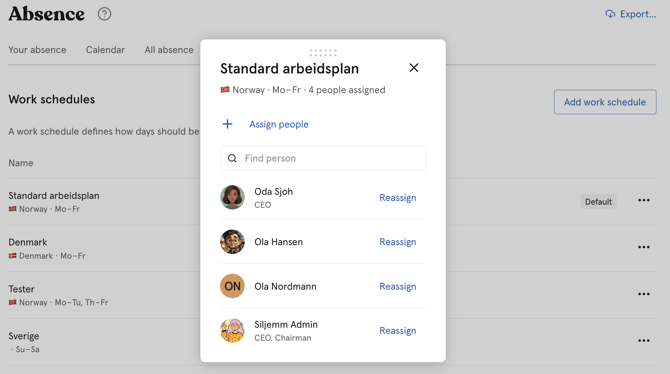
Delete a work schedule
Before deleting a work schedule, all employees assigned to it must be reassigned to another one.
- Go to the Absence module → Settings
- Reassign all employees to a different work schedule
- Click the three dots next to the work schedule
- Click "Delete" and confirm
⚠️ It is not possible to delete the default work schedule. Set another work schedule as default first. Once a work schedule has been deleted, it cannot be restored.
FAQ
What if an employee is not assigned to a work schedule?
If an employee has no work schedule assigned, their absence days will not be calculated correctly. When they try to register absence, the days may not be counted as expected.
To fix this:
- Go to the Absence module → Settings
- Navigate to the relevant work schedule
- Click the three dots and select "Manage assigned people"
- Click "Assign people", select the employee and click "Continue"
💡 Make sure to assign new employees to a work schedule as part of your onboarding process to avoid issues with absence registration later.
Work schedules and policies — how they work together
A work schedule and an absence policy work together to determine how absence is handled for each employee:
- The policy defines how many absence days an employee is entitled to and when the period resets
- The work schedule defines which days count as working days and which public holidays apply, and therefore how the absence days are actually counted
💡 Both must be set up correctly for absence to work as expected. An employee needs both a policy and a work schedule assigned to be able to register absence.
🔗 Read more about absence policies.
Can an employee be assigned to multiple work schedules at the same time?
No. An employee can only be assigned to one work schedule at a time. If you reassign them to a new work schedule, the previous assignment will be ended from the effective date.
What happens to absence already registered when I reassign someone to a new work schedule?
All existing absence registrations from the effective date onwards will be automatically recalculated according to the new work schedule's rules. Absence registered before the effective date is not affected.