
Table of Contents
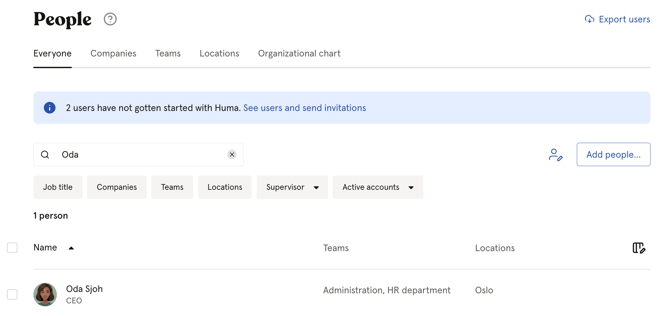
Search for an employee
You can search for any employee directly from the People list.
-
Go to the People module
-
Type the employee's name in the search field at the top of the list
Filter the People list
Filters let you narrow down the People list to a specific group of employees based on key attributes.
-
Go to the People module
-
Click on the filter you want to use
-
Select your filter criteria
Available filters:
| Filter | Description |
|---|---|
| Job title | Filter by one or more job titles |
| Companies | Filter by company |
| Teams | Filter by team |
| Locations | Filter by location |
| Supervisor | Filter by supervisor, show employees with no supervisor, or show your own subordinates |
| Account status | Filter by active or deactivated accounts |
💡 You can combine multiple filters at the same time to narrow down your results further.
Filter by account status
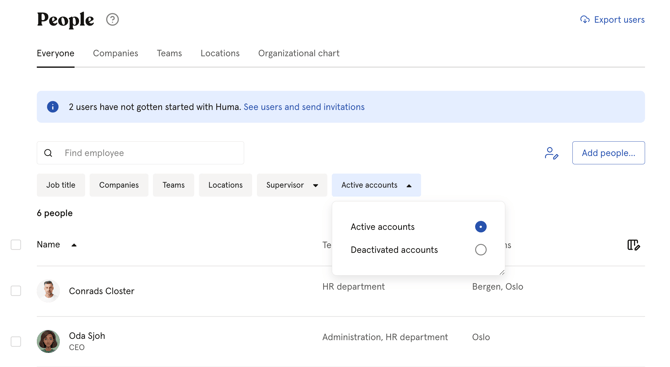
By default, the People list shows active accounts only. You can switch to show deactivated accounts instead.
-
Go to the People module
-
Click "Active accounts" in the filter menu
-
Choose "Active" or "Deactivated"
Customise columns
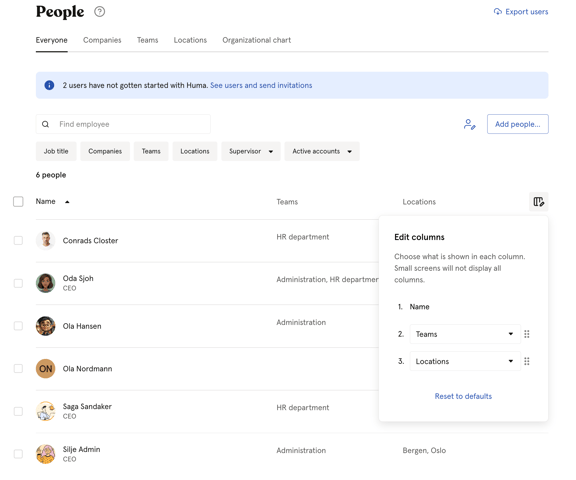
You can customise which columns are shown in the People list. This is useful if you want to display email addresses or phone numbers directly in the list without opening each employee's profile.
-
Go to the People module
-
Click the table icon in the top right corner
- Choose which columns to display in column 2 and 3
Available columns: Locations, Teams , Companies, Email address and Phone number
💡 Click "Reset to defaults" to go back to the original column settings. You can also reorder the columns by dragging them.
Export instead of filtering
If you need to work with a larger dataset or share the information with others, exporting is often more efficient than filtering in the People list. The export includes all profile fields and can be filtered by group, account status, and date.
🔗 Read more about how to export People data.