Table of Contents
What is the employee profile?
Every employee in Huma has a profile that collects all relevant personal and professional information in one place. The profile is divided into sections, each covering a different area of the employee's data , from contact details and employment information to salary, personal data, and more.
The profile serves two purposes:
-
It gives HR administrators and managers a complete overview of each employee
-
It gives employees access to their own information and allows them to keep it up to date
💡 What you can see and edit on a profile depends on your user role, not your system role. A system role gives access to organisation-wide settings, but does not give access to employee profile data.
🔗 Read more about user roles and access to profile fields.
Roles and access
To view or edit fields on an employee's profile, you need a user role with the relevant access level set for each field:
| Access | Role |
|---|---|
| View a profile field | User role: Only see — on their profile |
| Edit a profile field | User role: See and edit — on their profile |
| View and edit own profile fields | User role: See and edit — on own profile |
💡 The user role must be granted over the group the employee belongs to for it to take effect.
🔗 Read more about user roles and access to profile fields.
Profile sections and fields
The employee profile is divided into the following sections:
Intro
The top section of the profile displays the employee's name, job title, profile photo (avatar), and cover image. It also includes essential contact details.
-
Fields: Email, Phone number, Fun facts, Interests, Date of birth, Supervisor, Subordinates, Companies, Teams and Locations
-
💡 Companies, Teams and Locations can be added from the profile, but removal must be managed within the group settings.
-
Cover image: Recommended width is at least 1200 pixels. The image will be center-cropped to a 3:1 landscape ratio. Maximum file size is 10MB.
-
Avatar image: Recommended width or height is at least 400 pixels. The image will be center-cropped to a 1:1 ratio. Maximum file size is 10MB.
🔗 Read more about editing email address in Huma.
🔗 Read more about the Supervisor role in Huma.
Positions
All employment information is collected in the Positions section. An employee can have one or multiple positions, each with its own job title and employment details.
-
Fields: Job title, Job description, Contract type, Employment percentage, Employment ID, Contract start date, First day of work, Probation end date, Seniority, Relevant experience, Total seniority, Notes, Country / Legislation, Termination notice date, Last day of work, Contract end date
🔗 Read more about Positions in Huma.
Salary
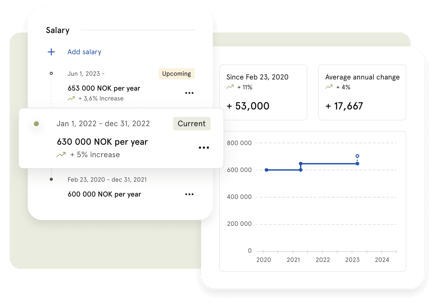
The Salary section displays the employee's current salary and a full history of previous salary changes, including adjustments and effective dates.
-
Fields: Salary amount, Interval (yearly, monthly, weekly or hourly), Currency, Effective date, End date, Notes
💡 For part-time employees, always enter the salary for a full-time position (100%). Example: An employee in a 50% position is paid NOK 300,000. In that case, enter NOK 600,000.
🔗 Read more about Salary in Huma.
Bank details
Bank account information for payroll processing. The bank account number must be a valid account number.
-
Fields: Bank account number, Bank country, BIC (for international accounts)
Personal info
Personal details that employees or administrators can add and keep up to date.
-
Fields: Given name, Preferred name, Family name, Personal email address, Address, Gender, Nationality, Civil status, Dietary restrictions
💡 Personal email address cannot be used for logging into Huma.
Identifications
Identification numbers such as national ID, passport number, or D-number. Multiple identifications can be added to a single employee.
💡 If an employee has a D-number, it should be entered as "National identification number".
🔗 Read more about adding identifications in Huma.
Children
Information about an employee's children, useful for benefits administration and sick child leave.
💡 The Children field is not yet connected to the Absence module for sick child leave. Absence policies for sick child leave must be handled manually based on the information on the profile.
🔗 Read more about adding children in Huma.
Emergency contacts
Contact information for the person to be reached in case of an emergency.
-
Fields: Relation, Name, Phone number
🔗 Read more about adding emergency contacts in Huma.
Custom profile fields
Administrators can add custom fields to capture information that is not covered by the standard fields in Huma. Custom fields can be placed in the Intro, Employment, or Personal info section.
🔗 Read more about Custom profile fields in Huma.
Profile completion
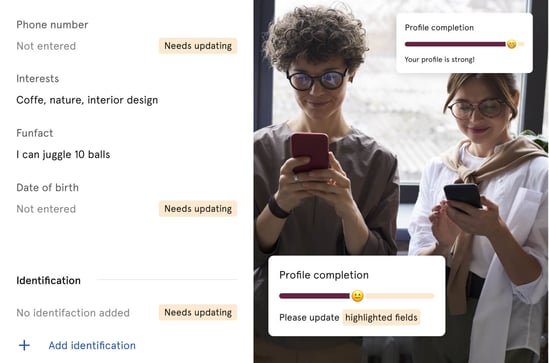
The profile completion bar gives employees and administrators a visual overview of how complete the employee's profile is. Important fields are highlighted to make it easy to identify what is missing.
As an administrator or manager, you can send a reminder to employees asking them to fill in their profile.
💡 Not all fields are editable by the employee themselves. Employment fields are typically managed by a manager or administrator.