Table of Contents
Companies
With Organization Structure you get full control, flexibility, and support for multiple integrations, perfect for both small and large organizations.
That means you can:
- Add several companies within the same account
- Decide who gets access to what
- Connect each company to its own payroll system or other integrations
- Share content, processes, and tasks across companies
- Better oversight and control
- Cleaner data access and permissions
- Easier collaboration — across companies
- Set up multiple integrations — and choose which company connects to what
- Share handbook content, news, documents, and templates between companies
💡 And yes, it’s completely fine if employees in Company A can see who works in Company B.
Prefer that employees don’t see each other? We also have a setup that keeps them separated, just get in touch with support@hu.ma .
Roles
To create, edit, and delete companies, and to manage their members, you need a "System role with access to Group management."
To grant extended permissions over company members to other users, you also need access to Group grants.
| Access | Role |
|---|---|
| Add, update and delete companies, add and remove members | System role: Groups: Group management |
| Grant extended permissions over members | System role: Groups: Group grants |
Set up companies
To create a new company, you need to
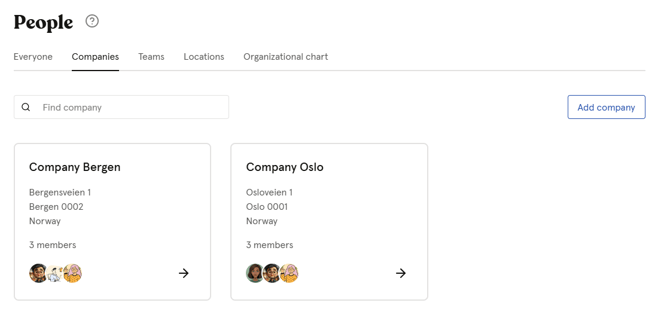
- Go to the "People module"
- Navigate to "Companies"
- Click "Add company"
- Fill out information regarding the location
- Click "Continue"
💡 Note: The Organization number added will be validated if there is a Norwegian, Swedish or Finish address.
When a company is created you can
- Add more details and urls specified for the company.
- Reassign or update members at any time.
- Adjust access permissions to control who can view or edit information for each location and ensure sensitive data remains accessible only to authorized users.
- Get an overview over the companie´s members, insights, documents and news shared with the team etc.
Delete, edit or convert companies
Delete
Once a company is deleted, it cannot be recovered.
- Go to the "People module"
- Navigate to the company and click on it
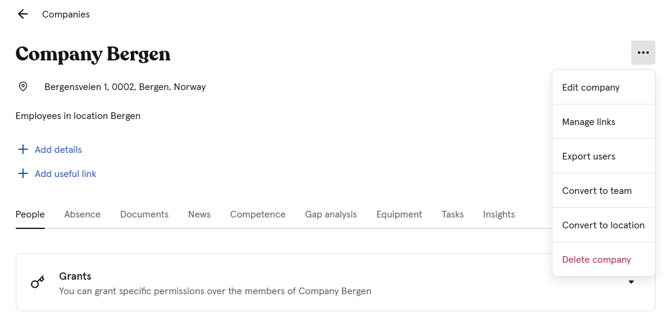
- Click on the "three dots" in the top right corner
- "Delete"
Edit
To edit details for the company you must
- Go to the "People module"
- Navigate to the "Company tab"
- Navigate to the company and click on it
- Click on the "three dots" in the top right corner
- Choose to "Edit company"
Convert
You can convert your company to become a "Location" or a "Team"
- Go to the "People module"
- Navigate to the "Company tab"
- Navigate to the company and click on it
- Click on the "three dots" in the top right corner
- Choose to "Convert to location or team"
Add and remove members
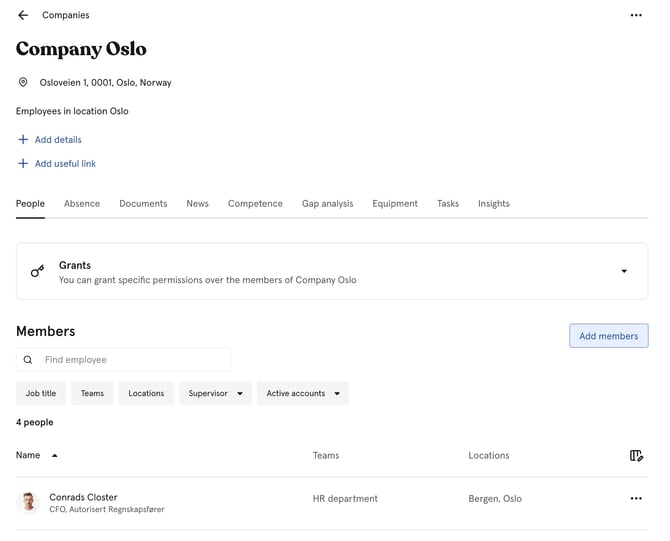
Add members to a company:
- Go to the People module
- Navigate to the "Companies" tab
- Click on the company you want to manage
- Click "Members" in the top navigation
- Click "Add members"
- Search for and select the employees you want to add
- Click "Add [number] people"
Remove a member from a company:
- Go to the People module
- Navigate to the "Companies" tab
- Click on the company you want to manage
- Click "Members" in the top navigation
- Find the member you want to remove
- Click the three dots next to their name
- Click "Remove [name] from [company name]" and confirm
💡 Employees can belong to multiple companies at the same time. Removing someone from a company does not affect their other group memberships or their account in Huma.