Skip to content
  • There are no suggestions because the search field is empty.

Learn how to manage access roles in Huma

Start managing what you want your employees to be able to see and do in Huma.


Table of Contents


The basics

In Huma we care about everyone's privacy and therefore we have a very flexible approach regarding permission and access roles.

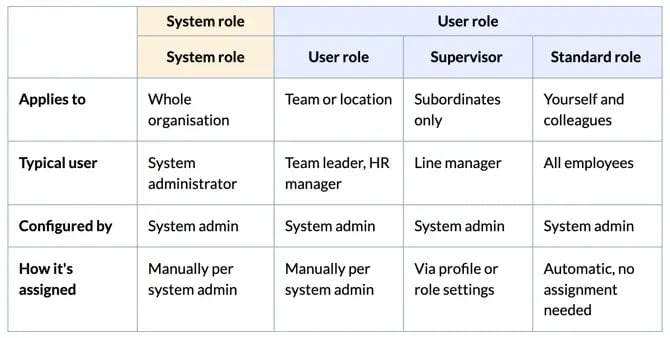
To understand how access works in Huma you can think of it in two levels. 

    • User Role

      • Think of a user role as a team or department leader. It controls what you can do with people or documents in your group (like a team or location).
      • Example: A “Manager” user role lets you view and manage the profile and tasks for employees only in your team or location. You can edit their absence, help with onboarding, or see salary info if your role allows it.
      • When you need it: If you only manage or need access to people or info in your team, office, or department
         
    • System Role

      • A system role is like being an organization-wide admin. It gives you access to configure overall settings, manage modules, integrations, or handle admin-only functions for the whole company.
      • Example: “System Admin” allows you to add modules, change company settings, manage security or integrations—basically run the entire HR system for the whole company.
      • When you need it: If your job is to manage Huma for the whole organization, including setting up features, access, or adding integrations


So what is the difference between User Roles and System Roles?

“User roles” are designated for leaders within Teams and Locations and define the access and management rights these individuals have over members’ profiles and group-specific content.

Conversely, “System roles” are applied directly to users across the entire organisation, granting permissions for organisation-wide configuration and administrative controls.


User roles

Within "User roles," you will see predefined options including "Manager," "Payroll manager," "Supervisor," and standard roles.

  1. Manager - Default role to manage members of Teams and Locations.
  2. Payroll manager - Default role to manage payroll information for members of Teams and Locations . 
  3. Supervisor - What supervisors are allowed to see and do on their subordinates´ profiles.
  4. Standard roles - Are roles everyone has. Use these to set the base access level for what everyone can see and do on their own and others people´s profiles.  
    • "On their own profile" - What can everyone see and manage on their own profile
    • "On other people's profiles..." - What can everyone see and manage on their colleagues’ profiles.


System roles

Within "System roles" you will find predefined and some locked roles, such as "System admin", "Deviation handler" and "Whistleblower handler".

  1. System admin - Locked role to manage all system functions and permissions.
  2. Deviation handler - Locked role to follow up reports from deviation reporters.
  3. Whistleblower handler - Locked role to follow up reports from whistleblowers.

  • At least one user in your Huma account must hold a "System role" at all times. You cannot remove this role from a user if they are the last remaining individual assigned to it.
  • Being a system admin doesn't automatically grant you access to everything.
    • Fx. if you want to be able to manage employee data on their profile, you need a "user role with "see and edit" permission."
    • Fx. in order to access documents, the document owner must provide the necessary permissions through the document settings.


Supervisor

This role decide what supervisors are allowed to see and do on their subordinates’ profiles.

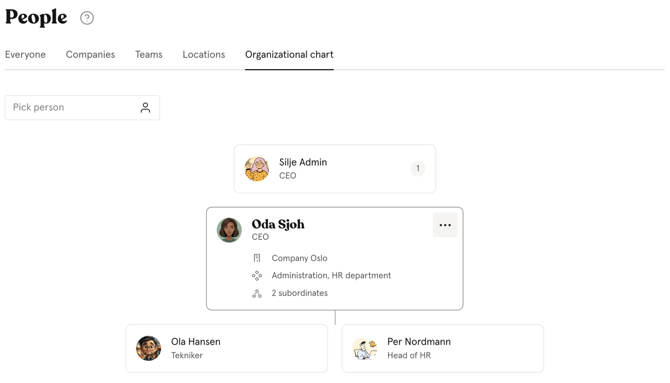
The Supervisor role is assigned by selecting either “Supervisor” or “Subordinates” within the user’s profile settings.

  • Information on Subordinates profile card
  • Absence for their Subordinates
  • On- and offboarding
  • Processes
  • Competence
  • Jubilees


Read more about the Supervisor role here.


Assign roles

Only System admins can assign roles. 

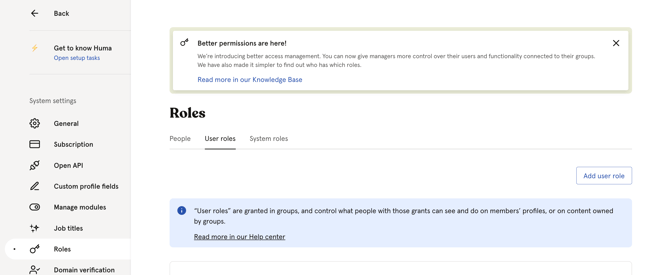
  1. Go to "System settings"
  2. Click "Roles"
  3. Navigate to "User roles" or "System roles" and click on the role you want to assing to a user
  4. "Add grant"
  5. Choose users to grant this role and who they should have this access over
  6. Click "Grant access"

  • A user may be assigned several roles simultaneously. 
    Notice: user with multiple roles will have combined permissions from every role.
  • If a user is assigned a role over a group,  the person granted in a team or location doesn't need to be a member.
  • When a user is assigned a new role, they will be notified by email. 

Screenshot 2025-11-19 at 19.12.54


Edit roles

Some roles in Huma are predefined and locked, but for all other roles, you have the flexibility to edit their permissions as needed. To edit roles, you must have a System role.

  1. Go to "System settings"
  2. Click "Roles"
  3. Navigate to "User roles" or "System roles" and click on the role you want to edit
  4. "Edit permissions"
  5. Set permissions such as "See and edit", "Only see" or "Full access"

Screenshot 2025-11-19 at 19.13.31


Create role

Only System admins can create roles. 

  1. Go to "System settings"
  2. Navigate to "Roles"
  3. Select either "User roles" or "System roles," depending on the type of role you wish to create
  4. Click on  "Add user role" or "Add system role"
  5. Give the new role name and description, and click "Continue"
  6. Edit "Permissions" and "Grants" according to your needs

Note - You can assign permissions to a role after creation and grant the role to additional users as needed.


Screenshot 2025-11-19 at 19.17.07


Delete role

You can always delete roles in your account, except for "Locked 🔒 and some predefined roles".

  1. Go to "System settings"
  2. Navigate to "User roles" or "System roles" and click on the role you want to delete
  3. "Edit permission"
  4. Click on the three dots in the top right corner
  5. "Delete role"

Note - Once a role has been deleted, it cannot be recreated. Only users with System role can delete a role. 

Screenshot 2025-11-19 at 18.57.41


View assigned roles for each user

You can always view a comprehensive list of users and the roles assigned to them within your Huma account.

  1. Go to "System settings"
  2. Click "Roles"
  3. Navigate to "People" and click on the tab
  4. You will now see a complete overview of all users and their assigned roles by clicking on each user’s name.


Screenshot 2025-11-19 at 19.15.51