Table of Contents
- Intro
- Employment
- Salary and salary history
- Bank Details
- Personal information
- Identifications and National Identification Number
- Children
- Emergency contact
- Custom fields
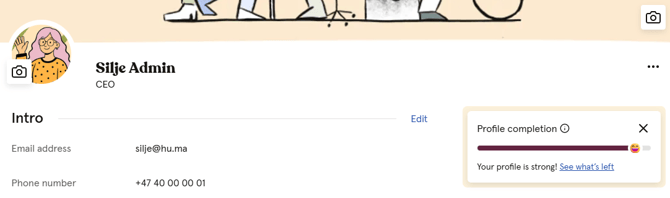
- Profile Completion
The employee profile page in Huma is a user-friendly dashboard that provides a wealth of personal and professional information about an individual's employment experience. It is neatly organized into different sections for easy navigation and improved efficiency.
To fill out information on your own profile
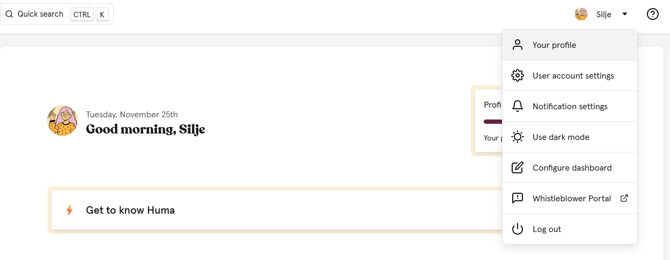
- Click on your name in the top right corner
- "Your profile"
- To update information or modify data in any section, select "Edit" within that section
- Click "Save" once your done
- To edit fields on your profile, you must have a user role that grants “See and edit” permissions for the specific fields you wish to update. Read more about Roles in Huma here.
- Your profile will be divided into these sections:
- Intro, Employment, Your salary, Bank details, Personal info, Identifications, Children, Emergency contacts, Roles and access.
Intro
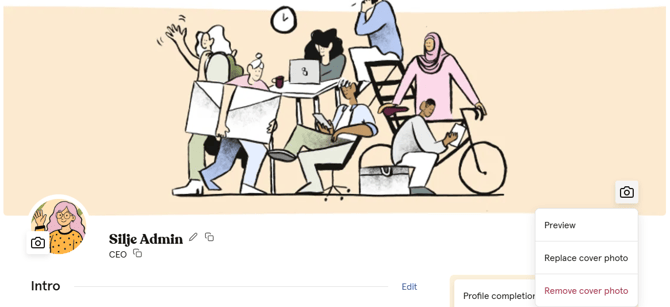
The top section of the profile displays your name, job title, and a profile photo (avatar) in addition to the cover image. You will find essential contact details like the email address and phone number.
Section includes fields:-
- Email, Phone number, Interest, Fun facts and Date of birth.
- Supervisor, Subordinates, Companies, Teams and Locations.
- Companies, Teams and Locations settings on your profile can only be used to add groups. Removal must be managed within the group settings.
- Read more about editing email address in Huma.
- Read more about groups in Huma.
- Read more about Supervisor and Subordinates.
Best practices for Cover and avatar image
Too change cover or avatar image, you must have a "User role with See and Edit access to Intro: Cover Photo and Avatar Photo".
-
Go to the People module
-
Select employee
-
Hover over the Camera icon on the avatar or cover photo
- Click Replace..
Cover Image:
- You may upload an image of any size; however, it will be center-cropped to a 3:1 landscape ratio. Ensure the most crucial part of the image remains centered.
- Recommended width is at least 1200 pixels, with a maximum file size of 10MB.
- The cover image on a Huma profile will be visible to everyone in your organization and serves as a means for you to share more about yourself.
Avatar image:
- You may upload an image of any size; however, they will be center-cropped to a 1:1 ratio. Ensure the most crucial part of the image remains centered.
- Recommended width or height is at least 400 pixels and maximum file size: 10MB.
- The avatar will be visible to everyone in your organization and will be a representation of your user within Huma.
Employment
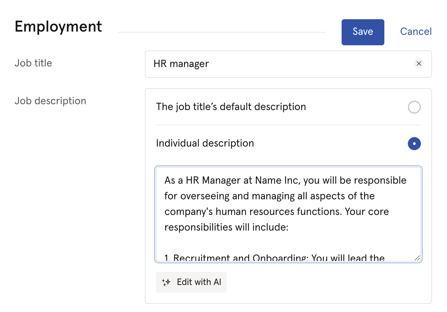
This section outlines your current job title, description, type of employment, and other relevant details such as start date, seniority, and key employment dates.
Section includes fields
-
- Job title and description, Employment type, percentage and ID.
- Start date, Seniority, First day of work and Probation end date.
- Termination notice date, Last day of work and Employment end date.
- The "Seniority" field is automatically determined based on the date entered in the "Employment start date" field.
Job title
A predefined job description can be added to the job titles under system settings. The predefined job description will be used unless you define a custom or individual description on a users profile.
- Read more about job titles, job description and why it's important to have it in place.
- Read more about Huma's AI Content Assistant and how it works
Your salary
The "Your salary" section on your Huma profile provides an overview of your compensation details as maintained by your organization. This area displays your current salary as well as historical salary data, including adjustments and effective dates, to ensure transparency and support both employees and HR teams in tracking compensation changes over time.
Only specific people with specific access to salary will be able to manage and see salary.
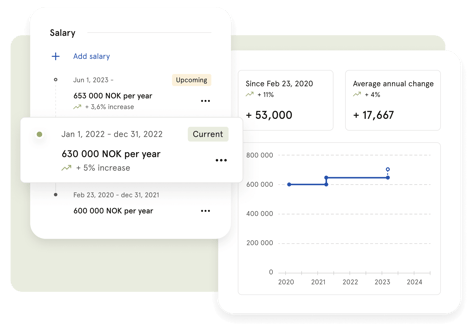
For example, from February 23, 2020, to December 31, 2021, the salary was 600,000 NOK per year. It increased to 630,000 NOK on January 1, 2022, marking a 5% increase, and will rise to 653,000 NOK starting June 1, 2023, which is a 3.6% increase from the previous amount.
The feature also highlights the total salary change since the starting date and the average annual change, equipping employees with vital information for financial planning and discussions.
To add salary
- Go to your own profile or the relevant employee's profile
- Navigate to "Salary"
- Click "Add" and fill out information
- You can choose between the intervals yearly, monthly, weekly or hourly
- Currency
- Effective and end date
- Add notes
- Click "Add"
Bank Details
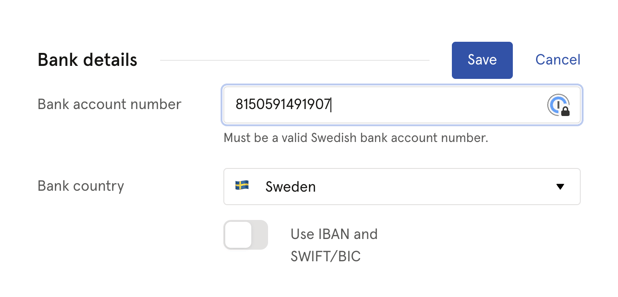
Here, you can enter and update bank account information, ensuring seamless transactions for payroll processing.
- Bank account number needs to be a valid bank account number.
Personal Information
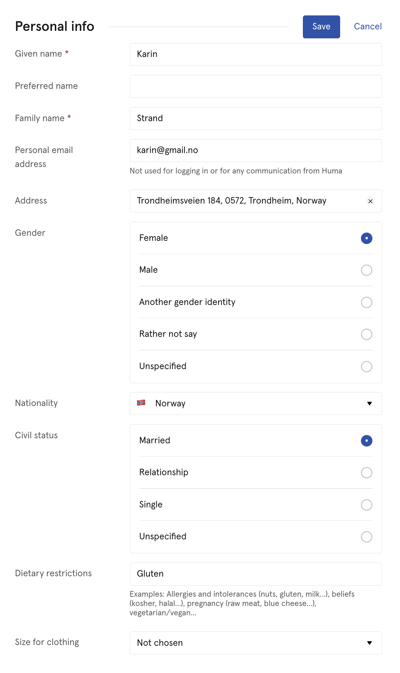
Personal details such as name, email, address, gender, nationality, and other personal preferences can be found in this segment. Employees can easily edit their information to reflect any changes.
Section includes fields
-
- Given, Preffered and Family name
- Personal email address
- Address
- Gender
- Nationality
- Civil status
- Dietary restrictions
- Personal email address cannot be used for logging into Huma
Identifications
The identification section contain identification information such as international personal ID, passport number.
- If you have a D-number, fill it out as "National identification number"
Children
You can add information about their children, which is essential for company records, benefits administration, and in case of emergencies or related to Sick child leave.
- Note: Children field is not yet connected to the absence: "Sick child". Absence policies needs to be handled manually based on the info on the profile card.
Emergency Contacts
The emergency contacts section is crucial for workplace safety, enabling quick contact with designated individuals if necessary.
Add Relation, Name and Phone number.
Custom fields
Admins can also add additional fields and place them in either Intro, Employment or the Personal section.
Read about custom profile fields.
Profile Completion
A visual profile completion bar encourages employees to achieve a fully completed profile, ensuring that all relevant information is available for HR management.
This profile page is designed to empower employees with access to their employment information while also providing HR staff with the tools necessary to manage employee data effectively.
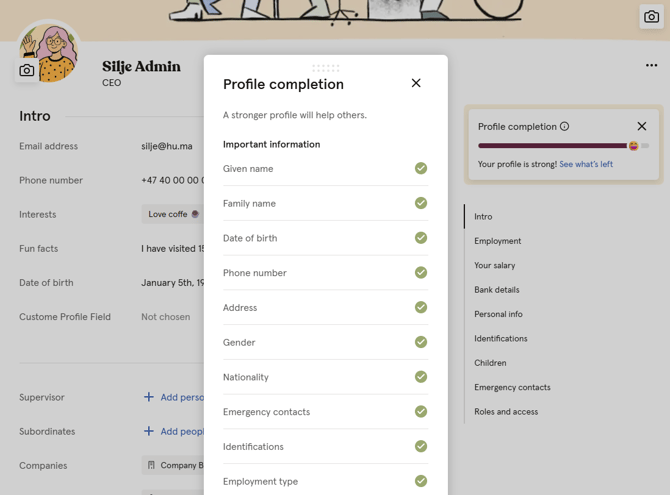
- Important data fields are highlighted to make it easier for you as an employee to identify the most important data missing.
- Press edit to add data and remember to save when finished. Please note that all fields are not editable for the employee.
- Fields regarding employment will be added by a manager or an admin.
- You can see the "Profile completion" on both your profile or on the Dashboard
- When adding data to your profile, the profile completion bar will increase until you have entered all missing fields. You can also click the info button to get an easier overview of your progress.
- As an admin or manager in Huma you will also see the possibility to send a reminder to the employee.