
Table of Contents
- Roles and access
- Two types of documents
- Document categories
- Regarding — what it means
- Where to find documents
- Filters
- Notifications
- FAQ
Roles and access
| Access | Role |
|---|---|
| Upload files and create smart documents | All employees — no role required |
| Manage documents shared within a group | User role: See and edit → Documents |
| List all documents in the organisation | System role: Documents → List all documents |
| Manage smart document templates | System role: Documents → Smart document templates |
💡 Having a system role with "List all documents" access gives you an overview of all documents in the organisation, including their name, created date, access settings and category. It does not give you access to the content of the documents themselves. To access the content of a document, you must be explicitly granted access to it.
🔗 Read more about document access and permissions.
🔗 Read more about the upcoming change to the "List all documents" role.
Two types of documents
Huma supports two types of documents:
Files
Upload and store any type of file; PDFs, Word documents, images, spreadsheets, videos and more. Files are stored securely and shared with the people or groups you choose.
Supported file types: PDF, rich text, plain text, spreadsheets, presentations, images, graphic design files, videos, audio and zip archives.
Maximum file size: 10MB per document.
Smart documents
Smart documents are documents created directly in Huma using a built-in editor, similar to a word processor. You can use smart documents as a simple editor for any type of text document, employment contracts, policies, meeting summaries and more, without using any advanced features.
For more advanced use, smart documents support smart fields that automatically pull in data from Huma (such as employee name, position or salary), and can be sent for digital signing.
💡 You do not need to use smart fields to benefit from smart documents. The editor works just like a regular word processor, you can write, format and share documents without using a single smart field.
🔗 Read more about smart documents and templates.
🔗 Read more about digital signing.
Document categories
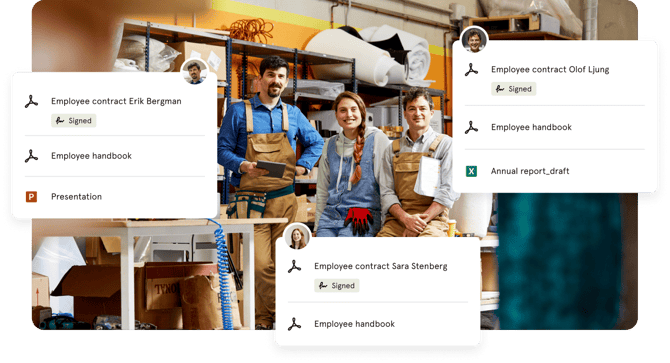
Every document in Huma belongs to a category. Categories make it easier to organise and filter documents. The following categories are available:
- General documents (default)
- Employment contracts
- Salary and compensation
- Agreements and declarations
- Policies and instructions
- Career and professional development
- Deviations and alerts
💡 You cannot create your own document categories in Huma at this time.
Who can be associated with a document
There are three ways a person can be associated with a document in Huma, and it is important to understand the difference:
| Role | Description | Gets access? |
|---|---|---|
| Owner | The person who created or uploaded the document. Has full "See and edit" access and is the only one who can manage access settings, transfer ownership or delete the document. | ✅ Always |
| Regarding | An optional tag indicating who the document is about. The document will appear on that person's profile. | ❌ Not automatically |
| Shared with | People or groups explicitly granted access to the document. Can be given "Only see" or "See and edit" access. | ✅ Yes, explicitly granted |
⚠️ Being tagged as "Regarding" does not give access to the document. Access must always be granted explicitly under "Shared with".
⚠️ If a document owner leaves the organisation and their account is deactivated or deleted, the document will no longer have an active owner. This means no one will be able to manage access, edit settings or delete the document unless ownership is transferred before the account is deactivated.
💡 We strongly recommend transferring document ownership before deactivating or deleting a user account. You can do this in bulk from the People module.
🔗 Read more about document roles and access.
Where to find documents
Documents in Huma can be found in three places:
| Location | What you see |
|---|---|
| Documents module | All documents you have access to |
| Employee profile → Documents tab | All documents shared with or regarding that employee |
| Team, location or company→ Documents tab | All documents shared with that group |
💡 Huma does not support folders. Instead, documents are organised using categories, "Regarding", filters and access settings, making it easy to find the right document without a folder structure.
Filters
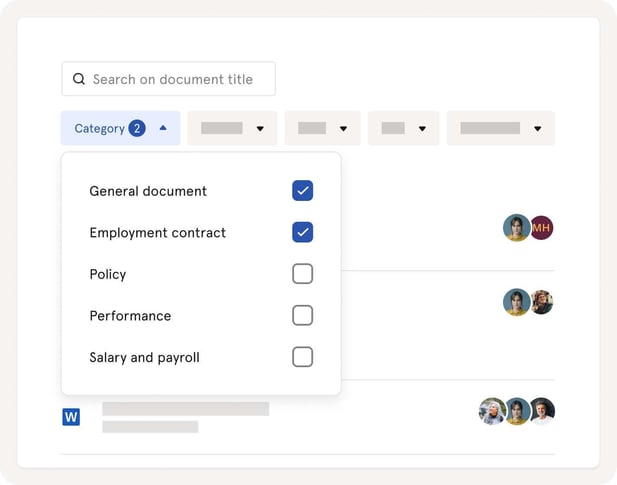
You can filter documents in the Documents module using the following filters:
| Filter | Description |
|---|---|
| Category | Filter by document category |
| Regarding | Filter by the person the document is about |
| Uploaded by | Filter by who uploaded the document |
| Access | Filter by who has access to the document |
| Document type | Filter by file type (PDF, smart document, image etc.) |
| Signing status | Filter by digital signing status |
| Validity status | Filter by validity status (valid, expired, expires soon, not valid yet) |
| Valid on | Filter by documents that are valid on a specific date |
| Archive status | Filter by whether documents are archived or not |
Notifications
Huma sends automatic notifications related to documents in the following situations:
| Event | Who receives it |
|---|---|
| Document uploaded or shared | Users the document is shared with, if they have notifications enabled |
| Smart document created | Users the document is shared with, if they have notifications enabled |
| Document updated | Users the document is shared with, if they have notifications enabled |
| Document ownership transferred | The new owner |
💡 Each notification can be toggled on or off when uploading, creating or updating a document. Employees can also manage their own notification preferences under account settings.
FAQ
Can I create folders in Huma?
No. Huma does not support folders. Instead, use categories, the "Regarding" field and filters to organise and find documents.
Can I create my own document categories?
Not yet. The available categories are predefined by Huma and cannot be changed at this time.
Who can upload documents?
Everyone in Huma can upload files and create smart documents. No special role is required.
Can I see all documents in the organisation?
Only if you have a system role with "List all documents" access. This gives you an overview of all documents, including their name, category and access settings, but not the content. To access the content of a document, you must be explicitly granted access to it.
What is the maximum file size?
10MB per document.