
Table of Contents
- Roles and access
- Set up the handbook
- Add content from a template
- Keeping templates up to date
- Add and manage categories
- Add and manage topics
- Bulk edit topics in a category
- Publish the handbook
- Preview the handbook
- Send notifications
Roles and access
| Access | Role |
|---|---|
| Set up, edit and publish the handbook | System role: Handbook → Handbook management |
💡 Handbook management also gives you access to all handbook settings, including templates, bulk edits, export and import. Employees do not need any role to read published topics shared with them.
Set up the handbook
When you open the Handbook module for the first time, you will be guided through a quick setup. You can choose to start from one of Huma's templates or build the handbook from scratch.
- Go to the Handbook module
- Click "Set up the handbook"
- Choose one or more templates to start with or click "Start without a template"
- Select which topics to include and who should have access
- Click "Add" to import the selected content
- Go through the content, update anything marked in yellow, and add your own categories and topics
- When ready, publish the handbook
💡 You can always add more templates or create content from scratch after the initial setup.
Add content from a template
Huma offers a range of templates created in collaboration with HR professionals. You can add templates at any time, not just during the initial setup.
- Go to the Handbook module
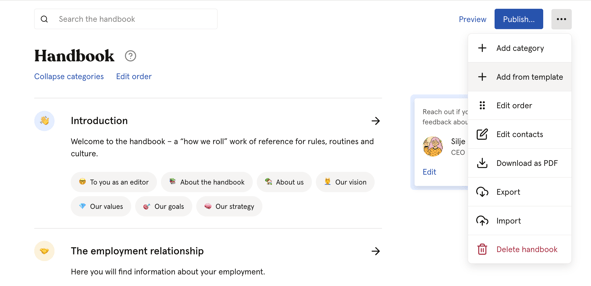
- Click the three dots in the top right corner
- Click "Add from template"
- Select the template and the topics you want to include
- Choose who should have access and click "Add"
Keeping templates up to date
When there is an update, Handbook Administrators will receive a pop-up in their Huma account. You can also check for updates by:
- Open the topic that was imported from a template
- Scroll down to "Connected template"
- Click "Select what to replace" and choose what to update
💡 If you have customised a topic and want to keep your changes, copy your version before updating, then paste it back in for a manual merge.
Add and manage categories
Categories group related topics together. A category is only visible to employees if it contains at least one published topic.
To add a category:
- Go to the Handbook module
- Click "Add category" or "Add handbook category from template"
- Fill in the category name and an optional summary
- Click "Save"
💡 Category summaries are not searchable, so keep them short and use them as a brief introduction to the topics in that category.
⚠️ A category can only be deleted if it contains no topics. Move or delete all topics before deleting a category.
Add and manage topics
Topics are the individual pages of content in your handbook. Each topic can be set to Draft or Published, shared with specific groups, and tagged for easier search.
To add a topic:
- Open the category where you want to add the topic
- Click "Add topic"
- Write your content using the editor
- Set status, access, language and tags
- Click "Save"
Editor tips:
- Mention a person, team or location by typing @ followed by their name — e.g. Contact @Karen if you have questions about vacation
- Add videos by pasting a YouTube or Vimeo URL directly into the editor — the video will display automatically
- Use emojis by adding them as normal. If they does not work, try by typing : followed by the emoji code — e.g. :soap: → 🧼
- Link to a document in Huma by copying the document link from the Documents module and inserting it as a link in the topic
Bulk edit topics in a category
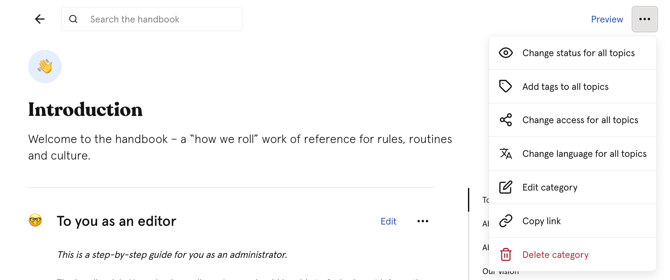
You can change status, access, tags or language for all topics in a category at once.
- Go to the category you want to edit
- Click the three dots ··· in the top right corner of the category
- Choose one of the following:
- Change access for all topics
- Change status for all topics
- Add tags to all topics
- Change language for all topics
- Make your changes and click "Save"
Publish the handbook
Publishing the handbook makes it visible to employees. Until it is published, only handbook administrators can see the content.
- Go to the Handbook module
- Click "Publish handbook" in the top right corner
- Review the overview of published topics and who has access
- Optionally add a notification message to employees
- Click "Publish"
💡 You can also unpublish the handbook at any time by clicking the three dots in the top right corner and selecting "Unpublish handbook". Employees will immediately lose access to all content.
⚠️ Publishing a topic (setting its status to "Published") is not the same as publishing the handbook. A published topic is only visible to employees when the handbook itself is also published.
Preview the handbook
Before publishing, you can preview the handbook to see exactly what employees will see.
- Go to the Handbook module
- Click the three dots in the top right corner
- Click "Preview handbook"
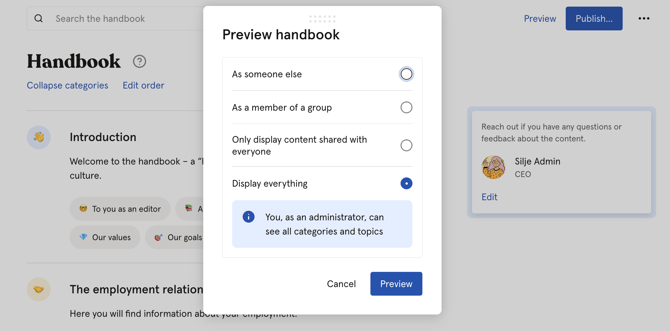
- Choose how to preview:
- Display everything — see all content as an administrator
- Only content shared with everyone — see what employees with no group-specific access see
- As a member of a group — see what members of a specific team or location see
- As someone else — see the handbook through the eyes of a specific employee
Send notifications
You can notify employees when the handbook is published, when a category is updated, or when a specific topic is updated.
- When publishing the handbook — add a notification message in the publish flow
- When publishing a category — open the category and toggle on "Send notification"
- When publishing a topic — open the topic and toggle on "Send notification"
💡 Only employees who have access to the relevant content will receive the notification.