
Table of Contents
- Roles and access
- Prepare a document for signing
- Send a document for signing
- Add signatories
- Add external signatories
- Follow the signing process
- Send a reminder
- Actions on a document sent for signing
- Add your logo as a letterhead
- FAQ
Roles and access
| Access | Role |
|---|---|
| Send documents for digital signing | System role: Documents → Digital signing, and "See and edit" access to the document |
| Sign a document | No role required — signatories receive a link by email |
Prepare a document for signing
Before sending a document for signing, make sure the following is in place:
- The document is a PDF file or a smart document — other file types are not supported
- You have "See and edit" access to the document
- You have the "Digital signing" system role
- If the document should appear on an employee's profile after signing, the "Regarding" field is set to that employee
💡 If you are using a smart document, make sure all smart fields are filled in and the document is saved before sending it for signing. Once sent, the document is locked and cannot be edited.
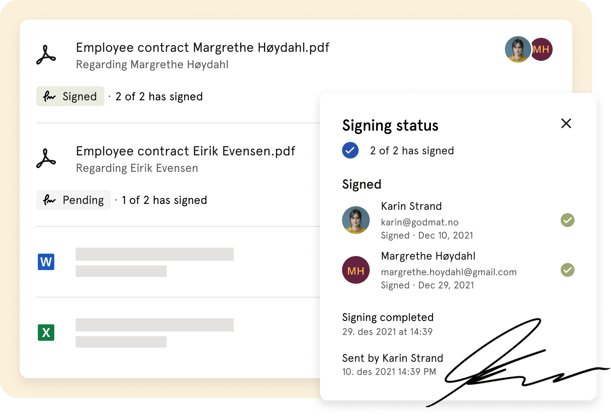
Send a document for signing
From an existing document:
- Go to the Documents module and open the document
- Click "Send for signing" in the right panel
- Fill in the signing details (see below)
- Click "Send for signing"
When uploading a new document:
- Go to the Documents module and click "Add document"
- Upload a PDF file
- Toggle on "Send for signing" and click "Setup signing"
- Fill in the signing details (see below)
- Click "Send for signing"
When setting up signing, fill in the following:
| Field | Description |
|---|---|
| Name of document | The name shown to signatories in the signing email |
| Due date | The deadline by which all signatories must sign |
| Language | Controls the language of the emails sent to signatories and the verification certificate added to the signed PDF |
| Invitation message | Optional. A personal message added to the signing invitation email |
| Confirmation message | Optional. A message added to the confirmation email sent after signing |
Add signatories
You can add both internal users from Huma and external signatories who are not in your Huma account.
People who already have "See and edit" or "Only see" access to the document are automatically added as signatories. You can remove them if they should not sign.
To add additional internal signatories:
- Search for the person under "Signatories in Huma"
- Select them from the list
- They will receive a signing invitation by email
💡 You can add yourself as a signatory if you also need to sign the document.
⚠️ You cannot change the list of signatories after the document has been sent for signing. If you need to add or remove someone, you must withdraw the signing process and restart it.
Add external signatories
You can add signatories who are not registered in your Huma account, for example a client, a candidate or an external partner.
- Follow steps above to set up for signing
- Click "Add external signatory"
- Fill in their given name, family name and email address
- Click "Add"
💡 External signatories receive the same email invitation as internal ones and can sign the document without a Huma account.
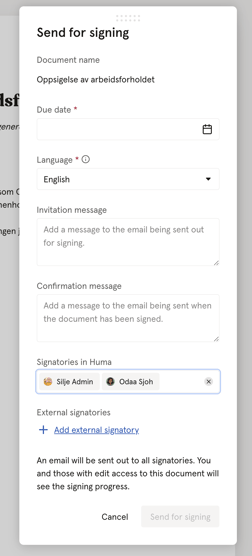
Follow the signing process
Once the document is sent, you can follow the signing progress directly in the document.
- Open the document in the Documents module
- The signing panel on the right shows the current status, the signing deadline and which signatories have signed
💡 You can also filter the Documents module by "Signing status" to get an overview of all documents with a pending, signed, rejected or timed out signing process.
🔗 Read more about signing statuses in Digital signing in Huma.
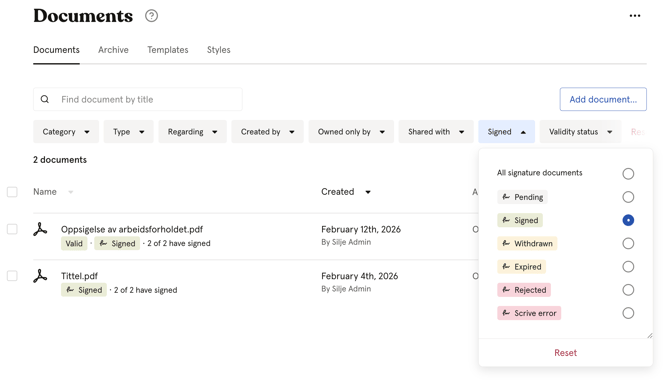
Send a reminder
If a signatory has not yet signed, you can send them a manual reminder.
- Open the document and click "View details" in the signing panel
- Find the signatory who has not yet signed
- Click "Send reminder" next to their name
💡 The reminder shows the date the last reminder was sent, so you can avoid sending too many.
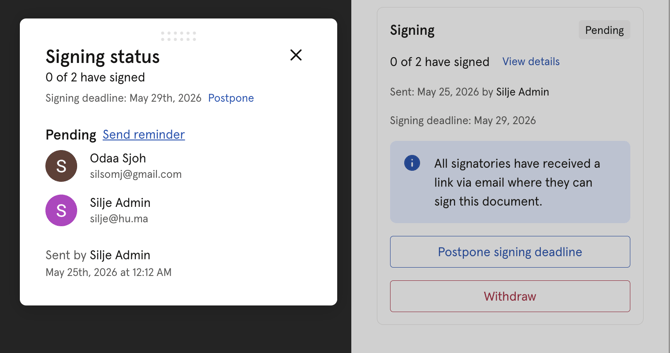
Actions on a document sent for signing
Depending on the current signing status, the following actions are available:
| Action | When available | What it does |
|---|---|---|
| Postpone deadline | Pending | Extends the signing deadline. Signatories who have not yet signed will receive a new invitation. Signatures already collected remain valid. |
| Withdraw | Pending | Cancels the signing process. The signing link becomes invalid for all signatories. |
| Restart signing | Rejected, Timed out or Withdrawn | Starts a new signing process for the document. |
| Remove signing | Rejected, Timed out or Withdrawn | Removes the signing process entirely, turning it back into a regular document. |
⚠️ Withdrawing a signing process cannot be undone. All signatories will lose access to the signing link and the process must be restarted from scratch.
Add your logo as a letterhead
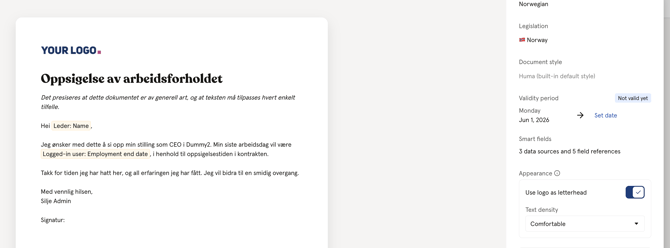
With a Premium subscription, you can add your company logo as a letterhead to documents sent for signing.
- Open the document in the Documents module
- In the right panel, toggle on "Use logo as letterhead"
- Send the document for signing as normal
💡 Your logo must already be uploaded in Huma before you can use it as a letterhead. You can upload it under System settings → your organisation settings.
🔗 Read more about system settings in Huma.
FAQ
Can I send the same document to multiple signatories at once?
Yes. You can add as many signatories as needed, both internal and external. All signatories receive the signing invitation at the same time.
Do signatories need a Huma account to sign?
No. External signatories only need access to the email invitation. They can sign the document from any device without logging in to Huma.
Can I edit the document after it has been sent for signing?
No. Once a document is sent for signing, it is locked and cannot be edited. Withdraw the signing process first, make your changes, and restart signing.
What happens if the signing deadline passes?
The signing status changes to "Timed out". You can either postpone the deadline, in which case signatories who have already signed do not need to sign again, or withdraw and restart the process.
Can I download the signed document?
Yes. Once all signatories have signed, the document can be downloaded directly from the Documents module. The signed PDF includes a verification certificate from Scrive.
Is BankID or other strong authentication supported for signing?
No. Digital signing in Huma uses standard electronic signatures powered by Scrive. BankID and other strong authentication methods are not currently supported.
Does a signed document automatically appear on the signatory's profile?
No. When a document is sent for signing, it stays in the Documents module where it was created. It does not automatically move to or appear on the signatory's profile in Huma. If you want the signed document to be accessible from a specific employee's profile, you need to manually fill them in as "Regarding."