
Table of Contents
- Roles and access
- Templates created by Huma
- Create your own template
- Edit a template
- Rename a template
- Duplicate a template
- Delete a template
- Import and export templates
Roles and access
| Access | Role |
|---|---|
| Create, edit and delete offboarding templates | System role: Onboarding, offboarding and processes → Onboarding and offboarding template management |
| Use a template when starting an offboarding | User role: Miscellaneous → Onboarding and offboarding |
Templates created by Huma
Huma provides ready-made offboarding templates that you can use as-is or as a starting point for your own templates. You will find them under the Templates tab in the Offboarding module, listed under "Offboarding templates created by Huma".
Templates are available in multiple languages and can be filtered by language and legislation.
💡 You cannot edit Huma's templates directly. Use them as a starting point by duplicating them and customising the copy.
Create your own template
Templates consist of tasks organised into three phases:
| Phase | Description |
|---|---|
| Before last day of work | Tasks to complete before the employee's last day |
| Last day | Tasks for the employee's last day |
| After last day of work | Follow-up tasks after the employee has left |
To create a new template:
- Go to the Offboarding module
- Navigate to the "Templates" tab
- Click "Add offboarding template"
- Choose "New template", "Import from file" or select a Huma template as a starting point
- Give the template a name and click "Add"
- Add tasks to each phase, and fill in details such as title, description, due date and who the task should be assigned to
- The template saves automatically. Click "Templates" to exit editing mode.
💡 When adding tasks, you can assign them to specific roles such as the departing employee, their supervisor or a specific person. This makes it easy to distribute responsibilities automatically when an offboarding is started.
⚠️ Changes to a template will not affect offboardings that have already been started. Only future offboardings will use the updated template.
Edit a template
- Go to the Offboarding module → Templates tab
- Click on the template you want to edit
- Add, edit or remove tasks as needed
- All changes are saved automatically.
Rename a template
- Go to the Offboarding module → Templates tab
- Click the template you want to edit
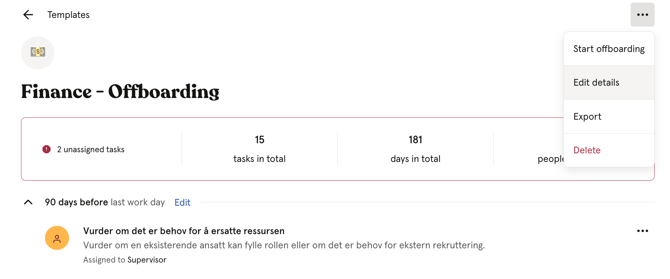
- Navigate to the three dots located in the top right corner
- Click "Edit details"
- Enter a new name and confirm
Duplicate a template
- Go to the Offboarding module → Templates tab
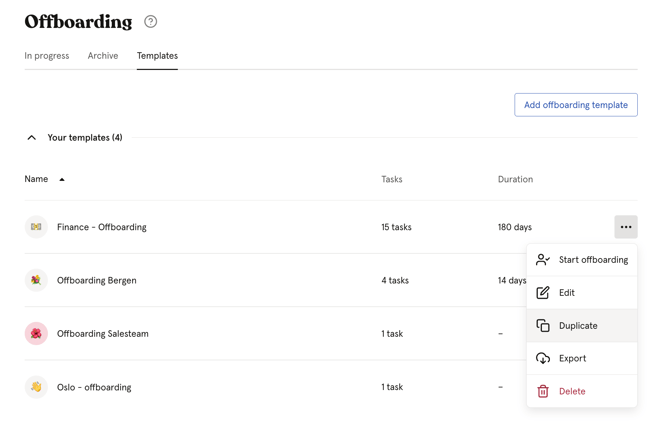
- Click the three dots next to the template
- Click "Duplicate"
- Give the duplicate a new name and start modifying it
💡 Duplicating is a great way to create variations of an existing template, for example different offboarding plans for different departments or roles.
Delete a template
- Go to the Offboarding module → Templates tab
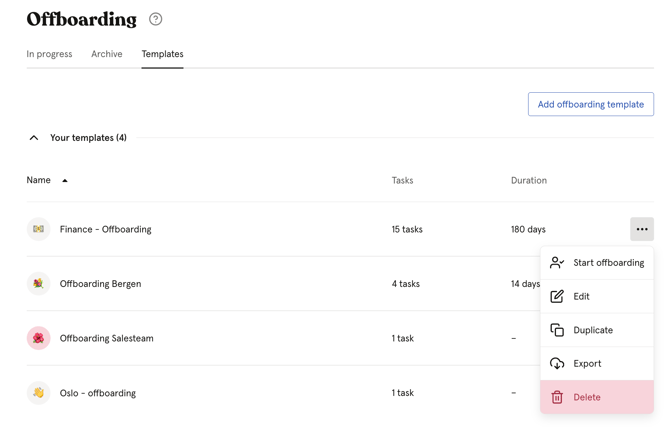
- Click the three dots next to the template
- Click "Delete" and confirm
⚠️ Deleting a template cannot be undone. Deleting a template will also not affect offboardings that have already been started using that template.
Import and export templates
You can import and export offboarding templates, which is useful for sharing templates between organisations or keeping backups.
Export:
- Go to the Offboarding module → Templates tab
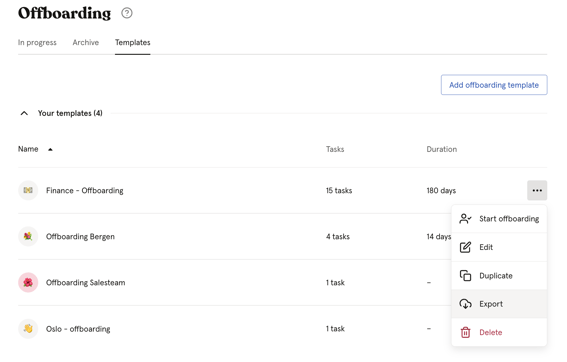
- Click the three dots next to the template
- Click "Export"
- The file will be saved as a .json file on your computer.
Import:
- Go to the Offboarding module → Templates tab
- Click "Add offboarding template"
- Choose "Import from file (.json)"
- Upload your file and click "Add"
💡 You can import multiple files at once. Maximum file size is 10MB. Only templates created and exported from Huma can be imported.
💡Note that if you import an onboarding template into offboarding, it will technically work but the tasks may not fit the purpose.