
Table of Contents
- Read this first
- Roles and access
- What is Open API
- Where to find it
- Create an API key
- Manage API keys
- Authentication
- API documentation
- FAQ
📖 Read this first
Before you create an API key, read API key roles and access. It explains step by step how to create a key and give it the access it needs.
🔗 Read API key roles and access.
Roles and access
| Role | Access |
|---|---|
| Administrators with access to System settings | Can create, edit, deactivate, and delete API keys |
To connect a system to the Open API, an API key needs roles. The roles decide what the key can read and change in Huma, and giving a key roles requires its own system role.
🔗 See Roles in Huma to learn more about how roles work.
What is Open API
Open API is Huma's REST API. It lets you fetch and update data in Huma programmatically, from your own systems or integrations.
Open API works differently from webhooks. With webhooks, Huma sends data to you automatically whenever something changes. With Open API, you fetch or send data yourself, whenever you want.
🔗 See Webhooks to learn more about how automatic updates from Huma work.
Where to find it
You'll find Open API by
-
Going to "System settings"
-
Then "Open API" in the left menu.
⛓️💥 API documentation: https://openapi.humahr.com/redoc/index.html.
Create an API key
- Go to "System settings" and "Open API"
- Click "Add API key"
- Give the key a name, and optionally add a description
- Click "Save"
- Once the key is created, the Client ID and Client secret are shown.
- ⚠️ Make sure to store the client secret somewhere safe.
- Close the window. The key opens in the list, so you can give it access right away
⚠️ Make sure to store the client secret somewhere safe, as you won't be able to see it again. Protect your API key, as anyone who has it can read or change your organisation's data. If you lose your client secret, you'll need to create a new API key.
⚠️ A new API key has no access. It can't read or change anything until you give it at least one role.
🔗 Read API keys and access to learn how to give the key access.
Manage API keys
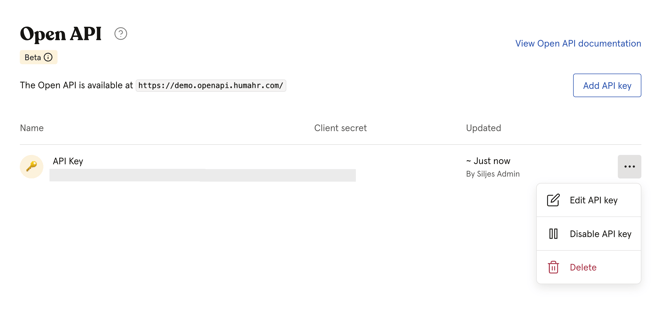
You can have several API keys at the same time. Click the three dots next to a key to:
-
Edit API key - Change the name, icon and description of an existing key.
-
Disable API key - The key is deactivated immediately, but it keeps its roles. You can enable it again by clicking the same place.
-
Delete - ⚠️ This API key will be deleted immediately and cannot be restored. Any requests made with it will be rejected, which may disrupt systems that depend on access to the Open API.
Authentication
OAuth2 Client Credentials: How to Get and Use an Access Token
This guide shows how to authenticate using OAuth2 with the client_credentials grant and use the resulting access token with Huma's API.
🔑 Token endpoint: https://demo.openapi.humahr.com/auth/oauth/token.
Overview
-
Grant type: client_credentials
-
Inputs: client_id, client_secret (issued by Huma)
-
Output: JSON with access_token, token_type (Bearer), expires_in (seconds)
-
Usage: Send the token in the Authorization: Bearer <token> header with API requests
Prerequisites
You have a client_id and client_secret from Huma. Keep these credentials secure.
Environment variables
For convenience, set the token endpoint once and reuse it in commands:
export TOKEN_URL="https://demo.openapi.humahr.com/auth/oauth/token"
Requesting a Token
Using curl — application/x-www-form-urlencoded
Request a token using application/x-www-form-urlencoded body:
# Replace the placeholders with your real credentials
CLIENT_ID="your-client-id"
CLIENT_SECRET="your-client-secret"


curl -sS \
 -X POST "${TOKEN_URL}" \
 -H "Content-Type: application/x-www-form-urlencoded" \
 --data-urlencode "grant_type=client_credentials" \
 --data-urlencode "client_id=${CLIENT_ID}" \
 --data-urlencode "client_secret=${CLIENT_SECRET}"
Using curl — application/json
Request a token using application/json body:
CLIENT_ID="your-client-id"
CLIENT_SECRET="your-client-secret"

curl -sS \ -X POST "${TOKEN_URL}" \
 -H "Content-Type: application/json" \
-d "{\"grant_type\":\"client_credentials\",\"client_id\":\"$CLIENT_ID\",\"client_secret\":\"$CLIENT_SECRET\"}" 💡Note: The server supports both application/x-www-form-urlencoded and application/json content types for the token request. Choose the one that fits your tooling.
A successful response will look like:
{
   "token_type": "Bearer",
   "access_token": "eyJhbGciOi...",
   "refresh_token": "def50200...",
   "expires_in": 3600
}
Using the Access Token
Include the token in the Authorization header of your API requests:
ACCESS_TOKEN="eyJhbGciOi..." # from the token response


curl -sS \
   -H "Authorization: Bearer ${ACCESS_TOKEN}" \
   -H "Accept: application/json" \
   "https://demo.openapi.humahr.com/users"
Reference
⛓️💥 OAuth 2.0 (RFC 6749), Section 4.4: Client Credentials Grant
⛓️💥 OAuth 2.0 (RFC 6749), Section 6: Refreshing an Access Token
API documentation
Click "View Open API documentation" on the Open API page to see full technical documentation directly in Huma, with details on endpoints, request and response formats, data types, and error codes.
You can choose between two display formats:
- Redoc — a readable overview of all endpoints
- Swagger — an interactive format where you can test requests directly
💡 You can also click "Open in a new window or tab" to view the documentation in a separate window.
The documentation is organised into resource groups, including Authentication, Group, Holiday, Job Title, Position, User, User Child, User Emergency Contact, and User Identification.
⛓️💥 API documentation: https://openapi.humahr.com/redoc/index.html.
FAQ
How do I get access to Open API?
Go to System settings → Open API and click "Add API key". You need administrator access to System settings. Then give the key the roles it needs. Read API keys and access to learn how.
What happens if I lose my client_secret?
You can't retrieve it again. You'll need to create a new API key.
What's the difference between deactivating and deleting an API key?
Deactivating is reversible and you can activate the key again later. Deleting is immediate and permanent, and any requests made with the deleted key will be rejected.
What's the difference between Open API and webhooks?
Webhooks send data to you automatically when something happens in Huma. Open API lets you fetch or send data yourself, whenever you want, by making requests to the API.
What's the difference between Redoc and Swagger in the documentation?
Redoc gives a readable overview of the endpoints. Swagger lets you test requests directly within the documentation view.