
Table of Content
The four role types
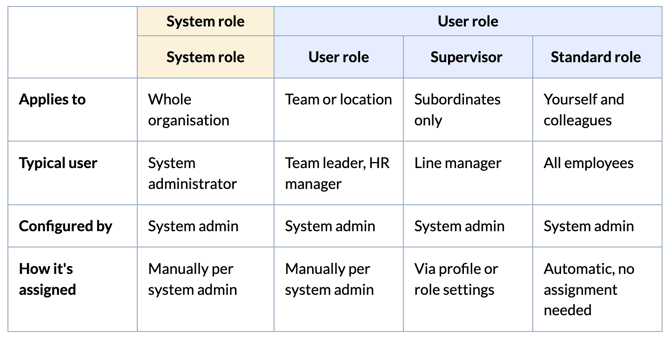
Huma uses a flexible role-based system to protect privacy and control what each user can access and manage. There are four types of roles, each working at a different level of the organisation.
System roles
A system role gives access to organisation-wide settings and admin functions. Unlike user roles, system roles apply across the entire organisation, not just a specific team or location.
Because of the level of control and insight this role provides, we recommend being selective about who you assign it to.
Within system roles you will find the following predefined roles:
-
System admin — locked role to manage all system functions and permissions.
-
Deviation handler — locked role to follow up reports from deviation reporters.
-
Whistleblower handler — locked role to follow up reports from whistleblowers.
💡 At least one user must hold a system role at all times. You cannot remove a system role from a user if they are the last person assigned to it.
💡 Having a system role does not automatically give you access to employee profiles or documents. Managing employee data requires a user role with "see and edit" permission, and document access must be granted explicitly by the document owner.
User roles
User roles are granted within specific teams or locations, and control what a person can see and do on members' profiles in that group. A user can hold several user roles simultaneously and their permissions will be combined across all roles.
Within user roles you will find the following predefined roles:
-
Manager — the default role for managing members of teams and locations. Lets you view and edit profiles, absence, tasks, and more — but only for employees in your group.
-
Payroll manager — the default role for managing payroll information for members of teams and locations.
💡If a user is assigned a role over a group, they do not need to be a member of that group themselves. When a user is assigned a new role, they will be notified by email.
Supervisor (user role)
The supervisor role controls what a line manager can see and do on their subordinates' profiles specifically. It is assigned by a system admin, either through the employee's profile or via the supervisor role settings, and is automatically applied when someone is designated as a supervisor.
Supervisors have access to the following on their subordinates' profiles:
- Absence
- Onboarding and offboarding
- Processes
- Competence
- Jubilees
💡Huma does not allow circular chains of supervisors. People supervised by a person, directly or indirectly, are therefore not available when picking a new supervisor for that person.
🔗 Read our full guide to the supervisor role in Huma.
Standard roles (user role)
Standard roles are a type of user role that apply to everyone automatically and no manual assignment needed. They are configured by a system admin and set the baseline for what all users can see and do, both on their own profile and on their colleagues'.
There are two dimensions to standard roles:
-
On their own profile — what everyone can see and manage on their own profile.
-
On other people's profiles — what everyone can see and manage on their colleagues' profiles.
Overview of roles per user
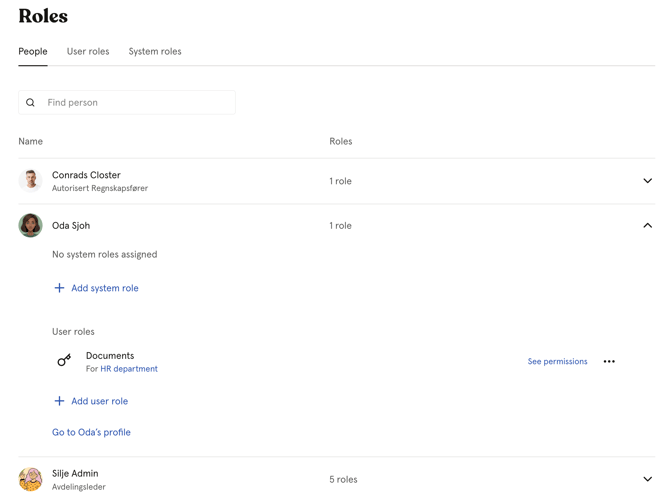
To get a complete picture of who has access to what in your organisation, Huma provides a dedicated overview of all users and their assigned roles. This is especially useful for leaders and system admins who need to stay on top of access control.
- Go to "System settings"
- Click "Roles"
- Navigate to the "People" tab
- Click on a user to see all roles assigned to them
Customising roles
All roles in Huma, except locked ones, can be edited to fit your organisation's needs. You can also create new roles from scratch or delete ones you no longer need.
🔗 Learn how to manage roles in Huma.