
Table of Contents
- Roles and access
- What is the Surveys module?
- eNPS vs Custom survey
- Anonymity
- Survey statuses
- Notifications and reminders
- FAQ
Roles and access
| Access | Role |
|---|---|
| Create, manage and view all surveys and results | System role: Surveys |
| Exclude or include employees from surveys | System role: Surveys or User role: Surveys — granted over the relevant groups |
💡 Employees do not need a role to respond to a survey. To receive a survey, an employee must be included in the recipient selection, have an active position at the time the run is sent, be invited or be logged in to Huma to respond.
What is the Surveys module?
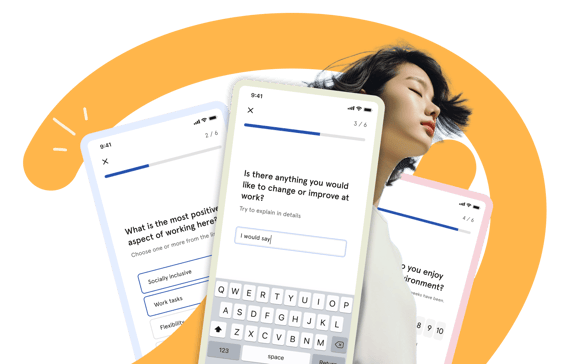
The Surveys module lets you measure employee satisfaction, gather feedback and track engagement across your organisation, all in one place. You can run recurring pulse surveys to monitor trends over time, or send one-off surveys to collect targeted feedback on a specific topic.
All employees invited to a survey respond directly in Huma or via a link sent by email. Responses are collected and displayed as results in real time as they come in.
eNPS vs Custom survey
Huma supports two types of surveys:
| eNPS | Custom survey | |
|---|---|---|
| Purpose | Measure employee satisfaction and loyalty | Collect feedback on any topic you define |
| Questions | One fixed question — "On a scale from 0 to 10, how likely are you to recommend this company as a place to work?" | Up to 100 questions with 6 question types |
| Frequency | Always recurring | One-time or recurring |
| Results | eNPS score with breakdown into Promoters, Passives and Detractors | Charts and summaries per question, with optional AI analysis |
| Anonymous | Always anonymous | Configurable — can be anonymous or not |
🔗 Read more about how to create and manage an eNPS survey.
🔗 Read more about how to create and manage a Custom survey.
Anonymity
For eNPS surveys, responses are always anonymous. For custom surveys, you can choose whether responses are anonymous or linked to individual respondents.
When a survey is anonymous, a minimum of 5 respondents is required before a run can be sent. This ensures that individual responses cannot be identified. If the number of recipients falls below 5, the survey run will not be created and you will receive a notification.
💡 The anonymity setting on a custom survey cannot be changed after the survey has been published.
Survey statuses
A survey can have the following statuses:
| Status | What it means |
|---|---|
| Draft | The survey has been created but not yet published |
| Published | The survey is published and scheduled — waiting for the next run to start |
| Active | A survey run is currently open and accepting responses |
| Paused | The survey has been paused — the current run continues until the response period ends, but no future runs will be scheduled |
| Completed | The survey has finished all its runs and is no longer active |
Notifications and reminders
| Event | Who receives it |
|---|---|
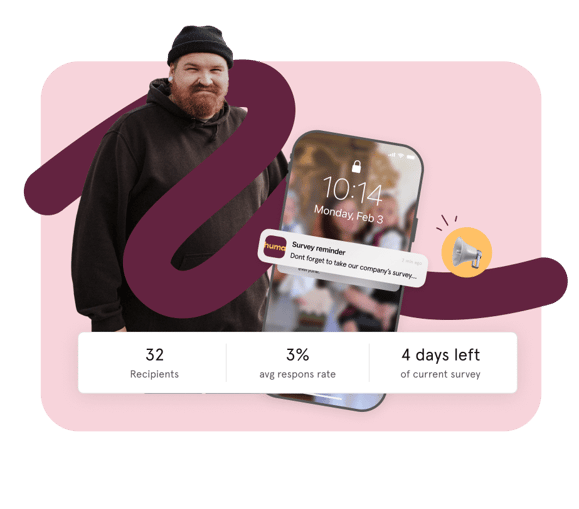
| Survey run started | All recipients receive an email invitation with a link to respond |
| Reminder — halfway through response period | Recipients who have not yet responded |
| Reminder — before response period ends | Recipients who have not yet responded |
| Survey run completed | The survey administrator |
| Survey run not created — too few recipients | The survey administrator |
💡Recipients have 7 days to respond from the time a survey run is sent. After this, the run closes and no more responses are accepted.
FAQ
Can I see who responded to a survey?
For anonymous surveys, individual responses are never linked to a specific person. For non-anonymous custom surveys, you can see which respondents submitted each answer.
Can I pause a survey?
Yes. You can pause a survey at any time. The current open run will remain open for the rest of its response period, but all future scheduled runs will be cancelled. You can resume the survey at any time to start scheduling runs again.
Can I extend the response period after a survey has been sent?
No. The response period cannot be changed after a run has been sent. If you need more time, you can pause the survey and resume it later to send a new run.
Can I export survey results to Excel or CSV?
No. Huma does not currently support direct export of raw survey data. You can view and analyse results directly in Huma, or use the AI Analytics feature to get a summary of open-ended responses. If you need to save the results, you can print the results page as a PDF from your browser.
Can I duplicate a survey?
Yes. You can duplicate any existing survey to use it as a starting point for a new one. The duplicate includes all settings and questions, but starts as a draft.
Can I give someone read-only access to survey results without letting them create or edit surveys?
Yes. In System settings → Roles, you can assign a role with the "Surveys: Only see" permission (surveys:red). This gives the user access to view surveys and results, but not to create, publish or edit them.