
Table of Contents
- Roles and access
- What is an API key?
- Create an API key
- Give an API key access
- Remove access from an API key
- API keys created before September 2026
- Manage API keys
- Next step: connect your system
- FAQ
Roles and access
| Access | Role |
|---|---|
| Create, edit, disable and delete API keys | System role: Organization → Organization-wide settings |
| Give API keys access and remove it | System role: Roles → Role and permission management |
💡 Open API has to be included in your organisation's subscription.
🔗 See Roles in Huma to learn more about how roles work.
What is an API key?
An API key lets another system connect to Huma through the Open API. Each key has a Client ID and a Client secret. The other system uses them to sign in.
An API key gets access the same way a person does, through roles. You decide which roles each key has and who the key has access over. This means you can give each system only the access it needs.
💡 Give each key as little access as possible. A system that only reads job titles doesn't need access to salary or absence.
🔗 Read more about the Principle of Least Privilege.
🔗 See Open API to learn how to authenticate and where to find the API documentation.
Create an API key
- Go to "System settings"
- Click "Open API" in the left menu
- Click "Add API key"
- Give the key a name. You can also choose an icon and add a description
- Click "Save"
- The Client ID and Client secret are shown. Copy the Client secret and store it somewhere safe
- Close the window. The key opens in the list, so you can give it access right away
⚠️ Note
-
You won't be able to see the Client secret again. Anyone who has the key can read or change your organisation's data, so keep it protected. If you lose the Client secret, you have to create a new API key.
-
A new API key has no access. It can't read or change anything until you give it at least one role.
* All API keys shown in the video are deleted, and does not exist.
Give an API key access
You can give an API key access from the Open API page or from Roles.
From the Open API page
- Go to "System settings" and "Open API"
- Click the key in the list to open it
- Click "Add system role" or "Add user role"
- Pick the role you want the key to have
- For a user role, choose who the key should have access over, either "Everyone" or "Members of groups" (specific teams, locations or companies)
- Click "Grant access"
From Roles
- Go to "System settings" and click "Roles"
- Open the "API keys" tab to see every key and its roles
- Click a key, then click "Add system role" or "Add user role"
- Follow steps 4–6 above
💡 Note
-
You can also go to "User roles" or "System roles", open a role and click "Add grant". Under "The following API keys", pick one or more keys. You can give the same role to people and API keys at the same time.
-
The list on the Open API page shows how many roles each key has.
-
Click "See permissions" on a role to check what it gives access to before you grant it.
🔗 Read more about how to manage roles in Huma.
Remove access from an API key
- Go to "System settings" and "Open API", or go to "Roles" and the "API keys" tab
- Click the key to open it
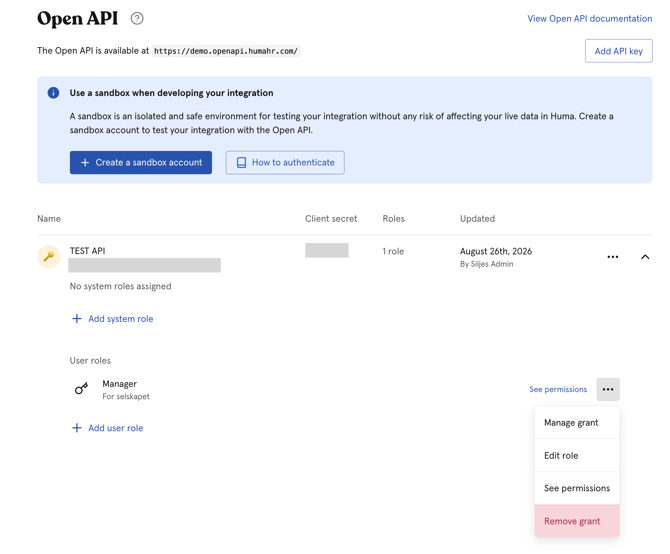
- Click the three dots next to the role you want to remove
- Click "Remove grant" and confirm
⚠️ The change takes effect straight away. If the key loses access that a connected system relies on, that system's requests will be rejected. If you remove a key's last role, the key can't read or change anything.
API keys created before September 2026
Before this change, every new API key was automatically given the Manager role over Everyone. Existing keys keep this role.
We recommend that you go through your existing keys:
- Go to "System settings" and "Open API"
- Click each key to see its roles
- Give the key the roles it needs
- Remove the Manager role if the key doesn't need it
⚠️ Add the new roles before you remove Manager. That way, the connected system doesn't lose access in between.
🔗 See Roles in Huma to see what the Manager role gives access to.
Manage API keys
You can have several API keys at the same time. Click the three dots next to a key to:
- Edit API key — Change the name, icon and description
- Copy Client ID — Copy the key's Client ID to your clipboard
- Disable API key — The key stops working immediately. Its roles are kept. Click "Enable API key" to turn it back on
- Delete — ⚠️ The key is deleted immediately and can't be restored. Any requests made with it will be rejected, which may disrupt systems that depend on the Open API
💡 A disabled key is shown with its name struck through, both in the list and on the "API keys" tab under Roles.
Next step: connect your system
When your API key has the access it needs, you're ready to connect your system to Huma.
- Use the Client ID and Client secret to get an access token
- Send the access token with each request to the Open API
- Check the API documentation to find the endpoints your system needs
💡 Use a sandbox account while you build and test your integration. You'll find the "Create a sandbox account" button on the Open API page.
🔗 Read Open API to learn how to authenticate and where to find the API documentation.
FAQ
Why can't my new API key read or change anything?
A new key has no access until you give it a role. Open the key on the Open API page and click "Add system role" or "Add user role".
Does my existing API key still work?
Yes. Keys created before September 2026 keep the Manager role over Everyone. You can adjust their access at any time.
Is the API key notified when it gets a new role?
No. People get an email when they're given a role, but API keys don't.
Can I give the same role to several API keys at once?
Yes. Go to "Roles", open the role, click "Add grant" and pick several keys under "The following API keys".
What happens if I lose the Client secret?
You can't retrieve it again. Create a new API key, give it the same roles, and delete the old one.
What's the difference between disabling and deleting an API key?
Disabling can be undone, and the key keeps its roles. Deleting is permanent, and any requests made with the key are rejected.