
Table of Contents
- Roles and access
- What is a document template?
- The template library
- Templates in the library
- Create a template
- Template settings
- Use a template
- Edit a template
- Create a template based on an excisting one
- Export and import templates
- Delete a template
- FAQ
Roles and access
| Access | Role |
|---|---|
| Create, edit and delete templates | System role: Documents → Smart templates and styles |
| Use a template to create documents | All employees — no role required, as long as the template has been shared with them |
💡 People with access to a template can use it to create documents. They cannot edit the template itself unless they have the "Smart templates and styles" system role.
What is a document template?
A document template is a reusable smart document that serves as a starting point for creating new documents. Instead of writing the same structure from scratch each time, you create a template once and use it whenever you need a new document of that type.
Templates save time, ensure consistency across the organisation, and can include smart fields that automatically fill in employee information when a document is created. You can use them as a simple blank structure without smart fields, or build fully automated templates that personalise each document based on data already in Huma.
🔗 Read more about smart documents.
🔗 Read more about how to write and edit a smart document.
The template library
The template library contains ready-made templates provided by Huma and partners. You will find it by clicking "Template library" in the top right corner of the Templates tab in the Documents module.
From the library you can preview a template before adding it, add it to your own templates to customise it, or use it directly to create a document.
💡 Templates in the library cannot be edited directly. When you add a library template to your own templates, a copy is created that you can modify freely.
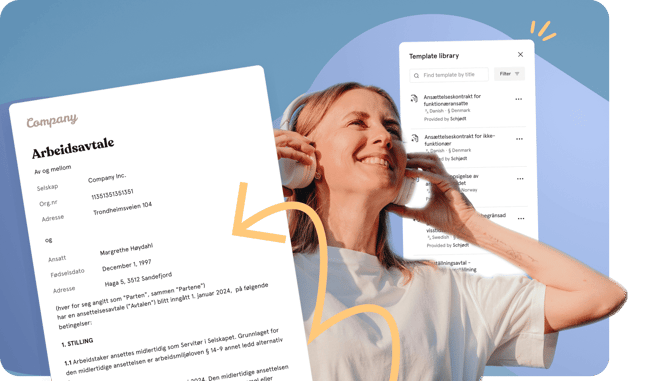
Templates in the library
The library currently includes the following templates:
| Template | Languages | Provided by |
|---|---|---|
| Employment contract — Regular employment | Norwegian, English | Schjødt |
| Employment contract — Key employee | Norwegian, English | Schjødt |
| Employment contract — Fixed-term employment | Swedish | Schjødt |
| Employment contract — Salaried employees | Danish, English | Schjødt |
| Employment contract — Non-salaried employees | Danish, English | Schjødt |
| Avtale om hjemmekontor | Norwegian | Schjødt |
| Standard arbeidsavtale (Arbeidstilsynet) | Norwegian | Huma |
| Employment contract (Tyosuojelu) | English, Finnish | Huma |
| Ansatt — oppsigelse av arbeidsforholdet | Norwegian | Huma |
| Oppsigelse av ansatt | Norwegian | Huma |
| Skriftlig advarsel / Written warning | Norwegian, Finnish | Huma |
| Sluttattest (eksempel) | Norwegian | Huma |
| Arbetsgivarintyg (exempel) | Swedish | Huma |
| Avtal om hemarbete | Swedish | Huma |
| Bilavtale servicebil | Norwegian | Huma |
| Egenerklæring HMS | Norwegian | Huma |
💡Schjødt is a leading Scandinavian law firm. Their templates are legally reviewed employment contracts and agreements tailored to Norwegian, Swedish and Danish legislation.
💡 The library is updated regularly as new templates are added. Templates can be filtered by language and legislation to find the ones most relevant to your organisation.
Create a template
There are four ways to create a new template:
1. Start from scratch
- Go to the Documents module
- Navigate to the "Templates" tab
- Click "Add template"
- Choose "New smart template"
- Fill in the template settings (see below) and click "Create"
- The template editor opens, write and format your template content
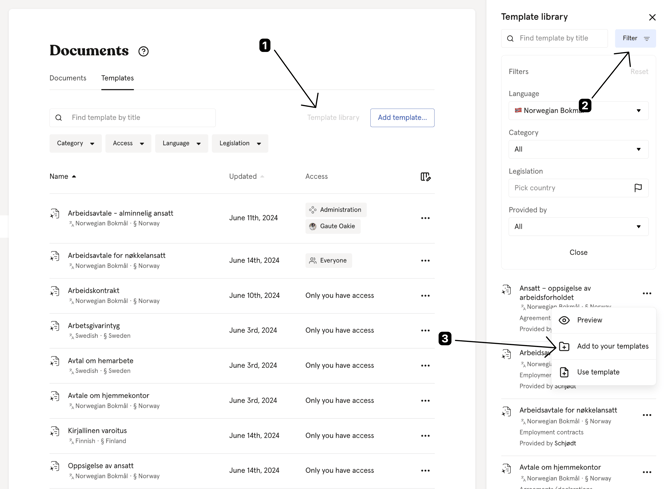
2. Based on a library template
- Go to the Documents module → Templates tab
- Click "Template library"
- Find the template you want and click "Add to our templates"
- Review and adjust the settings and click "Create"
- The template is added to your templates and can be edited freely
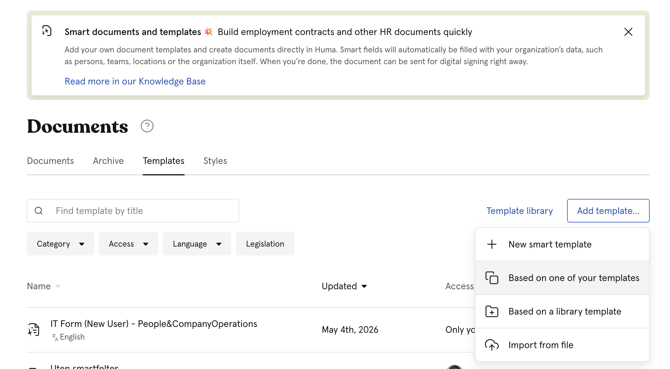
3. Based on one of your own templates
- Go to the Documents module → Templates tab
- Click "Add template"
- Choose "Based on one of your templates"
- Select the template you want to base the new one on
- Adjust settings and click "Create"
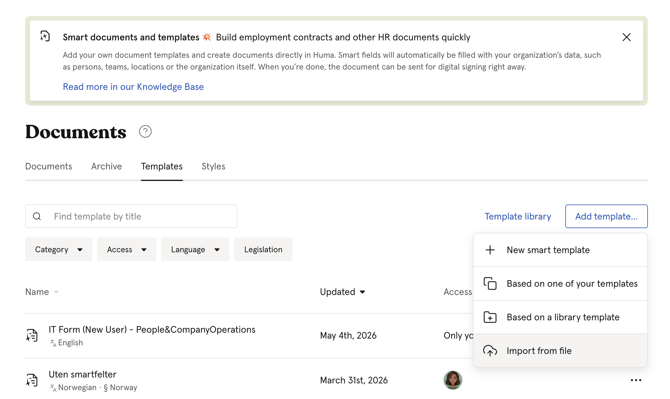
4. Import from file
- Go to the Documents module → Templates tab
- Click "Add template"
- Choose "Import from file"
- Upload the exported template file
Template settings
When creating or editing a template, you can configure the following:
| Setting | Description |
|---|---|
| Name | The name of the template |
| Description | An optional description shown when choosing a template |
| Category | The document category, for example "Employment contract" or "Policy / instructions" |
| Access | Who can use the template to create documents |
| Language | The language of the template content |
| Legislation | The country legislation the template applies to |
| Document style | Optional. Select a document style to apply when documents are created from this template |
💡You can share a template with specific people, members of teams, locations or companies, or everyone in the organisation.
💡 Sharing a template with everyone means all employees can use it to create documents, but they cannot edit the template itself.
Use a template
To create a new document from a template:
- Go to the Documents module
- Click "Add document"
- Choose "Create a smart document"
- Select a template from the list, or start with a blank document
- Fill in document details and click "Create"
You can also use a template directly from the Templates tab by clicking the three dots next to it and selecting "Use template".
Edit a template
- Go to the Documents module → Templates tab
- Click on the template you want to edit
- The template editor opens, make your changes and click "Save"
To edit the template settings (name, access, language etc.):
- Open the template
- Click "Template settings" in the right panel
- Update the settings and click "Save"
⚠️ Changes to a template do not affect documents that have already been created from it. Only new documents will use the updated template.
Create a template based on an existing one
If you want to create a variation of an existing template, for example a version for a different country or role, you can use one of your own templates as a starting point.
- Go to the Documents module → Templates tab
- Click "Add template"
- Choose "Based on one of your templates"
- Select the template you want to base the new one on
- Give it a new name, adjust settings if needed, and click "Create"
- The template editor opens with the content from the original template — make your changes and click "Save"
💡 The original template is not affected. You are creating a new, independent template based on its content.
Export and import templates
You can export templates to share them between organisations or keep backups.
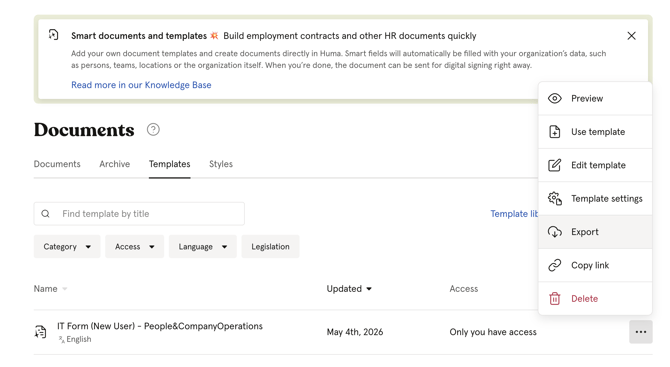
Export:
- Go to the Documents module → Templates tab
- Navigate to the template you want to export
- Click the three dots
- Click "Export"
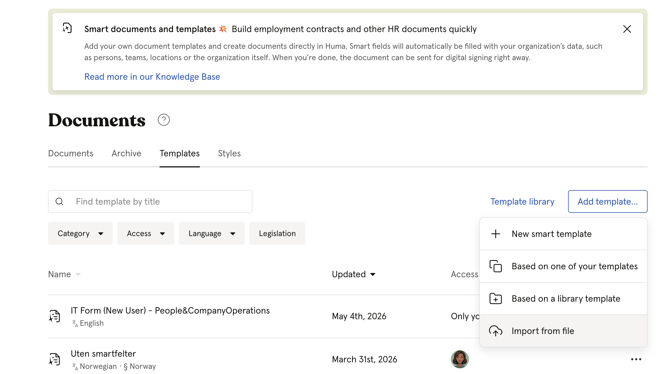
Import:
- Go to the Documents module → Templates tab
- Click "Add template"
- Choose "Import from file"
- Upload the file
💡 Only templates created and exported from Huma can be imported.
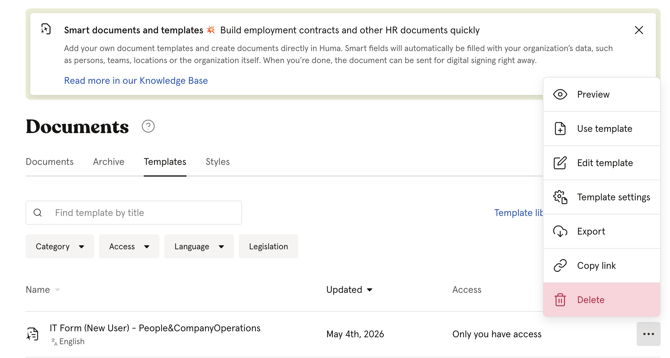
Delete a template
- Go to the Documents module → Templates tab
- Click the three dots next to the template
- Click "Delete" and confirm
⚠️ Deleting a template cannot be undone. Documents already created from the template are not affected.
FAQ
Can I edit a template provided by Huma or Schjødt?
No. Library templates cannot be edited directly. Add the template to your own templates first, this creates an editable copy you can customise freely.
Will changes to a template update existing documents?
No. Changes to a template only affect new documents created from it. Documents already created remain unchanged.
Can I share a template with people outside my organisation?
Yes, through export and import. Export the template and share the file, then the recipient can import it into their own Huma organisation.
Is there a limit on how many templates I can create?
Yes. The number of templates you can create depends on your subscription plan. You can see how many you have used and how many remain in the Templates tab.