
Table of Contents
- Roles and access
- Two types of meetings
- Key concepts
- Meeting statuses
- Notes and private notes
- Follow-up tasks
- Download meeting as PDF
- Notifications
- Meeting templates
Roles and access
| Access | Role |
|---|---|
| Host a 1-on-1 meeting | All employees — no role required |
| Create and manage meeting rounds | System role: Meetings → Meetings management |
| Create, edit and delete meeting templates | System role: Meetings → Meetings management |
💡 Access to a meeting is not determined by your user or system role in Huma, but it is determined by whether you are the meeting host or an attendee of that specific meeting. Even a system administrator cannot access a meeting unless they are listed as the host or an attendee.
Two types of meetings
Huma has two types of meetings:
1-on-1 meeting A single meeting with one or more attendees. Perfect for individual performance reviews, check-ins, or any meeting with a specific person or small group. Everyone in Huma can host a 1-on-1 meeting, no system role required.
🔗 Read more about how to set up a 1-on-1 meeting.
Meeting round A way to create and distribute the same meeting to multiple employees at once. Perfect for recurring organisation-wide meetings, for example annual reviews or employee reviews”. Requires a system role with Meetings management access.
🔗 Read more about how to set up a meeting round.

Key concepts
Host - The person who creates and manages the meeting. The host has full control over the meeting, they can edit details, manage talking points, add summaries and tasks, change the meeting status, and delete the meeting.
Attendee - The person or people invited to the meeting. Attendees can add notes to talking points and manage follow-up tasks assigned to them. A meeting can have one or multiple attendees, but only one host.
Regarding - An optional field that tags the meeting as being about a specific person, for example a performance review about an employee. The person tagged as "Regarding" does not automatically get access to the meeting unless they are also added as an attendee. However, the meeting will appear on their profile under "Meetings".
💡 If the meeting is about someone specific, for example a 1-on-1 or performance review, use the "Regarding" field to tag that person. This makes it easy to find the meeting later from their profile.
Meeting statuses
A meeting moves through four statuses. The status controls who can see and do what in the meeting.
| Status | Who has access | What happens |
|---|---|---|
| Draft | Host only | Attendees cannot see the meeting. Host prepares talking points, notes and tasks. |
| Preparation | Host and attendees | Attendees are invited and can add notes to talking points. Notes are not shared yet. |
| Conversation | Host and attendees | All notes on talking points are shared and visible to everyone. Summaries are not yet visible to attendees. |
| Completed | Host and attendees | All notes, summaries and follow-up tasks are visible to everyone. The host can change the status back to make edits. |
⚠️ Changing the status of a completed meeting will notify all attendees.
💡 The meeting host can always move the meeting back to a previous status to make changes.
Notes and private notes
There are two types of notes in a meeting:
Notes Notes are connected to a specific talking point. They are shared with all attendees when the meeting enters Conversation status. Meeting hosts can start adding notes in Draft. Attendees can start adding notes in Preparation.
Private notes Private notes are general notes connected to the meeting, not to a specific talking point. They are never shared with anyone, regardless of the meeting status. Both the host and attendees can add private notes at any time.
Follow-up tasks
The meeting host can create follow-up tasks during the meeting and assign them to a specific person, team or location. Tasks are visible to the assigned person immediately, even if the meeting is still in Draft status.
💡 If a task is assigned to a team or location, it is marked as completed once one person on that team or location completes it.
💡 Follow-up tasks are also available to the attendee under their tasks on the dashboard, and they do not need to go into the meeting to find them.
⚠️ If a follow-up task is assigned to a person who is not an attendee of the meeting, they will only see the task itself, and not the meeting content.
🔗 Read more about tasks in Huma.
Download meeting as PDF
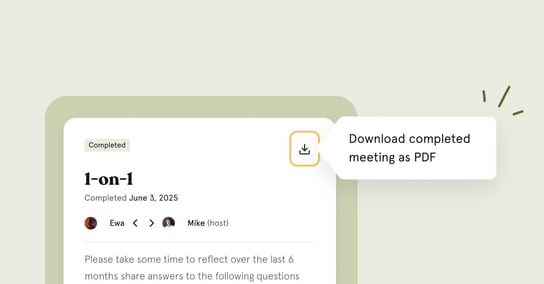
All attendees and the host can download a completed meeting as a PDF. The PDF includes notes, summaries and follow-up tasks, but private notes are excluded.
- Go to the Meetings module
- Select the meeting you want to download
- Click the three dots in the top right corner
- Click "Download as PDF"
Notifications
| Event | Who receives it |
|---|---|
| Meeting created (meeting round) | The meeting host for each meeting |
| Meeting round updated | The meeting host for each meeting |
| Meeting round deleted | The meeting host for each meeting |
| Meeting status changed to Preparation | All attendees |
| Meeting completed | All attendees |
| Meeting status changed back from Completed | All attendees |
| Meeting deleted | All attendees |
| Follow-up task assigned | The person, team or location the task is assigned to |
💡 Meetings are not automatically transferred when a supervisor or manager changes. Transfer of meetings must be done manually in the meeting details. Read more about what happens when a user is deactivated or deleted in Huma.
🔗 Read more about employee data after leaving Huma.
Meeting templates
Meeting templates make it easy to create structured and consistent meetings. Instead of building an agenda from scratch each time, you can use a template with predefined talking points.
There are two types of templates available in Huma:
- Templates created by Huma — ready-made templates covering common meeting scenarios such as 1-on-1, exit interview, onboarding review and more. Available in multiple languages.
- Your own templates — create, import and export custom templates tailored to your organisation's needs. Requires a system role with Meetings management access.