
Table of Contents
- Roles and access
- Templates created by Huma
- Use a template
- Create your own template
- Create a template from an existing meeting
- Edit a template
- Delete a template
- Import and export templates
- FAQ
Roles and access
| Access | Role |
|---|---|
| View and use templates created by Huma | All employees |
| Create, edit and delete own templates | System role: Meetings → Meetings management |
| Import and export templates | System role: Meetings → Meetings management |
Templates created by Huma
Huma provides ready-made meeting templates covering common meeting scenarios. These are available in multiple languages including English, Norwegian, Swedish, Finnish and Danish.
- 1-on-1
- Exit interview
- Goals and development
- Follow-up plan
- Quick check-in
- OKR Goal setting
- S.M.A.R.T Goal setting
- Onboarding review
- When bad things happen
- Reboarding
- Crossboarding
- Crossboarding (Manager)
- 1-on-1 Remotely
- Retrospective
💡 Huma's templates can be used as-is or as a starting point for your own custom templates. You cannot edit Huma's templates directly, but you can duplicate them and customise the copy.
Use a template
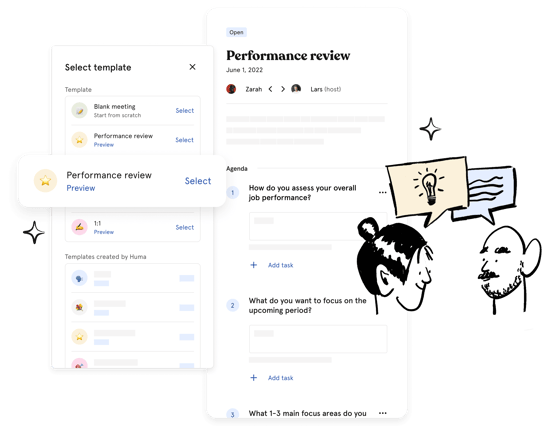
You can use a template when creating a new meeting or meeting round.
- Go to the Meetings module
- Click "New meeting" or "Add meeting round"
- Choose a template from the list, either a Huma template or one of your own
- Click "Select"
💡 When you apply a template to a meeting, only the talking points are added to the agenda. The meeting title, icon and description remain unchanged.
Create your own template
- Go to the Meetings module
- Navigate to the "Templates" tab
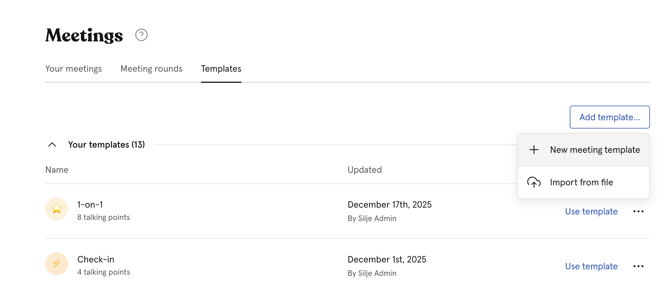
- Click "Add template"
- Choose "New meeting template"
- Give the template a name and click "Continue"
- Fill in the template name, description and add talking points
- Optionally add talking points from other templates by clicking "Add from template"
- Click "Save"
Create a template from an existing meeting
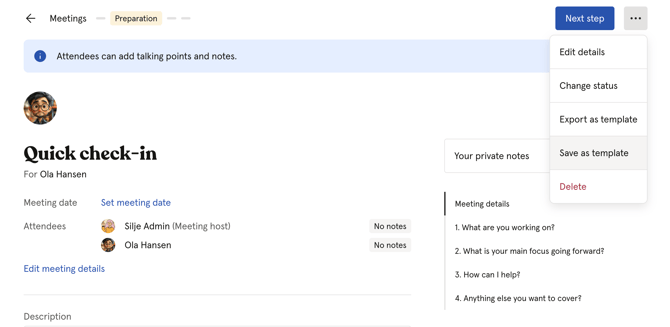
You can turn an existing meeting into a template. It´s useful if you have a meeting with a well-structured agenda that you want to reuse.
- Go to the Meetings module and open the meeting
- Click the three dots in the top right corner
- Click "Save as template"
⚠️ All notes will be removed from the talking points when creating a template from a meeting. Make sure any sensitive information is also removed from the name and description before proceeding.
Edit a template
You can edit talking points, change the icon and update the description of your own templates at any time.
- Go to the Meetings module
- Navigate to the "Templates" tab
- Find the template in the list
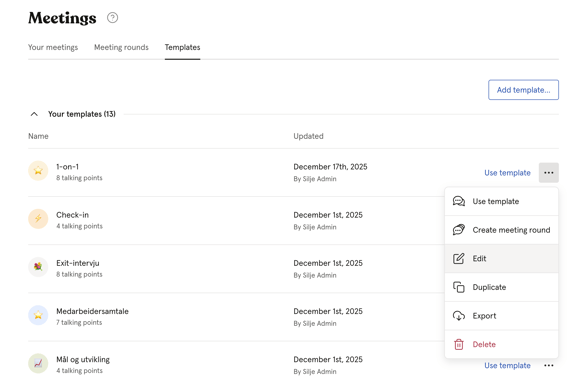
- Click the three dots next to the template and select "Edit", or click directly on the template to open it
💡 You cannot edit Huma's predefined templates. If you want to customise one, use it as a starting point when creating a new meeting and save that as your own template.
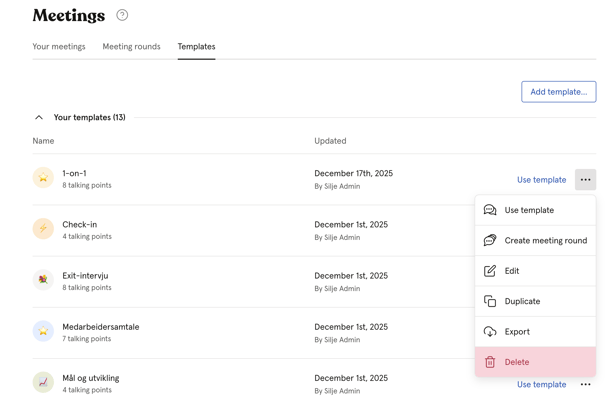
Delete a template
- Go to the Meetings module
- Navigate to the "Templates" tab
- Click the three dots next to the template
- Click "Delete" and confirm
💡 Deleting a template does not affect any meetings that were already created using that template.
Import and export templates
You can import and export meeting templates, which is useful for sharing templates between organisations or keeping backups.
💡 Import and export of templates requires a Premium subscription.
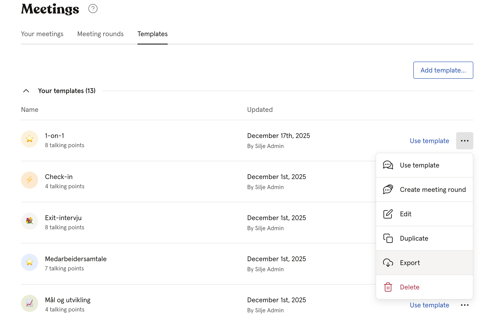
Export:
- Go to the Meetings module → Templates tab
- Click the three dots next to the template
- Click "Export"
- The file will be saved locally on your computer.
Import:
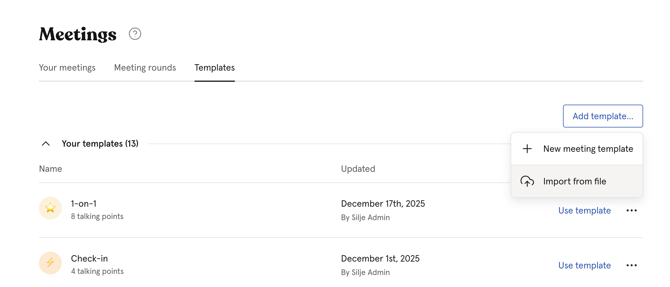
- Go to the Meetings module → Templates tab
- Click "Add template"
- Choose "Import from file"
- Upload the file
💡 Only meeting templates created and exported from Huma can be imported. Maximum file size is 10MB. You can import multiple templates at once.
FAQ
Can I duplicate a template?
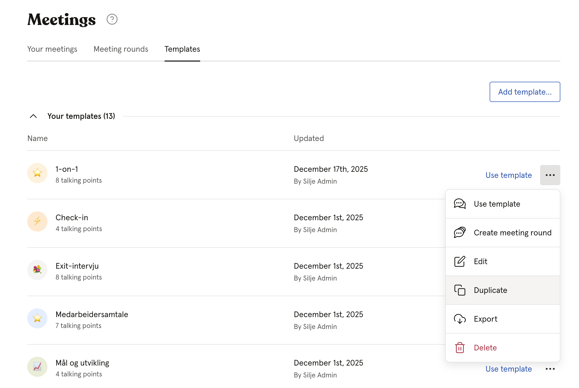
Yes. You can duplicate any of your own templates, which is useful if you want to create a variation of an existing template without starting from scratch.
- Go to the Meetings module → Templates tab
- Click the three dots next to the template
- Click "Duplicate template"
Can I edit Huma's predefined templates?
No. Huma's templates cannot be edited directly. However, you can use them as a starting point when creating a new meeting and customise the talking points from there.
Can I add talking points from another template?
Yes. When editing a template, click "Add from template" at the bottom of the page to import talking points from another template.
Does deleting a template affect existing meetings?
No. Deleting a template does not affect any meetings that were already created using that template.
Can I share templates with other organisations?
Yes, through export and import. Export the template from one organisation and import it into another. This requires a Premium subscription.