
Table of Contents
- Understanding document access in Huma
- System roles
- User roles
- Direct document access
- Why administrators cannot automatically access all documents
- FAQ
Understanding document access in Huma
Access to documents in Huma is controlled by three separate mechanisms that work very differently. Understanding the difference is key to setting up document access correctly in your organisation.
| Mechanism | What it controls |
|---|---|
| System role | Organisation-wide settings, for example the ability to see a list of all documents or manage smart document templates |
| User role | Access to documents shared with specific groups, for example the ability to see and edit documents shared with a team or location |
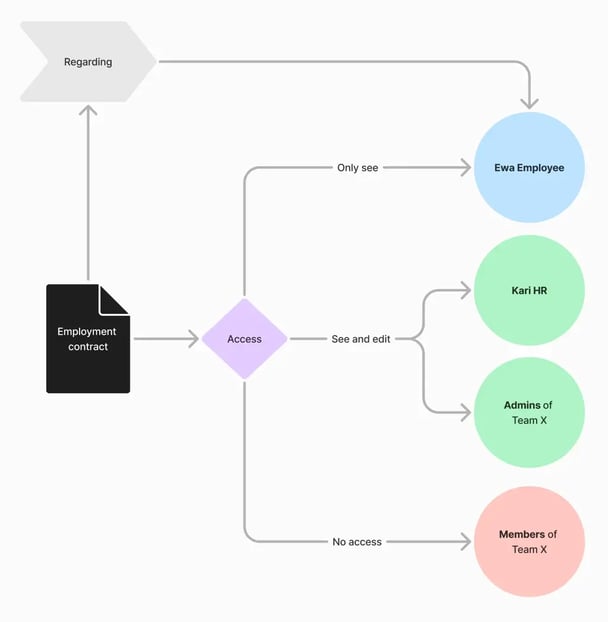
| Direct document access | Access granted explicitly within a specific document, to a person, group or everyone |
💡 Having a system role does not automatically give you access to the content of documents. System roles and user roles work independently of each other.
System roles
There are three system access within the role, that is relevant to documents:
-
Documents → Digital signing
Gives you the ability to configure and manage digital signing of documents in Huma. -
Documents → Smart templates and styles
Gives you the ability to create, edit and delete smart document templates and document styles that can be used across the organisation. -
Documents → List all documents
Gives you an overview of all documents in the organisation, including name, created date, category and access settings. It does not give you access to the content of the documents. If you try to open a document you have not been explicitly granted access to, you will see the message: "Restricted document. Only users who have been granted access can view it."
💡 The "List all documents" system role is not included in Huma's predefined System Admin role by default. You must either use another system role or create a new one to get this access.
🔗 Read more about the upcoming change to the "List all documents" role.
🔗 Read more about system roles in Huma.
User roles
A user role with document access gives you the ability to see and manage documents shared within specific groups, for example a team, location or the entire organisation.
| Access level | What you can do |
|---|---|
| Only see | View documents shared with the group. Cannot edit, change access settings or delete. |
| See and edit | View and edit documents, manage access settings and delete documents shared with the group. |
Example: How user roles work in practice
-
Anna is an HR manager with a user role with "See and edit" access to documents, granted over the Marketing team.
-
Erik is a team leader in Marketing with no document user role.
| Document shared with | Anna can see it? | Erik can see it? |
|---|---|---|
| Everyone in the organisation | ✅ Yes | ✅ Yes |
| The Marketing team | ✅ Yes | ✅ Yes |
| Admins of the Marketing team | ✅ Yes — she has a user role with document access over Marketing | ❌ No — he has no document user role |
| Only Erik individually | ❌ No — unless explicitly added | ✅ Yes |
| Only Anna individually | ✅ Yes | ❌ No — unless explicitly added |
💡 A user role with document access only gives you access to documents that are explicitly shared with the group you have been granted access over. It does not give you access to all documents in the organisation.
Direct document access
Access granted explicitly within a specific document, to a specific person, group or everyone in the organisation. This is the most granular level of access control in Huma, and is always required regardless of what system or user roles a person has.
🔗 This article focuses primarily on system and user roles for documents. If you want to learn more about direct access levels, click here.
Why System administrators cannot automatically access all documents
Even users with full system administrator access cannot open a document unless they have been explicitly granted access to it.
This is by design. Documents can contain sensitive information such as employment contracts and salary details, and Huma ensures that only the right people have access.
A user can access a document if they are:
- Shared directly with it as an individual
- A member of a group the document has been shared with
- An admin of a group the document has been shared with, and they have a user role with document access over that group
💡 If you need a person to have access to documents across the organisation, give them a user role with document access granted over the entire organisation. This way they will have access to all documents shared with the organisation or with group admins.
🔗 Read more about how to set up document administrators.
FAQ
I have a system role with "List all documents" — why can I not open a specific document?
The "List all documents" role only gives you an overview of documents. To access the content of a document, you must be explicitly granted access to it within the document itself.
Does a system administrator automatically have access to all documents?
No. System roles and document access are completely separate. Even a full system administrator cannot access a document unless they have been explicitly granted access to it.
Can I give someone access to all documents at once?
Yes, by using the "Extend access" feature. This extends access to include document administrators across the organisation. You can also update access for multiple documents at once using bulk actions in the Documents module.