
Table of Contents
- What is a document administrator?
- Why you need a dedicated document administrator role
- How to set up a document administrator role
- Give the document administrator access to existing documents
- FAQ
What is a document administrator?
A document administrator is a person who has a user role with document access granted over one or more groups, for example a team, location or the entire organisation. This gives them the ability to see and manage documents shared with those groups.
Document administrators are not a fixed role in Huma. Anyone can become a document administrator by being granted a user role with document access over the relevant groups.
🔗 Read more about system and user roles for documents.
Why you need a dedicated document administrator role
Setting up a document administrator role ensures that the right people always have access to the documents they need, even as your organisation grows and people change roles or leave.
Without a dedicated document administrator role in place:
- Documents are only accessible to the person who uploaded them
- HR managers may not have access to employment contracts or other important documents
- When an employee leaves, their documents can become difficult to access for others
- Taking over ownership of documents requires manual intervention each time
By setting up a dedicated document administrator role from the start, you avoid these situations and ensure that document access is always managed in a structured and predictable way.
💡 We recommend creating a dedicated role as early as possible, ideally before documents start accumulating in your organisation.
How to set up a document administrator role
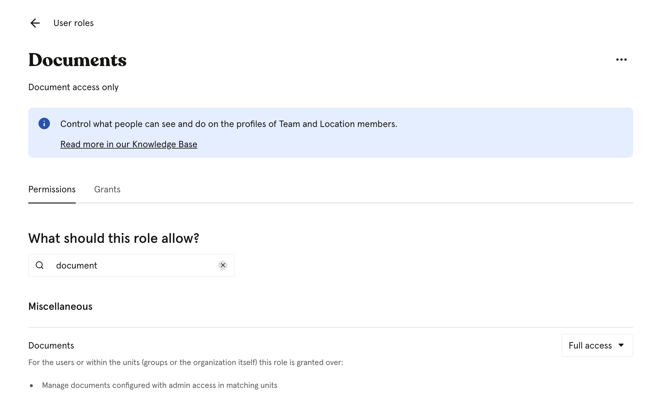
Step 1: Create a user role with document access
- Go to System settings → Roles → User roles
- Click "Add role"
- Give the role a descriptive name, for example "Document administrator"
- Under "Documents", set the access level to "See and edit"
- Click "Save"
Step 2: Grant the role to the right people
- Open the role you just created
- Click "Add grant"
- Select the person you want to give the role to
- Choose which group they should have access over — a specific team, location or the entire organisation
- Click "Grant access"
Step 3: Share existing documents with the new administrator
Granting a user role does not automatically give the administrator access to existing documents. They will only have access to documents that are explicitly shared with "admins of [group]". You need to extend access on existing documents to include the new administrator.
💡 If you want someone to have access to all documents across the entire organisation, select "The entire organisation" when choosing which group to grant access over in Step 2. This is the recommended setup for HR managers or other administrators who need organisation-wide document access.
🔗 Read more about how to transfer and extend document access.
Give the document administrator access to existing documents
When you set up a new document administrator, they will not automatically have access to documents that were uploaded before they got the role. You need to extend access on those documents.
The most efficient way to do this is using bulk access:
- Go to the Documents module
- Select all relevant documents using the checkbox at the top of the list
- Click "Access" in the action bar at the bottom
- Choose "Extend"
- Add "Admins of [group]" with "See and edit" access
- Click "Save"
Going forward, any new documents shared with "admins of [group]" will automatically be accessible to your document administrator.
💡 If you share documents with "admins of [group]" rather than with specific individuals, access management becomes much easier. When someone new gets the document administrator role, they automatically gain access to all relevant documents, without any manual updates.
FAQ
Do I need to update access every time someone new becomes a document administrator?
No, if you have shared documents with "admins of [group]" rather than specific individuals, anyone who gets the document administrator role over that group will automatically gain access to those documents.
Can I have multiple document administrators?
Yes. You can grant the document administrator role to as many people as needed, over any combination of groups.
What happens if the only document administrator leaves the company?
Their access is removed when they are deactivated. If documents were shared with "admins of [group]", the remaining administrators will still have access. If documents were shared only with the departing person individually, no one else will have access until a new owner or administrator is added.
Should I give document administrators a system role as well?
It depends on what you need. A user role with document access is sufficient for managing documents within specific groups. If you also need someone to see all documents in the organisation regardless of sharing settings, add the "List all documents" system role.