
Table of Contents
- Roles and access
- What is a document style?
- How styles are applied
- Create a document style
- Apply a style to a document
- Change the style on an existing document
- Edit a document style
- Delete a document style
- FAQ
Roles and access
| Access | Role |
|---|---|
| Create, edit and delete document styles | System role: Documents → Smart templates and styles |
| Apply a style to a document | All users with "See and edit" access to the document |
What is a document style?
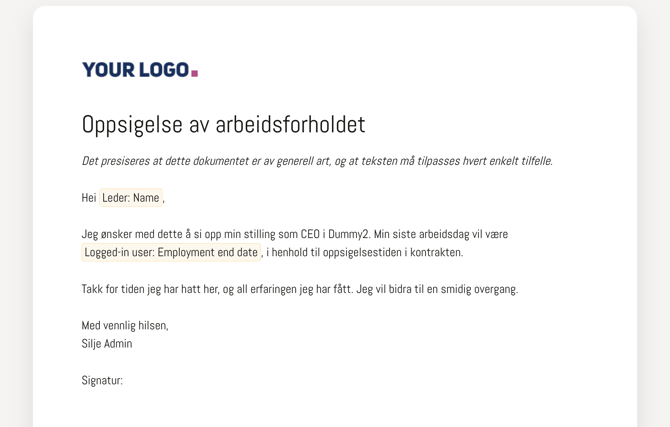
A document style defines the visual appearance of smart documents, the fonts used for headings, body text and titles, as well as the text density. Instead of formatting each document individually, you create a style once and apply it to any smart document in Huma.
You can create multiple styles and set one as the default for your organisation, making it easy to ensure consistent branding across all your documents.
How styles are applied
When a smart document is opened or exported as a PDF, Huma applies styles in the following order:
- The style selected on the specific document — if one has been set
- Your organisation's default style — if one has been created
- Huma's built-in default style — if no custom styles exist
💡 This means you do not need to set a style on every document manually. If you create a default style, it will automatically apply to all documents that do not have a specific style set.
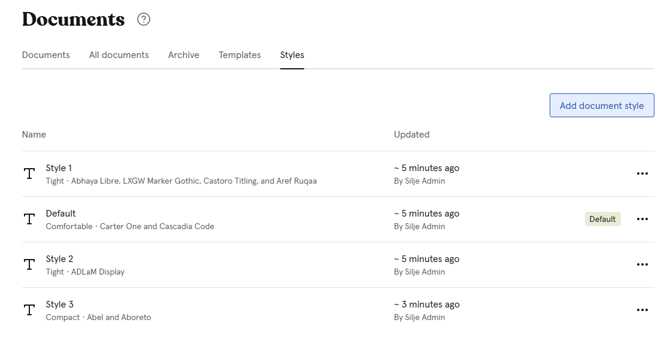
Create a document style
- Go to the Documents module
- Navigate to the "Styles" tab
- Click "Add document style"
- Fill in the style settings:
- Click "Create"
| Setting | Description |
|---|---|
| Name | A descriptive name for the style |
| Default | Set this style as the default for your organisation |
| Text density | Controls the spacing and density of text in the document |
| Title / Heading 1 | Font for the main title and first-level headings |
| Heading 2 | Font for second-level headings |
| Heading 3 | Font for third-level headings |
| Heading 4 | Font for fourth-level headings |
| Body text | Font for regular paragraph text |
💡 You can set a specific font per heading level, or use the same font throughout the document for a consistent look.
⚠️ Some fonts show the warning "Lacking support for italic in PDFs." This means that when a PDF is generated from a document using this style, italic text will appear as unformatted regular text. If you use italic formatting in your documents, choose a font that supports italic in PDFs.
Apply a style to a document
When creating a new smart document:
- Go to the Documents module and click "Add document"
- Choose "Create a smart document"
- Fill in document details
- Click "Document style" to select a style
- Click "Done" to create the document with the selected style
💡 If no style is selected, the default style for your organisation will be applied automatically.
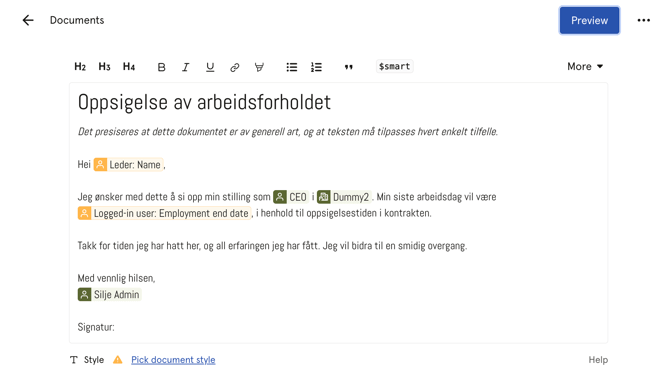
Change the style on an existing document
Any user with "See and edit" access to a document can change its style at any time.
- Open the document in the Documents module
- Click "Edit document"
- Scroll down to "Document style" and select a different style
- Save
⚠️ Changing the style on a document does not update PDFs that have already been generated from it. Generate a new PDF to apply the updated style.
Edit a document style
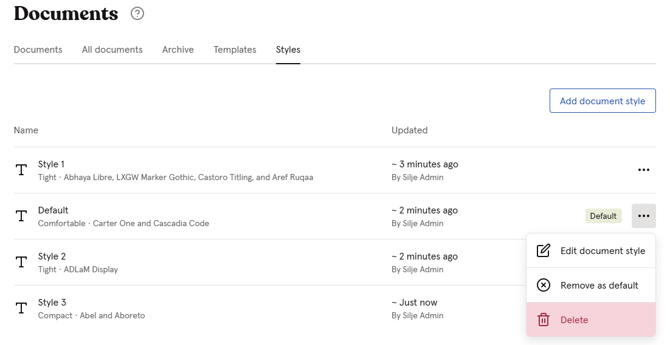
- Go to the Documents module → Styles tab
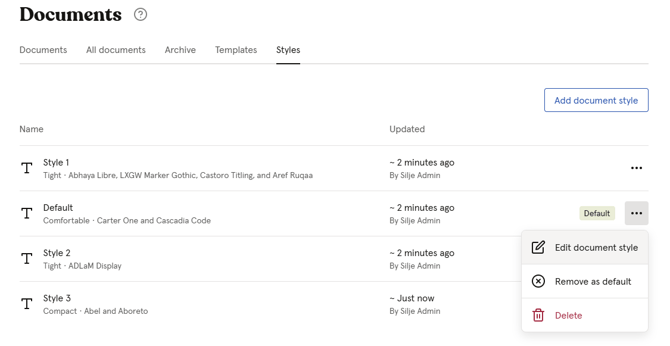
- Click the three dots next to the style you want to edit
- Click "Edit document style"
- Make your changes and click "Done"
⚠️ Editing a style will affect all documents currently using that style, including when new PDFs are generated. Already generated PDFs are not affected.
Delete a document style
- Go to the Documents module → Styles tab
- Click the three dots next to the style you want to delete
- Click "Delete" and confirm
⚠️ Deleting a style cannot be undone. Documents that were using the deleted style will fall back to your organisation's default style, or Huma's built-in style if no default exists.
FAQ
Can all employees apply document styles?
Any user with "See and edit" access to a document can select or change the style on that document. Creating and managing styles requires the "Smart templates and styles" system role.
How many document styles can I create?
There is no limit on the number of document styles you can create.
Can I set different default styles for different teams or locations?
No. The default style applies to the entire organisation. You can however apply different styles to individual documents or templates.
What happens to documents if I delete the default style?
Documents that were using the deleted style will fall back to Huma's built-in default style.
Can I use any font I want?
Huma offers a wide selection of fonts to choose from. Note that not all fonts support italic formatting in PDFs, Huma will warn you if a font has this limitation when you select it.