
Table of Contents
Set up integration- Multiple connections
- Step 1: Create an API identifier in Finago
- Step 2: Connect Huma to Finago
- Step 3: Activate the integration. Synchronize users and choose how to handle conflicts or missing value
- Step 4: Your connection between Huma and Finago is active 🥳
Active integration
Finago (24SevenOffice)
Finago integration lets you connect Huma with your Finago account to easily import and synchronize employee data, saving time and keeping your HR and payroll information up to date and consistent.
- To configure an integration in Huma, you must have a "System role with full access permissions for Organization".
- If you are unsure which roles are required on the Finago side to complete the integration setup, please contact Finago support for guidance.
Multiple connections
If you need to configure multiple integration instances, follow the setup guidance provided here.
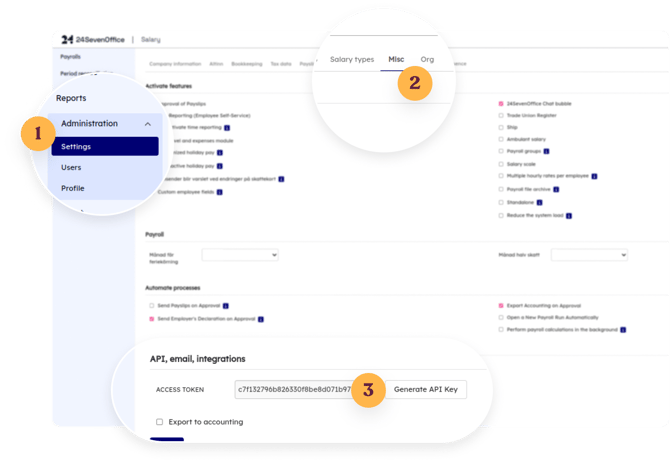
Step 1: Create an Access token Finago
- Open 'Settings' in the main menu
- Navigate to the 'Misc' tab
- Generate a new API key in the bottom of the page.
- Copy the API key to the clipboard
Step 2: Connect Huma to Finago
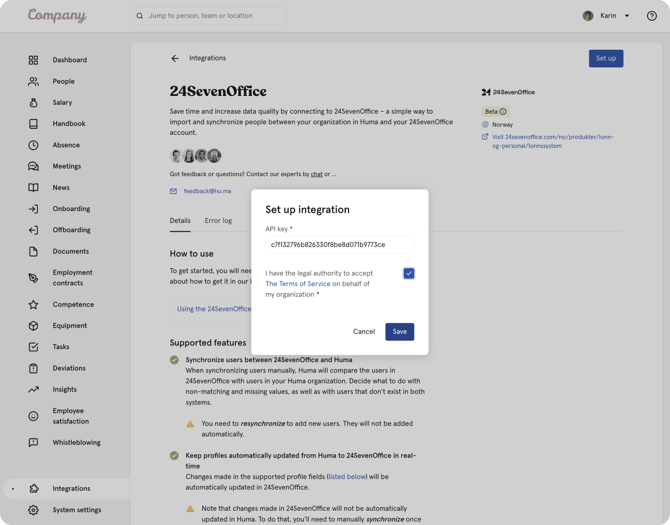
- Login to your Huma account as administrator
- Go to 'Integrations' in main menu
- Open 'Finago'
- Read through the documentation
- Click 'Set up' in the upper right corner
- Choose if you want to send position data from Huma -> Finago
- Paste the API key you just generated from Finago and check the box to verify you have the proper authority.
Step 3: Activate the integration. Synchronize users and choose how to handle conflicts or missing values
- After clicking 'Save' you will end up in the Synchronize users step
- Huma will inform you of any conflicts or inconsistency between Huma and Finago and you will have to decide how to handle conflicts and/or missing values. You can decide wether or not you want to update Finago based on values in Huma or the other way around.
- Click 'Next' and decide how you want to sync users between Huma and Finago.
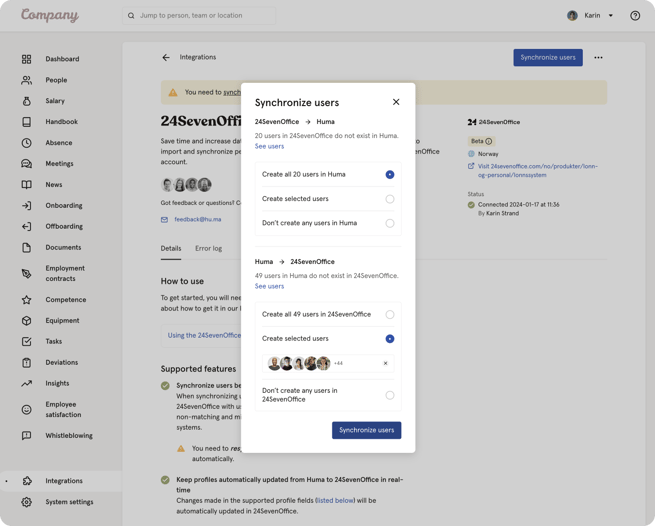
- If users in Finago does not exist in Huma, you can add users to Huma
- If users in Huma does not exist in Finago, you can add users to Finago
- After deciding on the above click 'Syncronize users'
- Huma will now start synchronizing users with Finago. You will receive an email confirming the result.
Step 4: Your connection between Huma and Finago is active
-
Any changes made to supported fields in Huma (listed below) will be automatically updated in Finago in real-time.
- Please be aware that you need to sync users to get the latest changes from Finago. Changes made in Finago will not be automatically be updated in Huma.
How to sync users
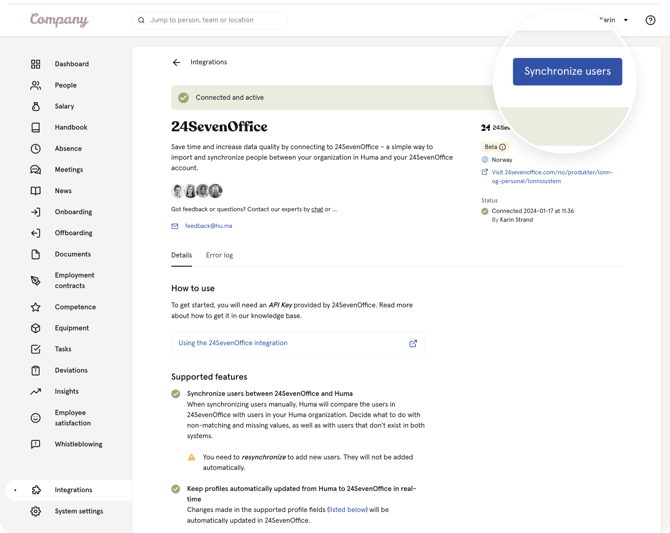
Use “Synchronize users” whenever you have updated one of the supported fields in PowerOfficeGo, or when you want to create new users. For user synchronization to work, the email address must always be identical in both systems.
-
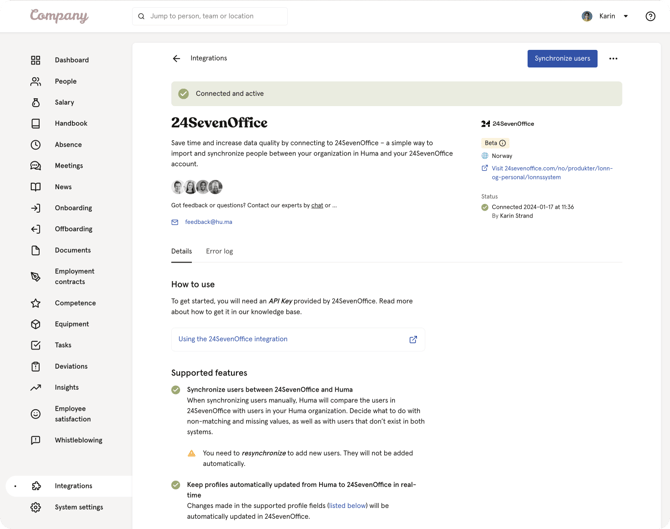
Go to the Finago-integration in Huma
-
Click “Synchronize users”
-
Follow the steps. Read more about the steps here.
Note
-
If you have created a user in Huma, you must perform a “Manual synchronization” to create the user in Finago through the integration.
-
If an error occurs during synchronization, you can see detailed information in the “Error log” on the Finago integration page in Huma.
- Please be aware that you need to sync users to get the latest changes from Finago. Changes made in Finago will not be automatically be updated in Huma.
Supported fields - Employee fields
| Huma field | 24SevenOffice field |
|---|---|
| Email address* (REQUIRED) |
Finago requires this field’s value to be unique. Huma requires this field’s value to be unique. |
| Given name* (REQUIRED) |
firstname |
| Family name* (REQUIRED) |
lastname |
| Phone number |
telefon Huma requires this field’s value to be unique. |
| Employment start date |
startdate |
| Employment end date |
enddate |
| Address |
postaddress zipcode city countryCode |
| Identifications |
internationalID.ID internationalID.countryCode internationalID.type The integration can’t unset this field’s value in Finago when the value is unset in Huma. |
| Bank account number |
account Must be a valid Norwegian bank account number. account clearingno Must be a valid Swedish bank account number.
account bic Will be filled if the bank account number is in international format (IBAN). |
FAQ: Huma to Finago position integration
📄 Learn more about how employee data synchronization works in integrations in general.
⚠️ Note that activating the integration does not transfer historical position data to Finago. Only positions that are created or updated in Huma after the integration is activated will be synchronized.
Position data is synchronized only from Huma to Finago, not from Finago to Huma.
Supported fields – position fields that are synchronized
These are the position fields that are synchronized from Huma to Finago:
| Huma field | Finago field |
|---|---|
| Contract type |
This field cannot be unset in Finago |
| Employment percentage |
This field cannot be unset in Finago |
| Contract start date |
This field cannot be unset in Finago |
| Contract end date | endDate |
| End reason | endReason |
⚠️ The integration cannot delete an employment in Finago. However, if the contract end date or end reason is unset in Huma, the corresponding value will also be unset in Finago.
⚠️ Finago allows overlapping employments. Adding a position in Huma creates a new employment in Finago. Updates are matched by start date.
Do I need to activate synchronization of position data?
Yes. We strongly recommend that you have an active integration and that synchronization of “Positions” is enabled before you start managing positions in Huma.
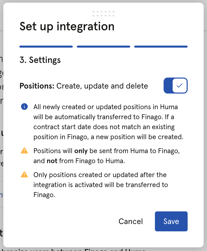
To do this:
- Go to the Finago integration page in your Huma account
- Click the three dots in the top-right corner and select “Edit connection settings”
- Check the box to confirm legal authority and click “Continue”
- Then enable “Positions: create, update and delete”
- All newly created or updated positions in Huma will be automatically transferred to Finago. If a contract start date does not match an existing position in Finago, a new position will be created.
- Positions will only be sent from Huma to Finago, and not from Finago to Huma.
-
Only positions created or updated after the integration is activated will be transferred to Finago.
Does the integration update position data?
Yes. When supported position fields are changed in Huma, the updates are automatically sent to Finago.
This includes changes such as updates to contract dates, employment rate, contract type, or end reason.
In which direction is data synchronized?
Position data is synchronized in one direction only:
Huma → Finago
Changes made directly in Finago will not be sent back to Huma.
When is position data sent to Finago?
Position data is sent to Finago when:
-
A new position is created in Huma
-
An existing position is updated in Huma
-
The change happens after the integration has been activated
This means that when you modify the first position that Huma automatically creates when Employee History is launched, you must either:
- match the start date of the position with the corresponding position in Finago or
- make the desired changes, save them, and then click “Create new position.”
Can historical positions be transferred?
No. The integration does not automatically transfer historical position data that existed before the integration was activated.
If historical data needs to exist in Finago, it must be entered manually or triggered by updating the position in Huma after the integration has been enabled.
Why aren’t all position fields synchronized?
Not all position fields can be synchronized between Huma and Finago because the two systems store and structure employment information differently. Some fields exist only in one system, or their data structures do not match directly. In other cases, limitations in the Finago API or in how data is handled in Huma prevent a full one-to-one mapping between the systems.