Table of Content
Getting started with role management
Only system admins can assign, create, edit, and delete roles in Huma.
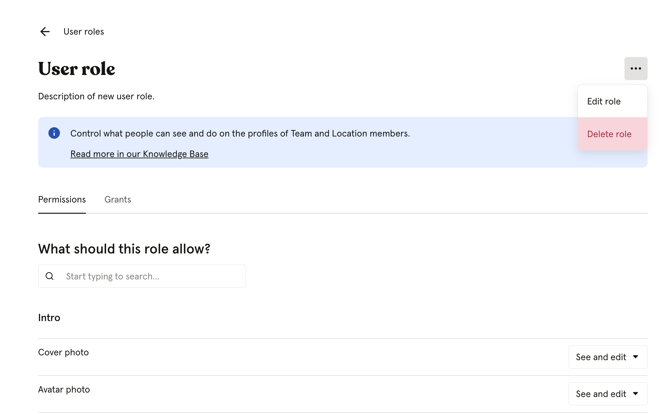
All role management is done through System settings, under "Roles", where you'll find both User roles and System roles, as well as the People tab for a full overview of who has what access.
🔗 Read a detailed article about the different roles in Huma.
Assign a role
- Go to "System settings"
- Click "Roles"
- Navigate to "User roles" or "System roles" and click on the role you want to assign
- Click "Add grant"
- Choose which users to grant the role to
- Choose who they should have this access over, either "Everyone" or "Members of groups" (specific teams, locations, or company)
- Click "Grant access"
💡Note
-
A user can hold several roles simultaneously, but their permissions will be combined across all roles.
-
If a role is granted over a group, the person does not need to be a member of that group themselves.
-
When a user is assigned a new role, they will be notified by email.
-
For larger organisations with delegated management, Huma recommends granting permissions over specific teams or locations rather than everyone.
Create a role
- Go to "System settings"
- Click "Roles"
- Select either "User roles" or "System roles", depending on the type of role you wish to create
- Click "Add user role" or "Add system role"
- Give the role a name and description, and click "Continue"
- Edit "Permissions" and "Grants" according to your needs
💡 You can assign permissions and grant the role to users after creation as well.
Edit a role
Some roles in Huma are predefined and locked 🔒 and cannot be edited. For all other roles you can edit permissions as needed.
- Go to "System settings"
- Click "Roles"
- Navigate to "User roles" or "System roles" and click on the role you want to edit
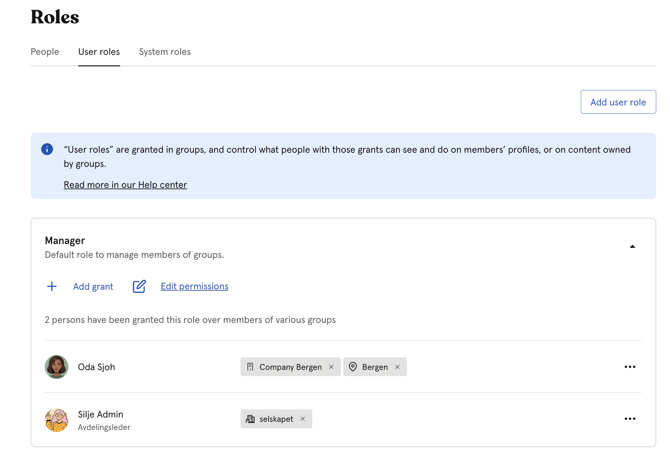
- Click "Edit role"
- Set permissions such as "See and edit", "Only see" or "Full access"
Delete a role
Locked 🔒 and predefined roles cannot be deleted. All other roles can be permanently deleted.
- Go to "System settings"
- Navigate to "User roles" or "System roles" and click on the role you want to delete
- Click the three dots in the top right corner
- Click "Permanently delete this role" and confirm
💡 Once a role has been deleted, it cannot be recreated.