
Table of Contents
- Report a deviation
- What to include in your report
- Reporting anonymously
- Follow up on your case
- What you can edit after submitting
- FAQ
Report a deviation
All employees can report a deviation at any time and no special role is required. You can report from both the web platform and the Huma mobile app.
- Click "Report an incident" in the top navigation bar, or open the Deviations module
- Select a category that best describes the incident
- Fill in the report details (see below)
- Click "Submit"
- Once submitted, your report becomes a case that is assigned to a case handler for follow-up.
What to include in your report
| Field | Description |
|---|---|
| Category | The type of incident — select the category that best describes what happened |
| Description | A detailed account of what happened. Include what, where and how it happened, and who was involved. The more detail you provide, the easier it is for the case handler to follow up. |
| Incident date and time | Optional. When the incident occurred |
| Direct actions | Optional. Any immediate steps you took to prevent the incident from happening again |
| Attachments | Optional. Photos, documents or other files relevant to the incident |
| Anonymous | Toggle this on if you want to remain anonymous throughout the process |
💡 The more detail you include in the description, the easier it is for the case handler to understand what happened and take the right action.
Reporting anonymously
You can choose to remain anonymous when submitting a deviation. When anonymous:
- Your name will not be visible to case handlers or other users
- You will still receive notifications about the status of your case
- The case handler can still communicate with you through the case, but will not know your identity
⚠️ Anonymity is set at the time of reporting and cannot be changed afterwards.
Follow up on your case
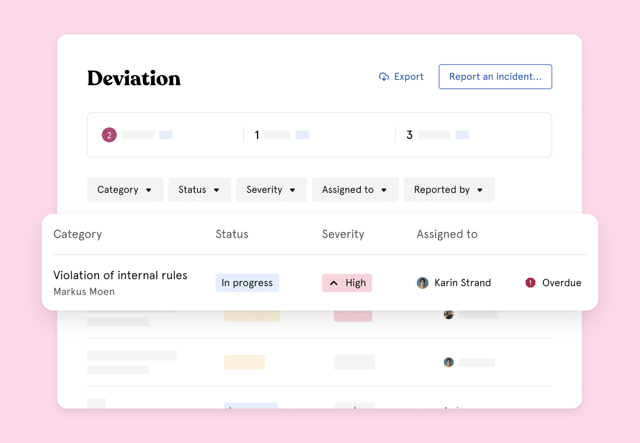
After submitting, you can follow the progress of your case in the Deviations module.
- Go to the Deviations module
- Find your case in the list
- Click on it to see the current status, any updates from the case handler and the full case timeline
- You will also receive a notification by email whenever the case is updated with new information. You can communicate directly with the case handler through the case page.
The case can have the following statuses:
| Status | What it means |
|---|---|
| Not started | The case has been received but no action has been taken yet |
| In progress | The case handler is actively working on the case |
| On hold | The case is paused — for example while waiting for more information |
| Resolved | The case has been handled and closed |
| Dismissed | The case has been reviewed and closed without further action |
What you can edit after submitting
Once a deviation has been submitted, you can still edit the following:
- Incident date and time
- Direct actions
- Attachments you uploaded yourself
You cannot change the category, description or anonymous status after submitting.
FAQ
Can I report a deviation from my phone?
Yes. You can report a deviation directly from the Huma mobile app. Open the app and navigate to "Deviations" in the menu.
Can I withdraw a deviation after submitting it?
No. Once submitted, a deviation cannot be withdrawn or deleted by the reporter. Contact a case handler if you submitted something by mistake.
Will my manager see my report?
Only users with the Deviation case handling role have access to deviation cases. Your manager will only see your report if they have been granted that role.
Can I see other employees' deviation reports?
No. You can only see the cases you have reported yourself. Case handlers can see all cases.
What happens if no one is assigned to handle my case?
If no specific case handler is assigned, all users with the Deviation case handling role will receive a notification about the case and can pick it up.