
Table of Contents
- Reorder content
- Download the handbook as PDF
- Export and import the handbook
- Tips for a handbook employees actually use
Reorder content
You can reorder both categories and topics within the handbook at any time.
- Go to the Handbook module
- Click "Edit order" in the top right corner
- Drag categories and topics to the desired order
- You can also move topics between categories
- Click "Save"
Download the handbook as PDF
You can download the handbook, or parts of it, as a PDF. This is useful if you need to share content with employees who do not have access to Huma, or if you want a printed version.
- Go to the Handbook module
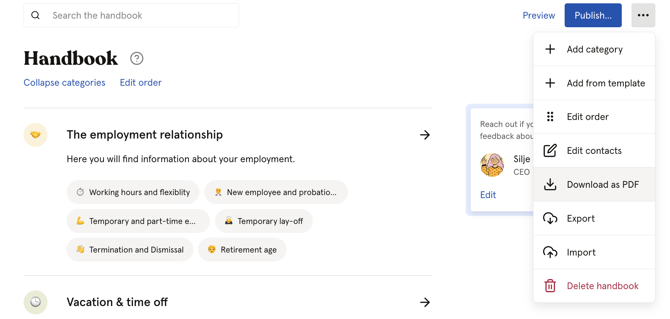
- Click the three dots in the top right corner
- Click "Download as PDF"
- Choose what to include:
- Only content shared with everyone
- Content shared with a specific group
- All content
- Click "Download"
⚠️ Unpublished topics will not be included in the PDF.
Export and import the handbook
If you manage handbooks across multiple organisations, you can export and import the handbook between organisations.
To export:
- Go to the Handbook module
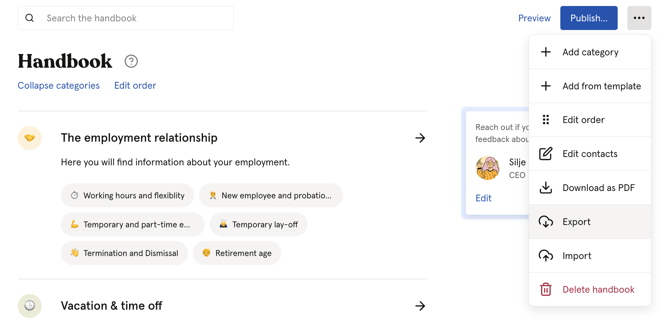
- Click the three dots in the top right corner
- Click "Export"
To import into another organisation:
- Go to the Handbook module in the target organisation
- Click "Add from template"
- Click "Import"
- Upload the exported file, preview the content and choose what to import
💡 Exporting the handbook requires a Premium subscription.
Tips for a handbook employees actually use
Setting up the handbook is just the first step. Here are some practical tips to make sure employees actually read and use it.
Keep topics short and focused
Divide content into small, specific topics rather than long pages. This makes it easier for employees to find what they are looking for when they search, and allows you to highlight individual topics when relevant.
Use tags and language settings
Add relevant tags to each topic and set the correct language. This significantly improves search results and helps employees find content in their own language.
Feature important topics
Pin topics that employees frequently ask about, or content that is particularly relevant right now. Featured topics appear on the dashboard and are easy to find.
Notify employees when content is updated
Don't assume employees will notice new content on their own. Use the notification feature when you publish new or updated topics, especially for important policy changes.
Mention the right people
Use the @ mention feature to add contact persons directly in the text. This makes it easy for employees to know who to contact with questions about a specific topic.
📱Tell employees about the Huma app
Make sure employees know they can access the handbook directly from the Huma app on their phone. The handbook appears in the app navigation once it is published.