
Table of Contents
- Roles and access
- How approvals work
- Auto-approval — when and why
- The Supervisor role and absence
- How to set up a manager for approval without auto-approval
- Notifications
Roles and access
There are two role types that give access to manage absence in Huma:
| Access | Role |
|---|---|
| Configure absence settings, manage and approve absence for all employees, export absence data | System role: Absence → Absence management |
| Manage and approve absence for employees in assigned groups | User role: See and edit → Absence |
💡 All employees can register their own absence, no role is required for that.
How approvals work
Whether an absence entry requires approval is configured per absence type under Absence → Settings. Read more about settings for absence here.
When "Require approval" is enabled for an absence type:
- Employees who register their own absence will have their entry set to Pending — waiting for approval
- Users with absence management access (system role or user role) will see a notification and can approve or reject the request
When "Require approval" is disabled:
- All absence registrations of that type are automatically approved regardless of who registers them
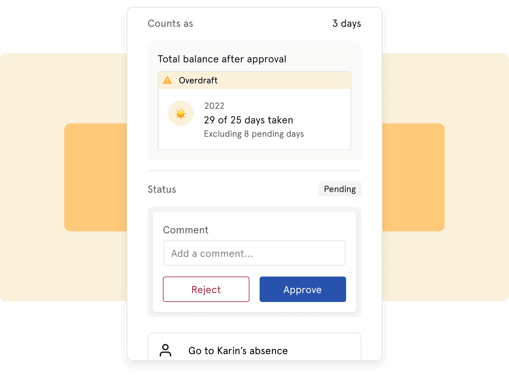
To approve or reject a pending absence request:
- Go to the Absence module
- Click "Approvals" in the top navigation
- Review the pending requests and click "Approve" or "Reject"
- Optionally add a comment before confirming
💡 Approvers can also withdraw an approval or rejection after the fact.
Auto-approval — when and why
Even if an absence type requires approval, the absence will be automatically approved if the person registering it has absence management access, either through a system role or a user role with absence access.
This means:
| Who registers | Has absence management access | Result |
|---|---|---|
| Administrator | ✅ Yes — system role | Automatically approved |
| Manager | ✅ Yes — user role with absence access | Automatically approved |
| Employee | ❌ No | Pending (if approval is required) |
The Supervisor role and absence
The Supervisor role includes absence management access for subordinates. This means a supervisor can, if the access is set to "Full access":
- See, register, edit and delete absence for their subordinates
- Approve and reject absence requests from their subordinates
- Auto-approve absence when registering it on behalf of a subordinate
This also means that if a supervisor registers their own absence and approval is required, it will be set to Pending, since they only have absence access over their subordinates, not themselves.
The Supervisor role is also automatically assigned as responsible for sick leave follow-up for their subordinates, if no other spesific user is chosen.
How to set up a manager for approval without auto-approval
A common question is: how do I give a manager the ability to approve absence for their team, without their own absence registrations being automatically approved?
The answer depends on what you want:
If you want the manager to approve absence for their team:
Give them a user role with absence access granted over their team or location. They will be able to approve and reject absence requests from their team members. Their own absence registrations will also be automatically approved.
If you want the manager to only see absence — not approve it:
Give them a user role with "Only see" on absence. They will see absence in their team but cannot approve, reject, edit or delete entries.
If you want managers to approve absence for their team, but go through the approval flow themselves:
Use the Supervisor role and remove absence management access from it. Supervisors will then be able to see their subordinates' absence, but absence they register themselves will go through the normal approval flow. A dedicated HR administrator with a system role handles approvals for the managers.
Notifications
Huma sends automatic notifications related to absence in the following situations:
| Event | Who receives it |
|---|---|
| Absence registered (employee registers own absence) | Users with system role: Absence management or user role with absence access — via "Absence registered or changed" notification |
| Absence registration requires approval | Users with absence management access — via "Absence approval requested" notification |
| Absence registered on behalf of employee (by admin) | The employee |
| Absence edited | Users with absence management access + the employee |
| Absence deleted | Users with absence management access + the employee |
| Absence approved | The employee |
| Absence rejected | The employee |
| Absence set back to pending | The employee |
| Comment added | The employee |
| Manual balance adjustment created | The employee |
| Manual balance adjustment deleted | The employee |
| Transfer created | The employee |
| Transfer deleted | The employee |
💡 Users can manage their own notification preferences under account settings.