
Table of Contents
- What are widgets and shortcuts?
- Roles and access
- Available widgets
- Add a widget on iOS
- Add a widget on Android
- Register absence with a shortcut (iOS)
- FAQ
What are widgets and shortcuts?
Widgets show information from Huma directly on your phone's home screen, so you can see what is going on without opening the app.
Shortcuts take you straight to what you want to do, for example registering absence.
Roles and access
| Access | Role |
|---|---|
| Add widgets and use shortcuts | All employees logged in to the Huma app, no role required |
| See content in a widget | The module must be enabled for your organisation, and you must have access to it |
💡 Widgets follow the same roles and access as the rest of Huma. You only see information you have access to.
Available widgets
| Widget | What it shows | iOS | Android |
|---|---|---|---|
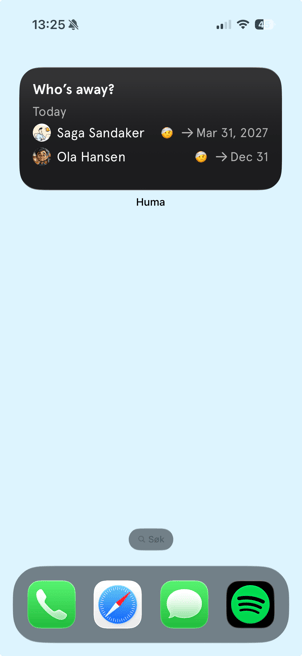
| Who's away? | Colleagues who are away today and over the next 7 days | ✅ | ✅ |
| Upcoming tasks | Your upcoming tasks, with overdue tasks highlighted | – | ✅ |
| Jubilees | Birthdays and work anniversaries for the last 7 days, today and the next 30 days | – | ✅ |
💡 Tap a widget to open the relevant part of the Huma app.
Add a widget on iOS
- Touch and hold an empty area on your home screen until the apps start to jiggle
- Tap "Edit" in the top left corner, then "Add Widget"
- Search for "Huma"
- Select "Who's away?" and tap "Add Widget"
- Drag the widget to where you want it and tap "Done"
.png?width=198&height=431&name=File%20(3).png)
Add a widget on Android
- Touch and hold an empty area on your home screen
- Tap "Widgets"
- Find Huma in the list
- Touch and hold the widget you want, and drag it to your home screen
💡 On Android, you can resize the widgets to show more or less content. Touch and hold the widget and drag the edges.
💡 Tap the refresh icon in the widget to update the content.
Register absence with a shortcut (iOS)
On iOS, you can start registering absence without navigating through the app.
📱From the app icon.png?width=239&height=520&name=File%20(5).png)
- Touch and hold the Huma app icon
- Tap "Register absence"
🗣️With Siri
Say "Register absence in Huma".
The app opens directly on the absence registration form.
💡 The shortcut is only available if you are logged in and have access to the Absence module.
🔗 Read more about registering absence in the app.
FAQ
The widget says I am logged out. What should I do?
Open the Huma app and log in. The widget updates automatically afterwards.
The widget says the feature is not available. Why?
The module the widget shows information from is not enabled for your organisation, or you do not have access to it. Contact your administrator if you think you should have access.
Why is the widget empty?
There is nothing to show right now, for example no colleagues away or no upcoming tasks.
Why are some widgets only available on Android?
The widgets are built separately for iOS and Android. Today, iOS has the "Who's away?" widget, while Android also has widgets for upcoming tasks and jubilees.
Can administrators add widgets for employees?
No. Widgets are added by each employee on their own phone.