
Table of Contents
- Roles and access
- Create a task
- Assign a task to a group
- Assign tasks to multiple employees at once
- Complete a task
- Follow up on tasks you have assigned
- Edit a task
- Delete a task
- FAQ
Roles and access
| Access | Role |
|---|---|
| Create and assign tasks | All employees — no role required |
| Edit and delete any task | The person who created the task, the person assigned to it, or a user with System role: Users → User management |
Create a task
- Go to the Tasks module
- Click "Create task"
- Fill in the details: see table
- Click "Assign"
| Field | Description |
|---|---|
| Title | A short and clear description of what needs to be done |
| Description | Optional. Additional context or instructions |
| Links | Optional. One or more links relevant to the task |
| Assign to | The person or group responsible for completing the task |
| Due date | Optional. When the task should be completed by |
💡 You can also create tasks directly from an employee's profile by going to their profile and navigating to the "Tasks" tab.
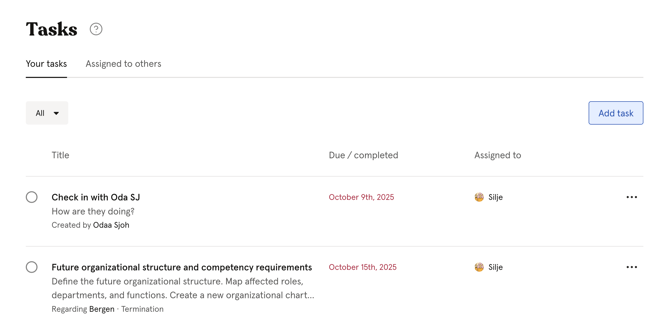
💡 Where tasks appear - Tasks assigned to you are visible in two places:
- Tasks module → Your tasks — full overview of all your tasks
- Dashboard — uncompleted tasks with upcoming due dates appear directly on your dashboard, so you always have a quick overview of what needs to be done
💡 Tasks from onboarding, offboarding, processes and meetings all appear in the same places — regardless of where they were created.
Assign a task to a group
You can assign a task to a team or location instead of a specific person. When a task is assigned to a group, all members will see the task, but only one person needs to complete it. Once completed by one member, the task is marked as done for the entire group.
.png?width=549&height=461&name=Share%20to%20group_EN%20(1).png)
Assign tasks to multiple employees at once
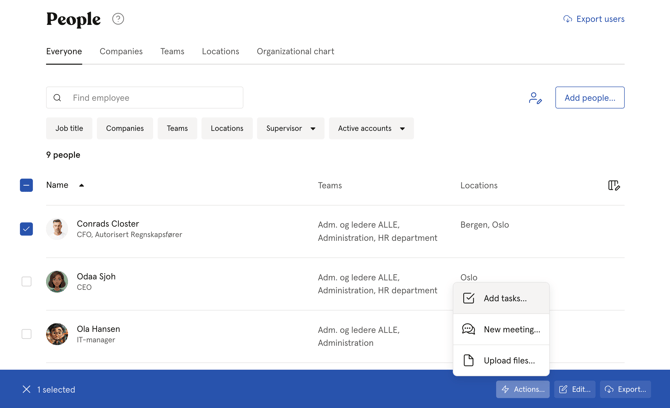
If you need to create the same task for several employees, use the bulk action in the People module. This creates a separate task for each employee.
- Go to the People module
- Filter to the relevant group if needed
- Select the employees using the checkboxes
- Click "New task" in the action bar at the bottom
- Fill in the task details and click "Assign"
Complete a task
- Go to the Tasks module → "Your tasks"
- Find the task you want to complete
- Click the checkbox next to the task to mark it as completed
💡 Completed tasks move to the "Completed" list. You can filter between uncompleted and completed tasks using the dropdown at the top of the task list.
Follow up on tasks you have assigned
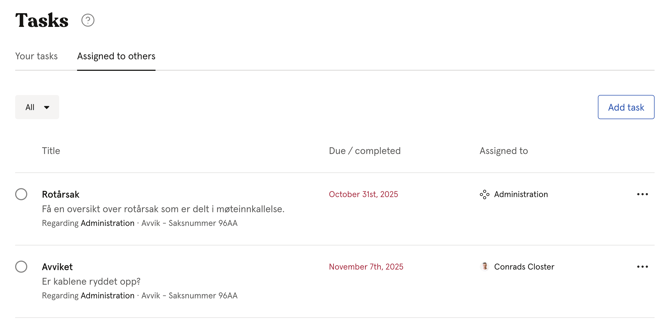
You do not receive a notification when someone completes a task you assigned. To follow up:
- Go to the Tasks module
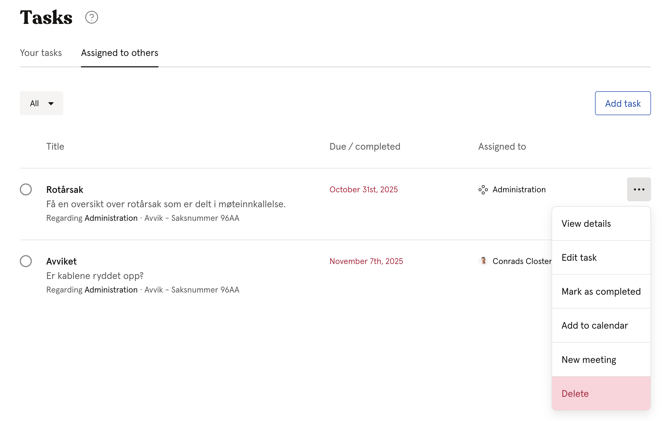
- Navigate to "Assigned to others"
- Here you can see all tasks you have assigned and whether they have been completed
Edit a task
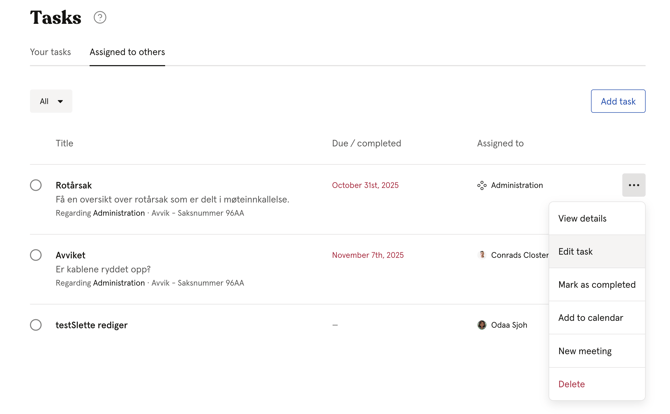
- Go to the Tasks module and find the task
- Click the three dots next to the task
- Click "Edit task"
- Make your changes and click "Save"
⚠️ Only the person who created the task, the person assigned to it, or a user with System role: Users → User management can edit a task.
Delete a task
- Go to the Tasks module and find the task
- Click the three dots next to the task
- Click "Delete" and confirm
⚠️ Deleting a task is permanent and cannot be undone.
FAQ
Can I assign a task to myself?
Yes. When viewing a task assigned to a group you are part of, you can click "Assign to me" to take ownership of it. You can also create a task and assign it to yourself directly.
Can I see tasks assigned to a specific employee?
Yes. Go to the employee's profile and navigate to the "Tasks" tab to see all tasks assigned to that person.
What happens when a task's due date passes without being completed?
The task remains in the "Uncompleted" list. Huma sends reminders to the assigned person 2 days before the due date, on the due date, and 3 days after.
Can I add a link to a task?
Yes. You can add one or more links when creating or editing a task. This is useful for linking to relevant documents, forms or external resources.