Table of Contents
Roles and access
To edit fields on an employee's profile, you need a User role with "See and edit" access for the relevant fields, not a system role. A system role gives access to organisation-wide settings, but does not give access to employee profile data.
| Access | Role |
|---|---|
| Edit fields on an employee's profile | User role: See and edit → on their profile |
| Edit fields on your own profile | User role: See and edit: Standard role → on own profile |
| Assign supervisor to an employee | System role: Users → User management |
💡 The user role must be granted over the group the employee belongs to for it to take effect.
🔗 Read more about user roles and access to profile fields.
How to edit a profile field
Most fields on an employee's profile follow the same pattern, regardless of which section they are in:
-
Go to the People module and open the employee's profile
-
Navigate to the section containing the field you want to edit
-
Click "Edit"
-
Make your changes and click "Save"
💡For fields where you are adding a new entry, such as emergency contacts, children, or identifications, the button will say "Add" instead of "Edit". Follow the same logic: click "Add", fill in the details, and save.
💡 Some fields can only be edited by an administrator or manager, not by the employee themselves. Employment fields in particular are typically managed by an administrator.
🔗 Read more about all profile sections and fields in Huma.
Examples: fields administrators are often asked about
Emergency contacts
Emergency contacts are used to quickly reach a designated person if something happens to the employee. Many organisations ask employees to fill this in themselves, but administrators can also add or update it.
-
Go to the People module
- Open the employee's profile and scroll down to "Emergency contacts"
-
Click "Add"
-
Fill in relation, name, and phone number
-
Click "Add" to save
Children
Information about an employee's children is useful for benefits administration and sick child leave policies.
-
Go to the People module
-
Open the employee's profile and scroll down to "Children"
-
Click "Add"
-
Fill in the details and click "Add" to save
💡 The Children field is not yet connected to the Absence module for sick child leave. Absence policies for sick child leave must be handled manually based on the information on the profile.
Identifications
National ID numbers, passport numbers, and D-numbers are stored in the Identifications section. Multiple identifications can be added to a single employee.
-
Go to the People module
-
Open the employee's profile and scroll down to "Identifications"
-
Click "Add"
-
Select the identification type, fill in the details, and click "Add" to save
💡 If the employee has a D-number, enter it as "National identification number".
Employees editing their own profile
Employees can also edit certain fields on their own profile, for example, adding their own emergency contacts, updating personal information, or uploading a profile photo.
Whether an employee can edit a field depends on the standard role settings for "On own profile" in your organisation (user role) . If a field is set to "Only see", the employee can view it but not change it. If it is set to "See and edit", the employee can update it themselves.
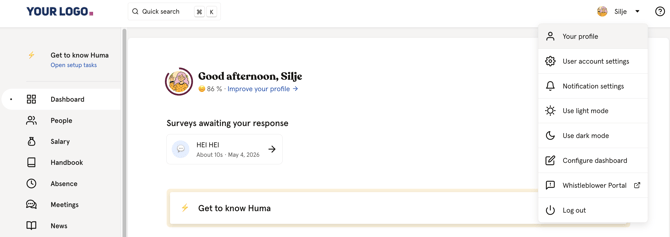
To edit their own profile, employees click their name in the top right corner and select "Your profile".
💡 Encouraging employees to keep their own profiles up to date, especially emergency contacts and personal information, saves administrators a lot of manual work.
🔗 Read more about standard roles in Huma.