
Table of Contents
- Roles and access
- View salary on an employee's profile
- Salary history
- Add a salary record
- Edit a salary record
- Delete a salary record
- Important things to remember
Roles and access
| Access | Role |
|---|---|
| View salary on an employee's profile | User role: Only see → Employment: Salary |
| Add, edit and delete salary on an employee's profile | User role: See and edit → Employment: Salary |
| View your own salary | Available to all employees under "Your salary" in the Salary module |
💡 The user role must be granted over the group the employee belongs to for it to take effect. A system role does not give access to salary on employee profiles.
🔗 Read more about user roles and access to profile fields.
View salary on an employee's profile
- Go to the People module and open the employee's profile
- Scroll down to "Employment" and navigate to "Salary", or
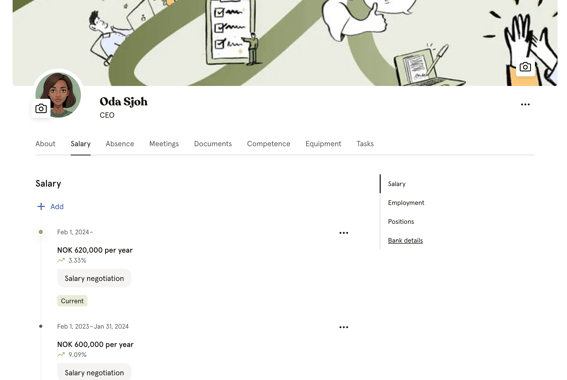
- Navigate to the "Salary tab" to see salary history
You will see the employee's current salary including amount, interval, currency, and the effective period. If the employee has upcoming salary changes, these will also be visible.
⚠️ When a salary is adjusted through salary revisions or "Overview", it will automatically update the salary field on the employees profile.
Salary history
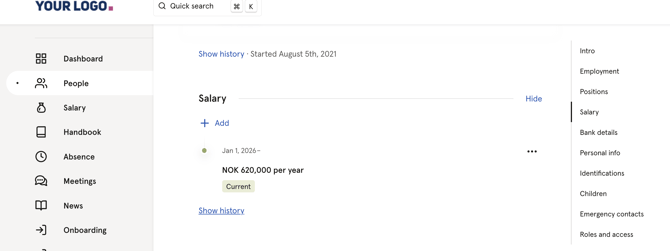
You can view the full salary history for an employee directly on their profile.
- Go to the People module and open the employee's profile
- Scroll down to "Employment" and click "Salary"
- Click "Show history" to see all previous salary records, including amounts, intervals, currencies, and effective periods
Add a salary record
- Go to the People module and open the employee's profile
- Scroll down to "Employment" and click "Salary"
- Click "Add salary"
- Fill in the following fields
- Click "Save"
| Field | Description |
|---|---|
| Salary | The gross salary amount |
| Interval | Yearly, monthly, weekly or hourly |
| Currency | The currency for the salary |
| Effective date | The date the salary period starts |
| End date | Optional. Set an end date if the salary is only valid for a limited period |
| Notes | Optional. Any additional information about the salary change |
⚠️ Adding a salary record will automatically notify the employee. Make sure to inform the employee before saving the change in Huma, once saved, the notification is sent immediately and cannot be recalled.
⚠️ If you add a salary with an effective date that overlaps with an existing salary record, Huma will automatically end the existing record on the day before the new one starts.
Edit a salary record
- Go to the People module and open the employee's profile
- Scroll down to "Employment" and click "Salary"
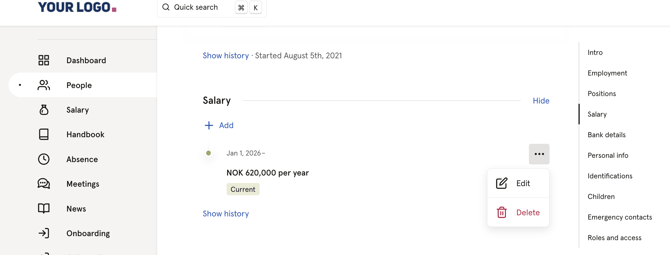
- Click the three dots next to the salary record you want to edit
- Click "Edit"
- Make your changes and click "Save"
⚠️ Editing a current salary record will notify the employee immediately.
Delete a salary record
- Go to the People module and open the employee's profile
- Scroll down to "Employment" and click "Salary"
- Click the three dots next to the salary record you want to delete
- Click "Delete" and confirm
⚠️ Deleting a salary record cannot be undone. If you delete the current salary record, the employee will have no active salary in Huma until a new one is added.
Important things to remember
Part-time employees
Always enter the actual contracted salary, not the full-time equivalent. For example, a 50% position with a salary of NOK 300,000 should be entered as NOK 300,000, not NOK 600,000.
Notes are visible to the employee
Any notes added to a salary record are visible to anyone who has access to view that employee's salary, including the employee themselves. Be mindful of what you write in the notes field.
Notifications cannot be turned off
When a salary is added or edited, the employee is notified immediately and automatically. There is no way to delay or turn off this notification. If you want to inform the employee yourself first, make sure to have that conversation before saving the change in Huma.
Conflicting salary periods
If two salary records overlap in time, Huma will flag this as a conflict. Make sure all salary records have non-overlapping effective periods.