
Table of Contents
- Roles and access
- Validity
- Validity statuses
- Set a validity period
- Archive
- Archive a document
- Unarchive a document
- Do documents move to the archive automatically?
- Filters
- FAQ
Roles and access
Managing validity and archiving is not based on system or user role. It is based on access to the specific document.
| Access | What you can do |
|---|---|
| See and edit | Set and edit the validity period, archive and unarchive the document |
| Only see | View the document and its validity status, but cannot change settings |
🔗 Read more about document access levels.
Validity
Validity lets you define how long a document is relevant. By setting a "Valid from" and/or "Valid to" date, you can track the lifecycle of documents such as employment contracts, certificates or policies, and use filters to quickly find documents that are about to expire or have already expired.
Validity statuses
When a validity period is set, the document will show one of the following statuses:
| Status | What it means |
|---|---|
| Not valid yet | The "Valid from" date is in the future |
| Valid | The document is within its validity period |
| Expiring soon | The "Valid to" date is approaching |
| Expired | The "Valid to" date has passed |
Set a validity period
You need "See and edit" access to the document to set a validity period.
- Go to the Documents module
- Click the three dots to the right of the document and select "Document settings", or open the document and click "Document settings"
- Toggle on "Validity period"
- Set a "Valid from" and/or "Valid to" date
- Click "Save"
💡 You can set just one of the dates if needed, for example only a "Valid to" date if the start date is not relevant.
Archive
Archive lets you move inactive documents out of your main document list without deleting them. Archived documents are preserved and can be accessed at any time from the Archive tab.
Archive a document
You need "See and edit" access to the document to archive it.
- Go to the Documents module
- Click the three dots to the right of the document (or in the document list)
- Click "Archive"
- The document moves to the "Archive" tab and is no longer visible in the main document list.
You can also archive multiple documents at once:
- Select the documents using the checkbox to the left of each document
- Click "Archive" in the action bar at the bottom of the screen
- Click "Proceed" to confirm
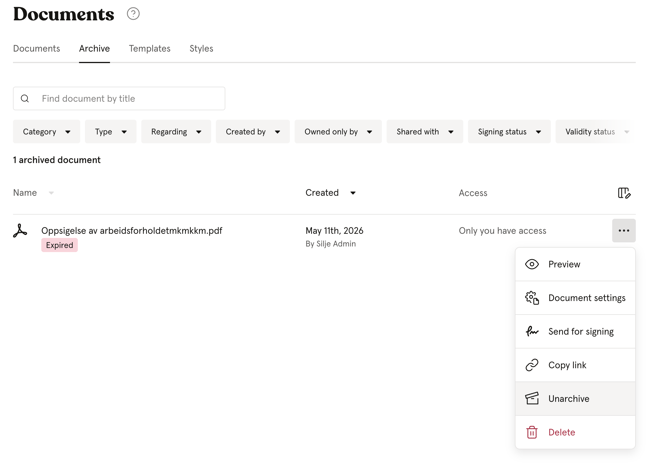
Unarchive a document
- Go to the Documents module
- Navigate to the "Archive" tab
- Click the three dots to the right of the document
- Click "Reactivate"
The document moves back to the main document list.
Do documents move to the archive automatically?
No. Documents are never archived automatically, including when an employee is deactivated or leaves the organisation. However, when a document's validity period has expired, an "Archive" button appears next to its validity status in the document list, making it easy to archive expired documents with one click.
Filters
You can filter documents in the Documents module to quickly find what you are looking for. The following filters are available:
| Filter | Description |
|---|---|
| Category | Filter by document category |
| Type | Filter by file type, for example PDF, smart document or image |
| Regarding | Filter by the person the document is about |
| Created by | Filter by who created or uploaded the document |
| Owned only by | Filter by the document owner |
| Shared with | Filter by who has access to the document |
| Signing status | Filter by digital signing status — Pending, Signed, Withdrawn, Expired or Rejected |
| Validity status | Filter by validity status — Not valid yet, Valid, Expiring soon, Expired or No validity period |
| Archive status | Filter by whether documents are archived or not |
💡 Filters can be combined to narrow down your results. For example, you can filter by "Validity status: Expired" and "Archive status: Not archived" to find all expired documents that have not yet been archived.
FAQ
Can I set a validity period on any document type?
Yes. Validity periods can be set on both uploaded files and smart documents.
What happens when a document expires?
The document status changes to "Expired" and an "Archive" button appears next to it in the document list. The document is not moved or deleted automatically. Note that documents are not automatically expired or archived when an employee is deactivated or leaves the organisation and this must be managed manually.
Do I get a notification when a document is about to expire?
No. Huma does not currently send notifications when a document is approaching its expiry date. To stay on top of expiring documents, use the "Validity status: Expiring soon" filter in the Documents module.
Can I filter for documents expiring within a specific timeframe?
Yes. Use the "Validity status: Expiring soon" filter to find documents whose "Valid to" date is approaching.
Can I archive multiple documents at once?
Yes. Select the documents using the checkboxes and click "Archive" in the action bar at the bottom of the screen.