
Table of Contents
- Roles and access
- What is onboarding in Huma?
- Start an onboarding
- View and follow progress
- Edit an active onboarding
- Notifications
- Preboarding and reboarding
- FAQ
Roles and access
| Access | Role |
|---|---|
| Start, manage and delete onboardings for members of a group | User role: Miscellaneous → Onboarding and offboarding |
| Start, manage and delete onboardings for everyone | System role: Users → User management |
| Create, edit and delete onboarding templates | System role: Onboarding, offboarding and processes → Onboarding and offboarding template management |
💡 Users with a user role can only see and manage onboardings for employees in the groups they have been granted access over.
What is onboarding in Huma?
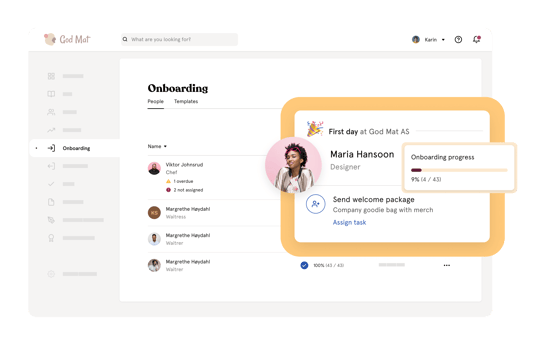
Onboarding in Huma is a structured digital workflow that helps you welcome and guide new employees through their first days and weeks. You create an onboarding plan using templates, assign tasks to the right people, and track progress, all in one place.
Tasks in an onboarding are organised into three phases:
- Before first day of work — preparation tasks before the employee starts
- First day — tasks for the employee's first day
- After first day of work — follow-up tasks in the days and weeks after
🔗 Read more about onboarding templates.
Start an onboarding
- Go to the Onboarding module
- Click "New onboarding"
- Choose "Start onboarding for new hire" or "Start onboarding for existing user"
- Search for or add the employee
- Select a template or continue without one
- Click "Continue"
- Review and adjust tasks — you can add, edit or remove tasks before starting
- Click "Start onboarding"
- Choose whether to invite the employee to Huma immediately or later
When you start an onboarding:
- All users assigned to tasks will be notified
- The new hire will be notified when the onboarding starts, unless they have not been invited to Huma yet
⚠️ To start an onboarding, the employee must have a position in Huma with a "First day of work" set. If they do not have one, you will be prompted to add a position before continuing.
💡 If the employee does not have a "First day of work" set and you cannot edit it, you need a user role with "See and edit" access to Employment details.
⚠️ If the employee has not been invited to Huma, they will not receive a notification when the onboarding starts.
View and follow progress
To get a quick and detailed overview over your onboardings,
- Go to the Onboarding module
- You will see a list of all active onboardings with:
- Employee name
- Progress in percentage
- First day of work
- Click on an employee's name to see a detailed overview of all tasks, their status and due dates
💡 Users with a system role can see all onboarding processes across the organisation. Users with a user role can only see onboardings for employees in their groups.
Edit an active onboarding
You can always edit an active onboarding, both adding, editing or removing tasks even after it has started.
- Go to the Onboarding module
- Click on the employee's onboarding
- Add, edit or remove tasks as needed
💡 Editing the template after an onboarding has started will not affect active onboardings, only future ones.
⚠️ Onboarding cannot be paused. If you need to adjust the timeline, edit the due dates of individual tasks instead.
Notifications
| Event | Who receives it |
|---|---|
| Onboarding started | The new hire (if invited) and all users assigned to tasks |
| New hire starting soon | Users with system role: User management — sent 2 days before the first day of work |
| Onboarding completed | Users with system role: User management |
| Task assigned | The person, team or location the task is assigned to |
Preboarding and reboarding
The onboarding module in Huma is designed for new hires starting in the organisation. However, we often get questions about preboarding and reboarding.
Preboarding refers to the period before an employee's official first day. You can use the onboarding module for this by creating tasks in the "Before first day of work" phase. These tasks can be assigned to the new hire, their manager or other relevant people before they start.
Reboarding and crossboarding covers situations where an employee returns to the company after a period away, or transitions into a new role. For reboarding, we recommend using the Processes module rather than onboarding. Processes is better suited for this since it does not require a new start date and can be started at any time.
🔗 Read more about Processes in Huma.
FAQ
Can onboarding be paused?
No. Onboarding cannot be paused. However, you can edit the due dates of individual tasks to adjust the timeline if needed.
Can I change the template after an onboarding has started?
No. The template cannot be changed once an onboarding has started. You can however add, edit or remove individual tasks directly in the active onboarding.
Can I start multiple onboardings at the same time?
It depends on your subscription plan. On a Premium plan you can have as many active onboardings as you need.
Why are some fields greyed out when I try to start an onboarding?
Some fields, like "First day of work", require a specific user role to edit. If the field is greyed out, you need a user role with "See and edit" access to Employment details.
🔗 Read more about user roles and access to profile fields.
Who has access to see the onboarding overview?
Users with a system role can see all onboardings across the organisation. Users with a user role can only see onboardings for employees in the groups they have been granted access over.
Can I delete an active onboarding?
Yes. You can delete an active onboarding, but deleted onboardings cannot be restored. We recommend archiving instead of deleting.