
Table of Contents
- Deviations in the app
- Roles and access
- Report a deviation
- Follow up your case
- Handle a case
- What to do on web
- FAQ
Deviations in the app
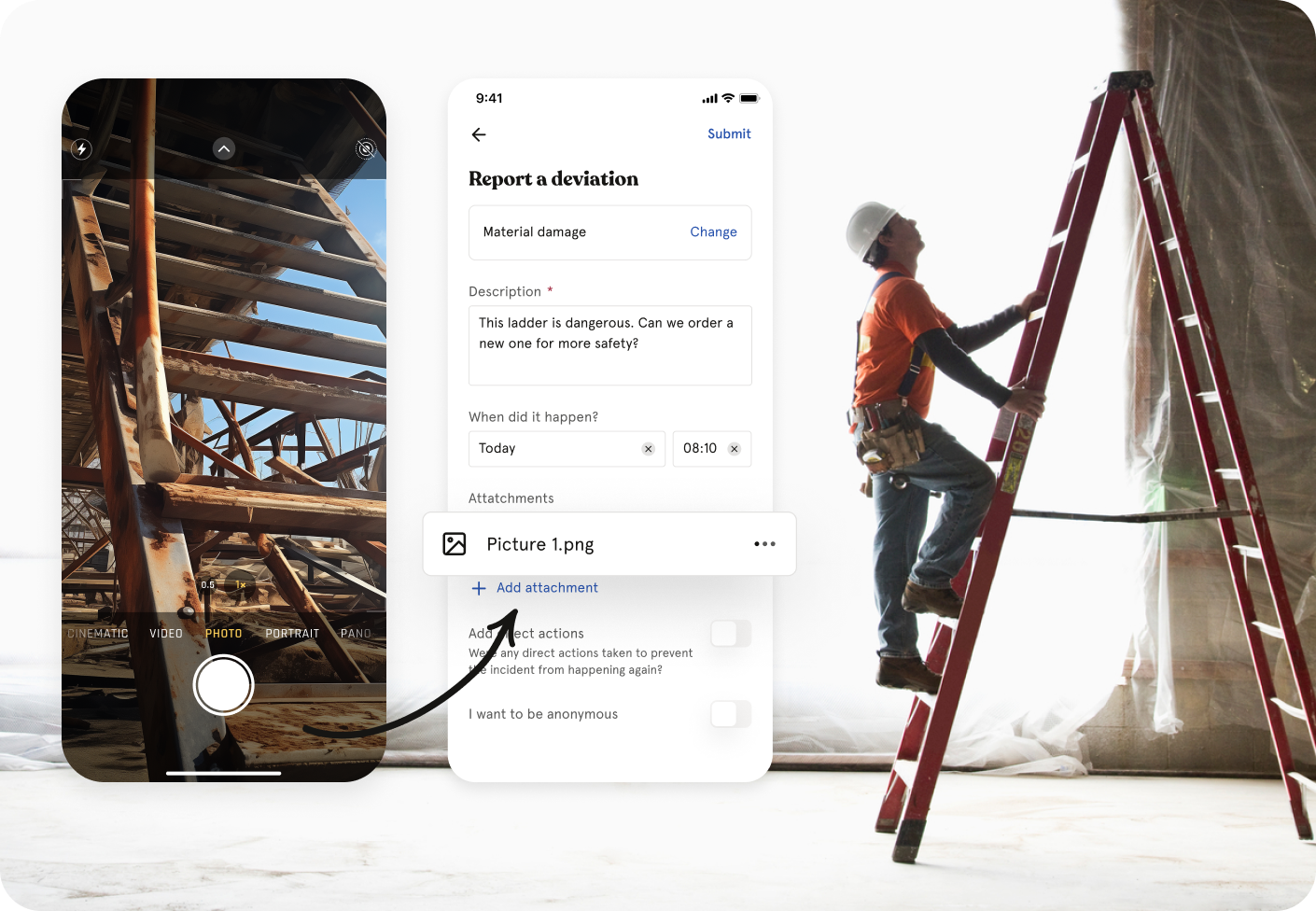
With the Deviation module in the app, you can report a deviation where it happens, while the details are still fresh. Take a photo of the situation, describe what happened and submit the report in a few taps.
Case handlers can also follow up and resolve cases directly from their phone.
Roles and access
| Access | Role |
|---|---|
| Report a deviation | All employees, no role required |
| See and follow up your own cases | All employees, no role required |
| See and handle all cases | Users with the Case handling role |
| Delete a case | Users with the Case handling role |
💡 You only see the cases you have reported yourself. Case handlers see all cases.
🔗 Read more about the Deviation module
Report a deviation
- Tap "Deviation" in the Menu
- Tap "Report an incident"
- Choose the category that best fits what happened
- Write a description. Include what, where and how it happened, and who was involved.
- Add the date and time of the incident, if you know it
- Turn on "Direct actions" if you took any action right away to prevent it from happening again
- Tap "Add attachment" to add photos or files
- Turn on "Anonymous" if you want to be anonymous
- Tap "Submit"
💡 Take a photo of the situation right away. A picture often explains more than a long description.
⚠️ You choose whether to be anonymous when you report. This cannot be changed afterwards.
🔗 Read more about what the report should include
Follow up your case
Your cases are shown in two lists:
- Unresolved: cases that are not started, in progress or on hold
- Resolved and dismissed: cases that are closed
After you have submitted the report, you can still edit:
- The date and time of the incident
- Direct actions
- Attachments you have added yourself
💡 Note
-
Tap "Start conversation" to talk to the case handler directly in the case. If a conversation is already ongoing, tap "Go to conversation".
-
You get a notification each time your case is updated, also if you reported anonymously.
- Tap a case to see its status, history and any updates from the case handler.
Handle a case
If you have the Case handling role, you can handle cases directly in the app.
- Open "Deviation" and tap the case
- Tap "Start process". The case gets the status In progress.
- Fill in the follow-up, for example case handler, severity, due date, root cause and measures
- Tap "Resolve and close" when the case is done
You can also:
- Change status, for example to On hold or Dismissed
- Change the category
- Set the severity: Low, Medium, High or Critical
💡 Cases that pass their due date are marked Overdue. Cases without a case handler are marked as unassigned.
💡 Your dashboard shows how many deviation cases have not been started, so you can see right away if something is waiting for you.
🔗 Read more about handling a deviation case
What to do on web
Some settings are only available in Huma on web:
- Set up the Deviation module and categories
- Give users the Case handling role
- See statistics for deviations
🔗 An introduction to the Deviation module
FAQ
Can I report anonymously from the app?
Yes. Turn on "Anonymous" before you submit. Your name is not shown to case handlers or other users, but you still get notifications about your case.
Can I withdraw a deviation after I have submitted it?
No. Once a deviation is submitted, you cannot withdraw or delete it yourself. Contact a case handler if you submitted something by mistake.
Can I add photos after I have submitted the report?
Yes. You can add and edit your own attachments after submitting.
Does my manager see my report?
Only users with the Case handling role have access to deviation cases. Your manager only sees your report if they have this role.
Where do I find Deviation in the app?
Tap "Menu" and choose "Deviation". If you cannot see it, the module is not enabled for your organisation, or you do not have access to it.