
Table of Contents
- What are equal pay groups?
- Roles and access
- Create a pay group
- Assign job titles to a pay group
- Get AI-suggested groups
- Reorder pay groups
- Reset a year's mapping
- Next step: see your gap analysis
- FAQ
What are equal pay and groups?
Equal pay gives you an up-to-date picture of gender pay gaps in your organisation. It compares pay within groups of roles that represent equal or equal-value work, helping you identify and address differences while they can still be explained or corrected.
Equal pay groups let you group job titles that involve equal or equal-value work, so pay can be compared fairly within each group. Define job titles based on the skills, responsibilities, effort, and working conditions of the role and not the person currently holding it. The ⛓️💥 Equal pay report compares pay within each group and shows you where the differences are.
- Set up job titles — create the job titles you want to group, if they don't already exist.
- Group your job titles — gather job titles that represent equal or equal-value work into pay groups.
- See your report — head to Equal pay to see how pay compares within each group.
💡 The EU suggests defining groups using objective, gender-neutral criteria: skills, effort, responsibilities, and working conditions. Tailor these to fit your own organisation.
🔗 Read more about job titles and how to manage them.
Roles and access
| Access | Role |
|---|---|
| Create, edit and map pay groups | System role: Salary → Salary management |
💡 Only users who have been granted the "System role Salary → Salary management" can manage pay groups. Not managers, not other administrators, and not employees. No one else can see that pay groups exist, how job titles are grouped, or any of the figures behind them. This is a separate role from the "Employment: Salary" user role used to view or edit salary on individual employee profiles, and having that role does not give access to pay groups.
Create a pay group
💡 Before you start: make sure the job titles you want to group already exist. Pay groups are built from job titles, so create any missing ones first. 🔗 Read more about creating job titles.
- Go to System settings
- Navigate to "Job structure" → "Pay groups"
- Select the year you want to map
- Click "Create group"
- Enter a name
- Optionally add a description
- Click "Save"
- Assign job titles to a pay group
💡 Use the description to note the skills, effort, responsibilities, and working conditions that define the group. This becomes part of your documentation for equal pay reporting.
Assign job titles to a pay group
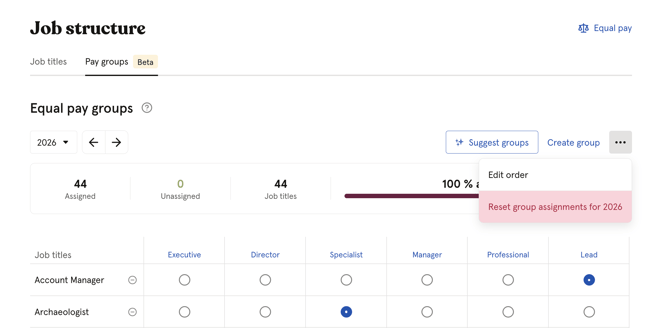
Pay groups and their job titles are mapped in a matrix: job titles are listed as rows, and your pay groups as columns.
- Go to System settings → Job structure → Pay groups
- Select the year you want to map
- For each job title (row), select the radio button under the pay group (column) it belongs to
- Click "Save", or press Cmd/Ctrl + S
💡 The mapping is per year, so you can adjust which job titles belong to which group as your organisation changes over time.
💡 The progress bar above the matrix shows how many job titles are mapped and how many are still missing.
⚠️ Your changes are only a draft until you save them. Leaving the page with unsaved changes will prompt you to confirm.
Get AI-suggested groups
Huma can suggest a complete grouping of your job titles into pay groups, based on your job titles and their descriptions.
- Go to System settings → Job structure → Pay groups
- Select the year you want to map
- Click "Suggest groups"
- Choose the language for the suggested group names and descriptions
- Optionally add naming guidance, group names for the AI to draw on
- Click "Suggest groups"
- Review the suggestions in the matrix. These can include mappings to your existing groups as well as entirely new suggested groups
- Click "Apply" to fill in the suggested mappings for job titles that aren't mapped yet, or "Dismiss" to discard the suggestions
- Click "Save" to keep the changes
💡 Applying suggestions only fills in job titles that are still unmapped and it never overwrites a mapping you've already made.
⚠️ AI-generated content may be inaccurate. Always review the suggested groups and descriptions before saving.
Reorder pay groups
The order of your pay groups decides the order they appear in, both in the matrix and in the Equal pay report.
- Go to System settings → Job structure → Pay groups
- Select the year you want to reorder groups for
- Open the menu (⋯) and click "Edit order," or a Pay group title and "Move left/right"
- Drag groups into the order you want
- Click "Done"
💡 Each move is saved immediately and there's no separate save step for reordering.
Reset a year's mapping
Resetting removes every job title's assignment for the selected year. The pay groups themselves are kept and only the mapping is cleared.
- Go to System settings → Job structure → Pay groups
- Select the year you want to reset
- Open the menu (⋯) and click "Reset [year] mapping"
- Confirm the reset
⚠️ This cannot be undone. Any unsaved changes on the page are discarded as well.
Next: see your gap analysis
Once you're happy with your groupings, head over to the Equal pay report to see how pay compares within each group.
FAQ
Do I need to set up pay groups every year?
The mapping is per year, so you can review and adjust it as job titles, responsibilities, or your organisation change. If you don't change anything, the previous year's mapping is not automatically carried over — check the matrix for the year you're reporting on.
Do I need job titles in place before I can create pay groups?
Yes. Pay groups are built by grouping existing job titles, so create your job titles first in System settings → Job titles. You can create a pay group itself before that, but there will be nothing to assign to it until your job titles exist.
🔗 Read more about creating job titles.
Can a job title belong to more than one pay group?
No. Each job title can only be assigned to one pay group per year.
What happens to a job title I haven't assigned to a group yet?
It stays unmapped and is left out of every figure in the Equal pay report until you assign it to a group. The report shows a warning when this affects the reporting date you've selected.
🔗 Read more about the Equal pay report and how unmapped job titles affect it.
Who can see the pay groups I've set up?
Only users with the system role Salary → Salary management can view or edit pay groups. Managers and employees don't have access.
Can I undo an AI-suggested grouping after I've saved it?
Not directly — once saved, the mapping is treated like any manual change. You can reassign job titles individually in the matrix, or reset the year's mapping and start over.
Can I export the grouping?
For now you have to use a little workaround. Right click on the page and "Print -> As PDF." The grouping will then be saved as a PDF-file on your computer.