
Table of Contents
- What is Equal pay?
- Roles and access
- How it works
- Read the report
- Filter the report
- Look at a single pay group
- Job titles missing from the report
- View an employee's details
- FAQ
What is Equal pay?
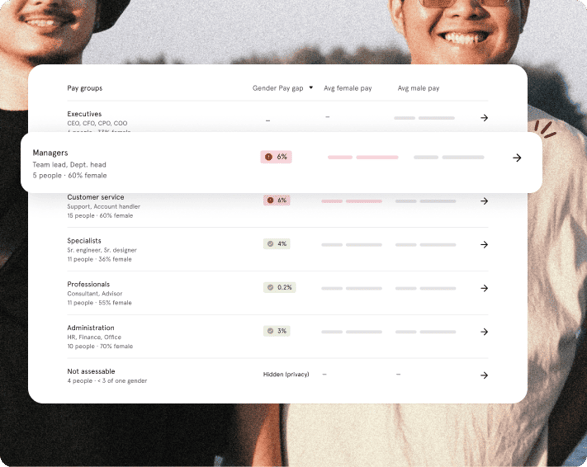
Equal pay gives you a running, up-to-date picture of gender pay gaps in your organisation, instead of a once-a-year exercise in a spreadsheet. It compares pay within each of your pay groups, job titles that represent equal or equal-value work, so differences show up while you can still explain or correct them.
The job structure behind the numbers doubles as documentation for your equal pay reporting obligations.
💡 You won't see a populated report until the groundwork is in place: your job titles need to exist, be gathered into pay groups, and those pay groups need to be saved. Only job titles that are mapped to a pay group are included and the report has nothing to show for the rest.
- Set up job titles — create the job titles you want to group, if they don't already exist.
- Group your job titles — gather job titles that represent equal or equal-value work into pay groups.
- See the overview — head to Equal pay to see how pay compares within each group.
- Save and complete a report — save a snapshot for a date, explain the gaps and download it as a PDF.
🔗 Set up your pay groups first, if you haven't already.
🔗 Read more about saving, completing and downloading an equal pay report.
Roles and access
| Access | Role |
|---|---|
| View the Equal pay page | System role: Salary → Salary management |
💡 Only users who have been granted the system role Salary → Salary management can open the Equal pay page at all — not managers, not other administrators, and not employees. No one else can see the pay groups, the gap figures, or the individual pay behind them. This is a separate role from the "Employment: Salary" user role used to view or edit salary on individual employee profiles — having that role does not give access to this page.
🔗 Read more about roles and access to pay groups.
How it works
For each pay group, Huma compares the average pay of women with the average pay of men, expressed as a percentage of men's pay. The median difference is shown alongside, since it's less affected by a single very high or very low salary.
Groups with an average gap of more than ±5% are flagged - the threshold used in the EU Pay Transparency Directive.
💡 Note
-
Only base pay is compared. Bonuses and other variable pay aren't included.
-
Every pay figure in this report, the group averages and each employee’s base pay, is the salary registered in Huma. Since salary should always be registered as the salary for a full-time position (100%), everyone is compared on the same basis, regardless of employment percentage. For an employee in a 60% position, the number you see here can therefore be higher than what they are actually paid. If a part-time employee’s salary is registered as their actual pay, the comparison will be wrong.
-
Salaries in other currencies are converted to the currency you choose for the report.
-
Only employees with "Male" or "Female" registered as gender count toward the gap. Anyone with another gender identity, "Rather not say", or no gender set is grouped as "Other": they're included in the group's headcount, but not in the gap calculation, which can only compare two groups.
-
An employee needs a primary position that's active on the reporting date to be included — the same position that shows as "Current" when the date is today. Someone with only an upcoming or ended position on that date won't appear.
- If a deactivated user still has an active position on the selected date, they will be included in the report. It's the position's dates that decide this, not the employee's status in Huma. To exclude someone from the report, end their position.
- This page shows every figure, also for small pay groups. A saved report hides figures that could reveal one person's pay. Read more about hidden figures.
🔗 Read more about positions and what counts as a primary position.
Read the report
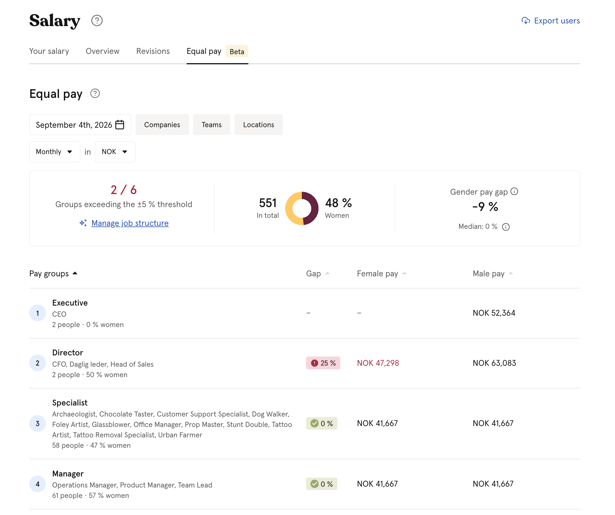
The top of the report shows:
- Groups exceeding the threshold — how many of your pay groups have an average gap above ±5%
- Total headcount and the share of women, across all groups
- Gender pay gap — the average gap across your whole organisation, with the median shown alongside
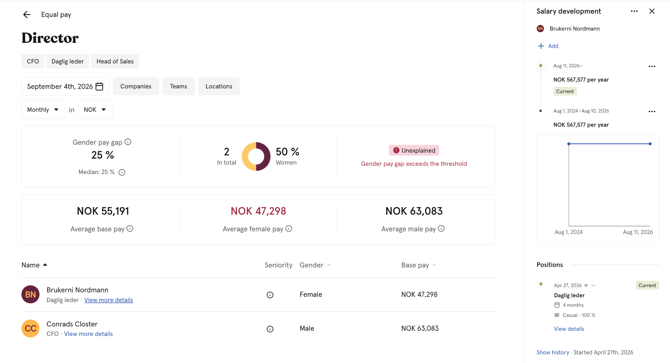
Below that, each pay group is listed with its gap, average female pay, and average male pay. A flagged group shows an alert icon; a group within the threshold shows a checkmark.
💡 Click a pay group to see its details, including a breakdown per employee.
Filter the report
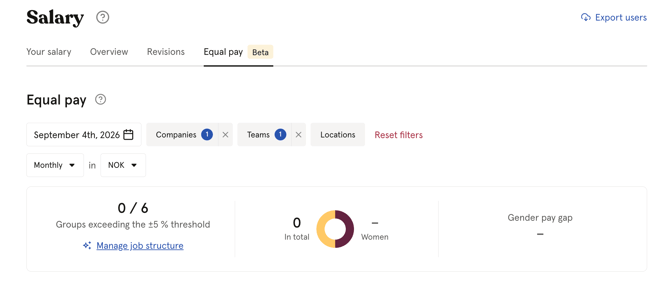
Use the filter bar to narrow the report down:
- Go to Salary → Equal pay
- Pick a reporting date — the report includes everyone with a position active on that date
- Optionally narrow by company, team, or location
- Choose the currency and whether pay is shown monthly or yearly
💡 Your filter and currency/period choices are remembered the next time you open the report.
Look at a single pay group
- Go to Salary → Equal pay
- Click on a pay group
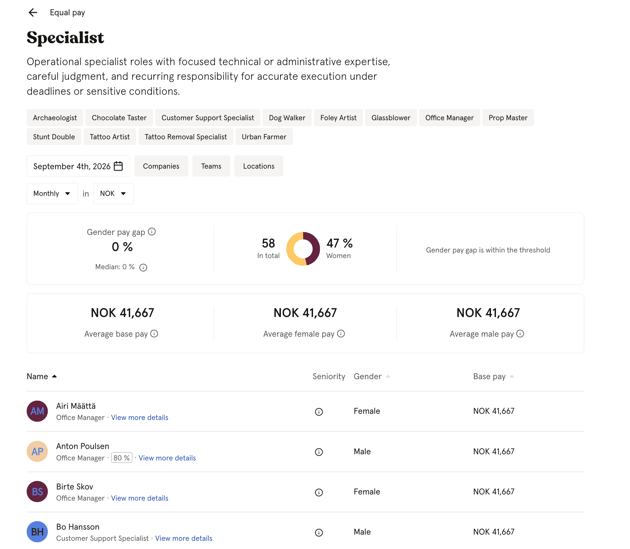
- See the group's gap, headcount, gender split, and whether it's flagged
- Scroll down to see individual employees in the group, with gender and base pay
💡 A flagged group is labelled "Unexplained" — this only means the average gap is above the ±5% threshold. It's worth reviewing why the difference exists and documenting it in a saved report.
🔗 Read more about explaining gaps in a saved report.
Job titles missing from the report
A job title that isn't assigned to a pay group is left out of every figure in the report, because the report doesn't know which group to compare it in.
When this affects the reporting date you've selected, Huma shows a warning above the report with the number of job titles involved and a link to fix it.
🔗 Read more about assigning job titles to pay groups.
View an employee's details
- On a pay group's employee list, click "View more details" next to a name
- A side panel opens with that employee's salary, employment history, and employment details — without leaving the report
💡 The side panel also gives you a shortcut straight to that employee's profile, and if you have the Salary management role, to their salary on the profile.
FAQ
Who is included in the report?
Everyone with a primary position that's active on the date you choose — meaning the position started on or before that date and hasn't ended before it. If someone has more than one position, it's their primary position's job title that decides which pay group they show up in. You can narrow this further by company, team, and location.
Are deactivated employees included?
Yes, as long as they still have an active position on the selected date. It's the position's dates that decide this, not the employee's status in Huma. To exclude someone from the report, end their position.
Why don't I see a gap for one of my pay groups?
A gap can only be calculated when the group has at least one person registered as "Male" and one as "Female", both with a registered salary. If a group has, for example, only women, or nobody with a registered salary, no gap is shown — though the group's headcount is still counted.
What happens to people registered with another gender, or without a registered salary?
Anyone whose gender isn't registered as exactly "Male" or "Female" — another gender identity, "Rather not say", or nothing set — is grouped as "Other" in this report. They're still counted in the group's headcount, but left out of the gap calculation, along with anyone missing a registered salary. The gap can only compare people with a registered "Male" or "Female" gender and salary.
Can I update job titles, positions, gender, and pay for many people at once?
Job titles and positions can be created and updated in bulk through Huma's Open API, and gender and job title can be set for many people at once during people import. Salary and the mapping of job titles to pay groups are managed directly in Huma.
🔗 Read more about the Open API.
🔗 Read more about adding people to Huma.
Does the report show anyone's individual salary to their manager?
No. Only users with the system role Salary → Salary management can open this report or the pay group details.
Can I export the report?
Yes. Click "Create a report" to save a report for the date you want. When you have completed the report, you can download it as a PDF.
🔗 Read more about saving, completing and downloading an equal pay report.