
Table of Contents
-
Add competence to an employee or to multiple employees at once
- Can I use competence records in a Gap analysis?
- FAQ
Roles and access
| Access | Role |
|---|---|
| Create, edit and delete competence types | System role: Competence → Competence management |
| Add, edit and delete competence for all employees | System role: Competence → Competence management |
| Add, edit and delete competence for employees in specific groups | User role: See and edit → Competence |
Set up competence types
Before competence can be added, you need to create competence types. A competence type defines what kind of competence it is, for example "First aid certificate" under Certifications, or "Python" under Skills.
- Go to System settings
- Navigate to "All competence" tab
- Navigate to "Competence"
- Click "Add competence"
- Choose a category — Skills, Languages, Certifications, Education or Experience
- Fill in the type settings and click "Save"
When creating a competence type, you can configure which fields are required when adding a competence record of this type:
| Setting | Available for |
|---|---|
| Name | All categories |
| Icon | All categories |
| Language | All categories |
| Description | All categories |
| School required | Education |
| Field of study required | Education |
| Start date required | Education, Experience |
| End date required | Education, Experience |
| Issued date required | Certifications |
| Expiry date required | Certifications |
| Documentation required | All categories |
💡 Competence types are shared across the organisation. Once created, they are available to all users with competence management access.
Add competence to an employee or to multiple employees at once
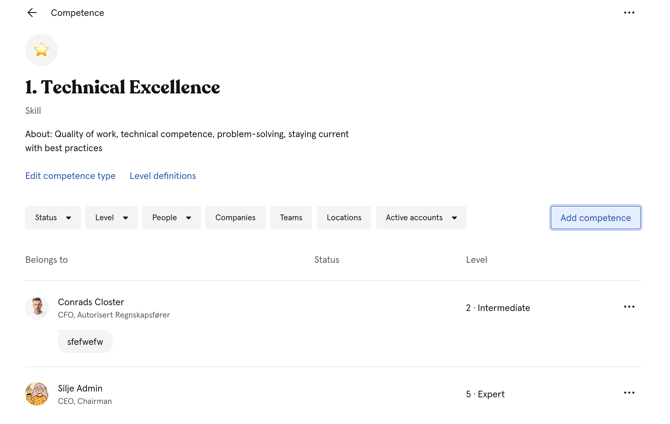
- Go to the Competence module, or go to the employee's profile and navigate to the "Competence" tab
- Navigate to the "All competence" tab
- Click on the competence type and "Go to full view"
- Click "Add competence" and pick employees from the list
💡 The level field on a competence record is only visible to the employee themselves and users with competence management access — not to other colleagues.
⚠️ Notes are visible to everyone in the organisation. Do not add sensitive information in the notes field.
Add documentation
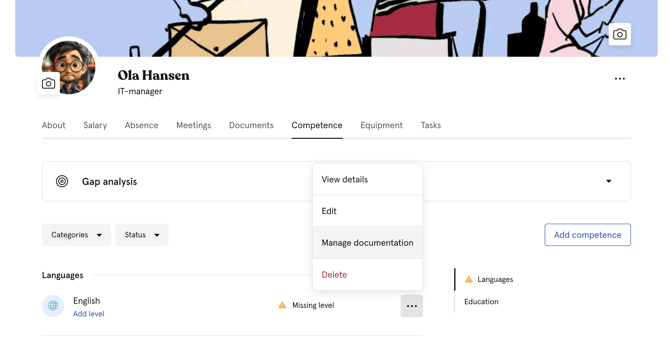
You can attach documentation to a competence record as files or links.
- Open the competence record from the employee's profile or the Competence module
- Click "Manage documentation"
- Upload a file or add a link
- Click "Save"
Filter and find competence
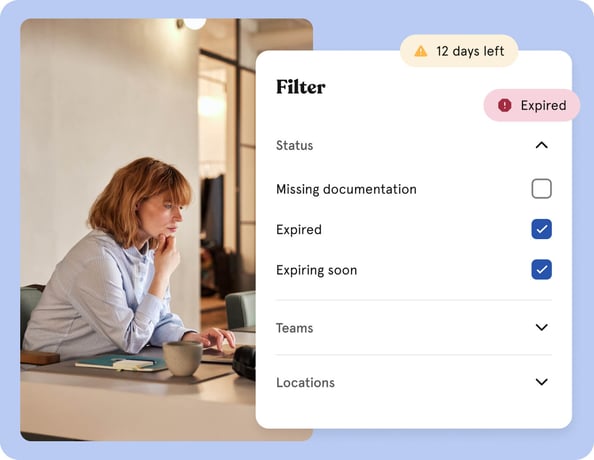
In the Competence module you can filter by:
| Filter | Description |
|---|---|
| Categories | Filter by competence category |
| Status | Filter by Missing documentation, Missing expiry date, Expired, Expiring soon or Missing required fields |
| Companies, Teams, Locations | Filter by group membership |
💡 You can also search by competence type name to quickly find all employees with a specific competence.
Edit and delete competence records
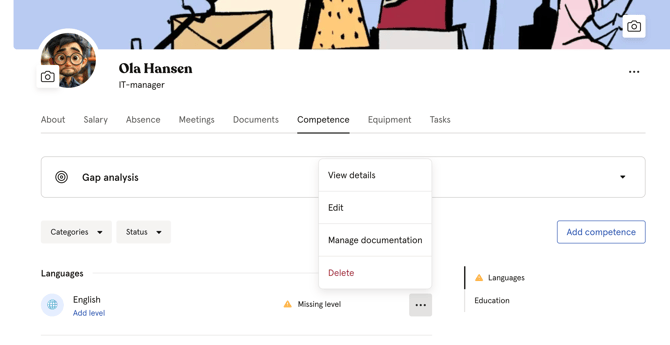
To edit a competence record:
- Open the employee's profile and navigate to the "Competence" tab, or find the record in the Competence module
- Click on the competence record
- Click "Edit"
- Make your changes and click "Save"
To delete a competence record:
- Open the competence record
- Click the three dots in the top right corner
- Click "Delete" and confirm
⚠️ Deleting a competence record is permanent and cannot be undone. All associated documentation will also be deleted.
Notifications
Huma sends automatic notifications related to competence in the following situations:
| Event | Who receives it |
|---|---|
| Competence added on behalf of an employee | The employee — only when added by someone else, not when they add it themselves |
| Certification expiring soon | The employee and users with competence management access |
For certifications with an expiry date, Huma automatically sends reminders at three points before the expiry date:
| Reminder | When it is sent |
|---|---|
| First reminder | 90 days before expiry |
| Second reminder | 30 days before expiry |
| Final reminder | 2 days before expiry |
💡 Employees can manage their own notification preferences under account settings.
What happens when a certification expires?
When a certification's expiry date has passed, the record is marked as "Expired" in the competence overview. The record itself, including any attached documentation, remains in Huma and is not deleted.
To renew an expired certification:
- Open the competence record
- Click "Edit"
- Update the expiry date and replace or add new documentation if needed
- Click "Save"
💡 Documentation attached to a competence record does not have its own expiry date. It is the competence record itself that expires, not the documentation.
Can I use competence records in a Gap analysis?
Yes. All competence registered in Huma can be used as the basis for a Gap analysis. The Gap analysis lets you define target levels for specific competence types and compare them against what your employees actually have, giving you a clear picture of where your organisation needs to develop or recruit.
🔗 Read more about Competence Gap Analysis in Huma.
FAQ
Can I add competence directly from an employee's profile?
Yes. Go to the employee's profile, navigate to the "Competence" tab and click "Add competence".
Can I add the same competence type to multiple employees at once?
Yes. When adding a competence, you can select multiple employees under "Belongs to". Note that documentation must be added individually afterwards.
Is there a limit to how many competence types I can create?
There is no limit on the number of competence types you can create.
Can I see which employees have a specific competence type?
Yes. Go to the Competence module, navigate to the "Types" tab and click on a type to see all employees who have that competence registered.
Can I see when a competence was added or last updated?
There is no date for when a competence was added or last updated shown directly on the competence record. However, you can find this information in the Activity log by filtering on Category: Competence and the relevant employee.
🔗 Read more about the activity log in Huma.