
Table of Contents
- How the app is organised
- Roles and access
- The tab bar
- The menu
- The dashboard
- Quick actions
- Configure your dashboard
- FAQ
How the app is organised
The Huma app has two main ways to get around:
- The tab bar at the bottom of the screen gives you one-tap access to the modules you use most
- The menu gives you access to all the modules you have access to, plus your profile and settings
💡 When you open the app, you land on the dashboard, your personal overview of what is relevant to you today.
Roles and access
| Access | Role |
|---|---|
| Use the tab bar, menu and dashboard | All employees, no role required |
| See a module in the tab bar or menu | The module must be enabled for your organisation, and you must have access to it |
| Configure your own dashboard | All employees, no role required |
💡 The app follows the same roles and access as Huma on web. Employees only see the modules they have access to.
The tab bar
The tab bar shows up to four modules, plus Menu at the far right.
The app chooses the modules automatically, in this order, based on what you have access to:
- Dashboard
- People
- Handbook
- Absence
- Meetings
- News
- Documents
- Competence
- Equipment
- Tasks
💡 If your organisation does not use the dashboard, the Handbook is shown first.
💡 The modules that do not fit in the tab bar are always available in the Menu.
The menu
Tap Menu at the far right of the tab bar to see:
- Your profile: tap your name at the top
- Settings: tap the settings icon in the top right corner
- All modules you have access to, for example People, Salary, Handbook, Absence, Meetings, News, Onboarding, Offboarding, Processes, Documents, Competence, Equipment, Tasks, Deviations and Whistleblowing
- Feedback: send feedback to Huma at the bottom of the menu
💡 Onboarding, Offboarding and Processes are only shown to users who can manage them.
.png?width=266&height=578&name=File%20(1).png)
The dashboard
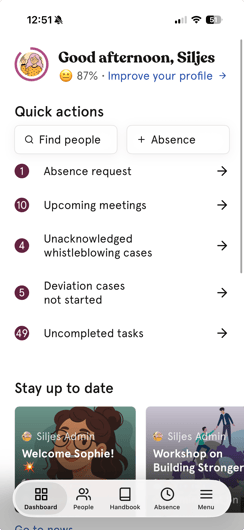
The dashboard gives you a personal overview based on your roles and access. Depending on what is relevant to you, you may see:
| Section | What it shows |
|---|---|
| Quick actions | Shortcuts to what you use most, and any ongoing absence |
| Who's away? | Colleagues who are away today and in the coming days |
| Featured topics | Important topics pinned in the handbook |
| Stay up to date | The latest news articles |
| Jubilees | Birthdays and work anniversaries |
💡 You may also see surveys you are invited to, onboarding information and tips on completing your profile, when these are relevant to you.
Quick actions
Quick actions give you shortcuts to the things you do most often, for example:
- Find person: search for a colleague
- Absence: register absence in a few taps
- Notifications: see what is new
💡If you have an ongoing absence, it is shown at the top of Quick actions. Tap "End now" if you are back earlier than planned.
💡 The shortcuts you see depend on your access. Managers may also see shortcuts such as absence requests.
📱 On Android: Quick actions can also include shortcuts to more modules, for example finding a document.
Configure your dashboard
You can rearrange the sections and hide the ones you do not use.
- Scroll to the bottom of the dashboard
- Tap "Configure dashboard"
- Drag the sections into the order you want
- Hide the sections you do not need, or show hidden ones again
- Close the window to save your changes
💡 Dashboard configuration is personal. Your changes only affect your own view.
🔗 Read more about the dashboard on web.
.png?width=227&height=494&name=File%20(2).png)
FAQ
Can I choose which modules are shown in the tab bar?
No. The tab bar is set up automatically based on the modules you have access to. All other modules are available in the Menu.
Why don't I see a module in the app?
The module must be enabled for your organisation, and you must have access to it. Contact your administrator if you are missing a module.
Can an administrator configure the dashboard for employees?
No. The dashboard is personal, and each employee configures their own.
Is the dashboard the same in the app and on web?
The content is based on the same roles and access, but the app has its own layout and settings. Changes you make in the app apply to the app.
Why is the dashboard not the first tab for me?
If your organisation does not use the dashboard, the app opens on the first available module, usually the Handbook or People.