
Table of Contents
- Roles and access
- Templates created by Huma and partners
- Create your own template
- Edit a template
- Duplicate a template
- Delete a template
- Import and export templates
Roles and access
| Access | Role |
|---|---|
| Create, edit and delete process templates | System role: Processes → Process template management |
| Use a template when starting a process | User role: Miscellaneous → Processes |
Templates created by Huma and partners
Huma provides a range of ready-made process templates created by Huma and trusted partners. You will find them in the Templates tab in the Processes module, listed under "Process templates created by Huma".
Templates can be filtered by language and legislation to find the ones most relevant to your organisation.
🔗 Read more about available templates in Processes in Huma.
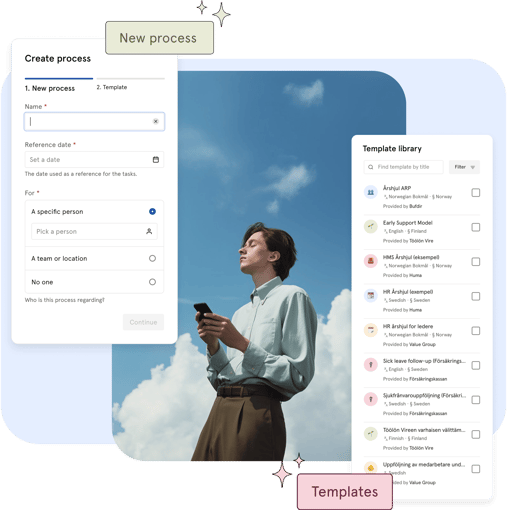
Create your own template
- Go to the Processes module
- Navigate to the "Templates" tab
- Click "Add process template"
- Choose "New template", "Import from file" or select a Huma template as a starting point
- Give the template a name and optionally add a description
- Click "Add"
- Add tasks to the template and fill in details such as title, description, due date relative to the reference date and who the task should be assigned to
- The template saves automatically. Click "Templates" to exit editing mode.
💡Task due dates are set relative to the reference date, not as fixed calendar dates. You can set tasks to be due a specific number of days before, on, or after the reference date.
💡 When adding tasks, you can assign them to a specific person, a team, a location or leave them unassigned. When assigned to a group, all members will see the task but only one person needs to complete it.
⚠️ Changes to a template will not affect processes that have already been started. Only future processes will use the updated template.
Edit a template
- Go to the Processes module → Templates tab
- Click on the template you want to edit
- Add, edit or remove tasks as needed
- To edit template details such as name and description, click the three dots in the top right corner and select "Edit details"
- All changes are saved automatically.
Duplicate a template
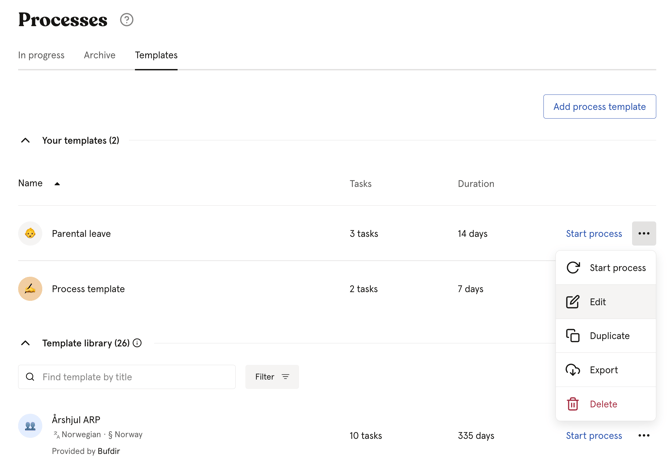
- Go to the Processes module → Templates tab
- Click the three dots next to the template
- Click "Duplicate process template"
- Give the duplicate a new name and start modifying it
💡 Duplicating is a great way to create variations of an existing template, for example different process plans for different departments or countries.
Delete a template
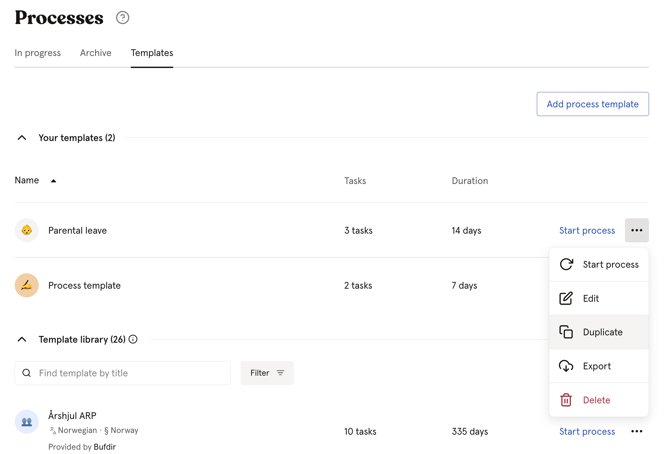
- Go to the Processes module → Templates tab
- Click the three dots next to the template
- Click "Delete" and confirm
⚠️ Deleting a template cannot be undone. However, deleting a template will not affect processes that have already been started using that template.
Import and export templates
You can import and export process templates, which is useful for sharing templates between organisations or keeping backups.
💡 Import and export of process templates requires an Enterprise subscription.
Export:
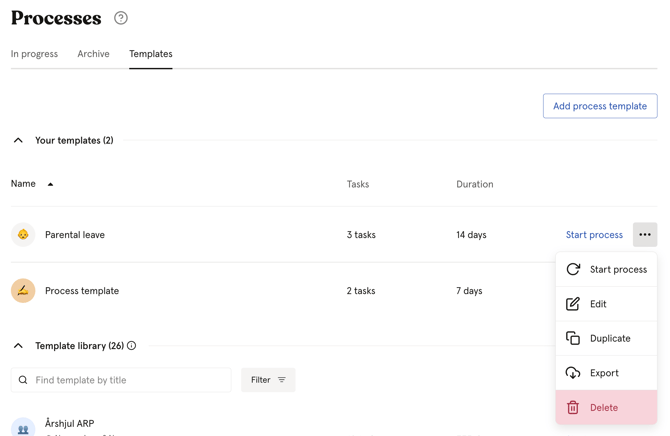
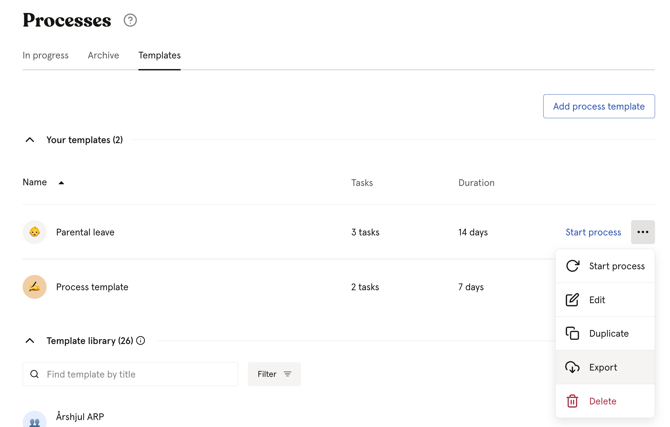
- Go to the Processes module → Templates tab
- Click the three dots next to the template
- Click "Export"
The file will be saved as a .json file on your computer.
Import:
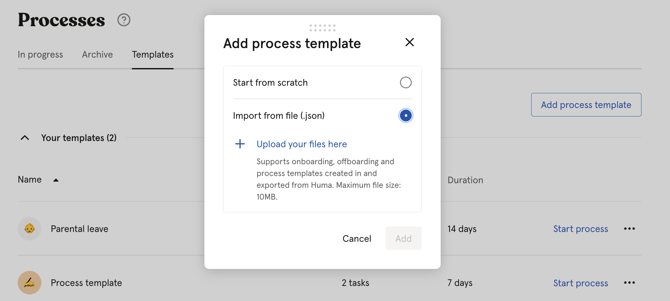
- Go to the Processes module → Templates tab
- Click "Add process template"
- Choose "Import from file (.json)"
- Upload your file and click "Add"
💡 Only templates created and exported from Huma can be imported. Note that if you import a template intended for a different purpose, for example an onboarding template into processes, it will technically work but the tasks may not fit the purpose.
FAQ
Can I use a Huma template as a starting point for my own template?
Yes. When creating a new template, you can select a Huma template as a starting point and customise it to fit your organisation's needs. You cannot edit Huma's templates directly, but duplicating them gives you a fully editable copy.
Can I add tasks from another template into my template?
Yes. When editing a template, you can add tasks from other templates by clicking "Add from template" at the bottom of the page.
Will changes to a template affect ongoing processes?
No. Changes to a template only affect future processes. Processes that have already been started will not be affected.
Can I share templates with other organisations?
Yes, through export and import. Export the template from one organisation and import it into another. This requires an Enterprise subscription.
Can I import an onboarding or offboarding template into Processes?
Technically yes, but Huma will warn you that the template is intended for a different purpose. The tasks may not fit a process context, so proceed with caution.