
Table of Contents
-
Add salary for the first time
Roles and access
| Access | Role |
|---|---|
| Access the Salary overview | System role: Salary → Salary management |
💡 The Salary overview is only available to users with a system role with Salary management access. This is separate from the user role that controls access to salary on individual employee profiles.
What is the Salary overview?
The Salary overview gives you a complete list of all active employees in your organisation and their current salary — all in one place. It is the quickest way to get a full picture of your organisation's salary data, add salaries for the first time, or make adjustments outside of a formal revision process.
You can find the Salary overview by going to the Salary module and clicking "Overview".
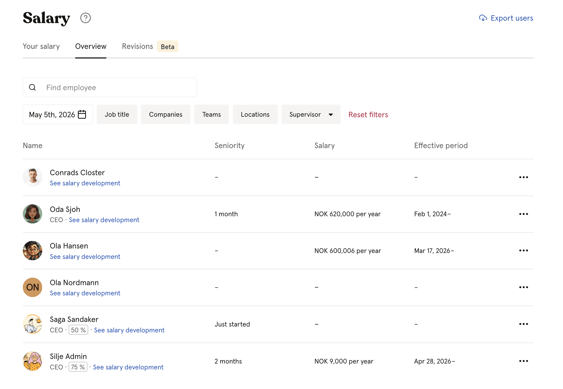
Navigate the overview
The overview shows a list of all active employees with the following information:
- Name and job title
- Employment percentage and a link to "See salary development"
- Seniority
- Current salary (amount and currency)
- Effective period (from and to date)
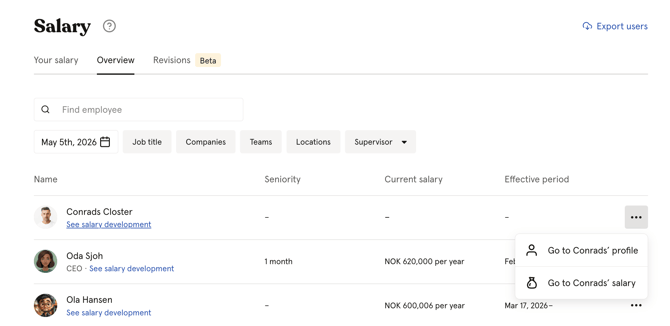
Click the three dots next to an employee to:
- Go to [name]'s profile — opens the employee's full profile
- Go to [name]'s salary — opens the employee's salary page where you can add, edit, and view salary history
⚠️ The overview shows one salary per employee, the salary that is active on the selected date. If an employee has no salary registered, their salary field will be empty.
Filter the salary list
You can filter the salary list to narrow down which employees are shown.
-
Go to the Salary module and click "Overview"
-
Use the filters at the top of the list to filter by:
| Filter | Description |
|---|---|
| Teams | Show employees in a specific team |
| Locations | Show employees at a specific location |
| Companies | Show employees in a specific company |
| Job title | Show employees with a specific job title |
| Supervisor | Show employees with a specific supervisor, employees with no supervisor, or your own subordinates |
View salary on a specific date
By default, the overview shows the salary that is active today. You can change the date to see which salary was active on a different date, for example to see salaries before a recent revision.
-
Go to the Salary module and click "Overview"
-
Click the date field in the top right corner
-
Select the date you want to view salaries for
💡 This is useful when you need to compare salaries before and after a revision, or when preparing payroll for a specific period.
Add salary for the first time
If you are setting up Huma for the first time, the Salary overview is the quickest way to navigate to each employee's salary page and add their salary, if you are not using salary revision.
- Go to the Salary module and click "Overview"
- Click on "See salary development"
- Navigate to "Add" and fill out salary details, or
- Click the three dots next to the employee you want to add a salary for
- Click "Go to [name]'s salary"
- Add salary directly on their salary page
💡 For part-time employees, always enter the actual contracted salary, and not the full-time equivalent. Read more about this in Salary in Huma.
🔗 Read more about salary on employee profiles.
Export users and salary
You can export salary data for all employees directly from the overview.
- Go to the Salary module and click "Overview"
- Click "Export users" in the top right corner
- Follow the same export flow as in the People module