
Table of Contents
What is salary in Huma?
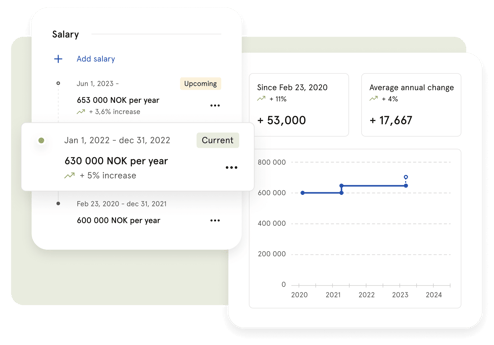
The Salary module in Huma gives you a complete and secure overview of your organisation's salary data in one place. You can view and manage salary directly on each employee's profile, get a full overview across all employees, and run structured salary revision processes with approvers and reviewers.
The module has three main areas:
-
Overview — a full list of all employees and their current salary. Use this to get a complete picture of your organisation's salary data, add salaries for the first time, or make quick adjustments.
-
Employee profile — salary is managed directly on each employee's profile under the Employment section. Here you can add, edit, and view salary history for individual employees.
-
Revisions — a structured process for running organisation-wide salary reviews with budgets, reviewers, and approvers.
🔗 Read more about the different salary areas here.
💡 For part-time employees, always enter the full-time equivalent salary. For example, a 50% position with a salary of NOK 300,000 should be entered as NOK 600,000, not NOK 300,000.
⚠️ Notes added to a salary record are visible to anyone who has access to view that employee's salary, including the employee themselves. Be mindful of what you write in the notes field.
Roles and access
Salary access in Huma is controlled by two separate role types that work together:
| Access | Role |
|---|---|
| View salary on employee profiles | User role: Only see → Employment: Salary |
| View and edit salary on employee profiles | User role: See and edit → Employment: Salary |
| Create and manage salary revisions, approve salary changes | System role: Salary → Salary management |
💡 A system role with Salary management gives access to create and run revisions, but does not automatically give access to view or edit salary on individual employee profiles. For full access, both a system role and a user role with salary access are needed.
🔗 Read more about user roles and access to profile fields.
🔗 Read more about roles in Huma.
Notifications
Huma sends automatic notifications related to salary in the following situations:
| Notification | Who receives it |
|---|---|
| Salary changed | The employee, when their salary is updated, either directly on their profile or through a completed revision |
| Salary admin: Revision updated | Salary admins, with updates and reminders about ongoing revisions |
| Reviewer: Salary revision updated | Reviewers, with updates and reminders about revision groups assigned to them |
⚠️ When a salary is updated, either directly on an employee's profile or through a completed revision, the employee is automatically notified immediately. There is currently no way for administrators to delay or turn off this notification.
💡 If you want to inform the employee before they receive the notification, make sure to have the conversation before saving the salary change in Huma. Once saved, the notification is sent straight away.
💡 Employees can manage their own notification preferences under account settings.
Giving external consultants access to salary data
If your organisation works with an external payroll consultant, here is how to give them access to salary data in Huma.
Since all users in Huma must have an account, the recommended approach is to create the consultant as a user and give them a carefully scoped role with only the access they need.
How to set it up:
-
Add the consultant as a user in Huma using their work email address
-
Create a user role with "Only see" access on salary, and nothing else, and grant it over "Everyone"
-
Do not assign a system role unless the consultant also needs to manage revisions
-
Exclude the consultant from Insights and eNPS surveys using bulk actions in the People module, when this ensures they do not affect statistics or receive surveys
What the consultant can and cannot do with this setup:
| Access | Consultant can do this |
|---|---|
| View salary on employee profiles | ✅ Yes |
| Edit salary on employee profiles | ❌ No |
| Create or manage salary revisions | ❌ No |
| Access any other modules or data | ❌ No |
💡 Note that the consultant will appear in the People list and will count as a user on your subscription. If this is a concern, the alternative is to export salary data regularly and share it with the consultant outside of Huma.
🔗 Read more about how to export People data.
🔗 Read more about how to add people to Huma.