
Table of Contents
- Roles and access
- Open Everyone’s hours
- Read the overview
- Filter the list
- Register or edit hours for an employee
- Deactivated employees
- FAQ
Roles and access
| Access | Role |
|---|---|
| See the Everyone’s hours tab, and see, register, edit and delete hours for employees | User role: See and edit → Absence, over the employees in question. This includes the Supervisor role when absence access is set to “Full access”. |
💡You only see the employees you have absence access over. If you have access over yourself, you’re included in the list too.
⚠️ The system role Absence → Absence management doesn’t give access to Everyone’s hours on its own.
🔗 Read more in Roles, approvals and notifications in absence.
Open Everyone’s hours
- Go to Time tracking in the main menu.
- Open the Everyone’s hours tab.
- Choose Week or Month under Period.
- Use the arrows to go to the previous or next week or month.
💡The overview opens in the month view. If you switch to the week view, Huma remembers your choice until you close the browser tab.
Read the overview
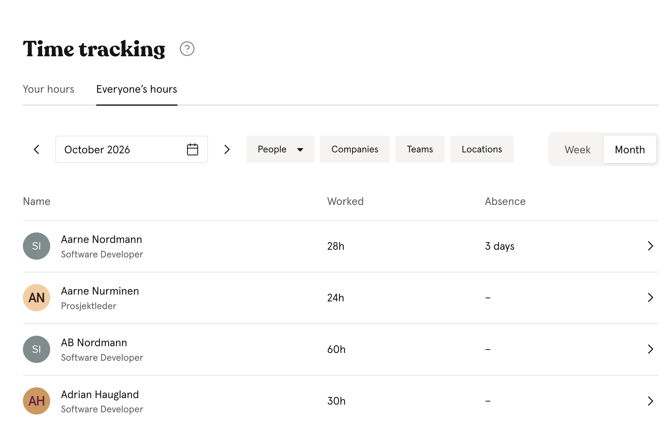
The list shows one row per employee, sorted by name.
| Column | What it shows |
|---|---|
| Name | The employee |
| Worked | Total hours registered in the period. Shows Nothing logged if the employee has registered no hours and has at least one past workday without hours. |
| Absence | Number of days of approved absence in the period |
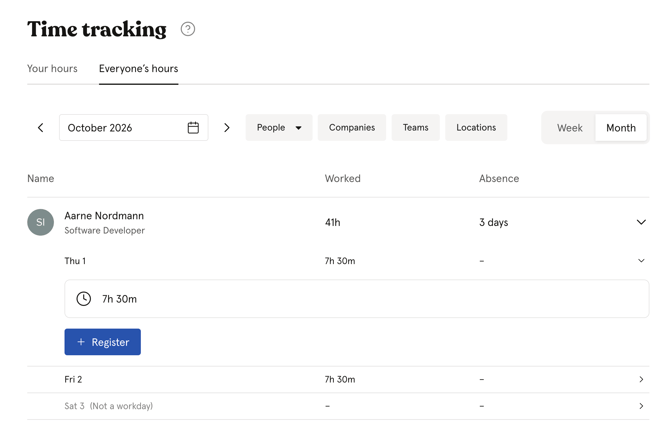
Click a row to see each day in the period. Click a day to see its details: holidays, absence, each time entry and the option to register hours.
💡 Approved absence counts in the Absence column. Pending absence is shown on the day, but it isn’t counted in the total.
🔗 Read more about when a day is marked Nothing logged in Time tracking in Huma.
Filter the list
You can narrow the list with these filters:
- People
- Companies
- Teams
- Locations
💡The People filter only shows employees you manage.
Register or edit hours for an employee
- Click the employee’s row.
- Click the day.
- Click Register to add hours, or click an existing entry to change it.
- Enter the hours and an optional note.
- Click Register or Save.
💡To delete an entry, open it and click Delete. Confirm with Delete.
⚠️ Deleted hours can’t be restored.
Deactivated employees
Deactivated employees can still appear in the list for periods when they were active. For deactivated employees:
- You can see the hours they registered.
- You can’t register or edit hours for them.
- Their absence isn’t shown.
💡 Days after the deactivation date are never marked Nothing logged.
FAQ
Why don’t I see the Everyone’s hours tab?
You need a user role with absence access over at least one employee. The system role Absence management alone isn’t enough.
Why doesn’t my whole organisation show up in the list?
You only see the employees you have absence access over. Check which groups your user role covers.
Does the employee get notified when I change their hours?
No. Huma doesn’t send notifications when hours are registered, changed or deleted. The changes are recorded in the activity log.
Can I see Everyone’s hours in the Huma app?
No. The overview of other employees’ hours is only available in Huma on web. In the app, employees register their own hours.
Can I export the overview?
Not yet. Time tracking doesn’t include export.
Why does an employee show Nothing logged when they’ve been on holiday?
A day is only marked when absence covers less than a full day. Check that the absence is registered in Huma and that it covers the whole day.