
Table of Contents
- What is time tracking?
- Roles and access
- Turn on time tracking
- How time tracking works with absence and work schedules
- Days with nothing logged
- What time tracking does not include
- FAQ
What is time tracking?
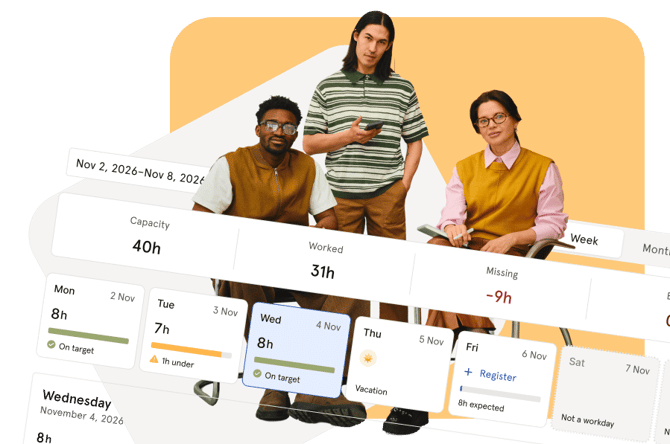
Time tracking lets employees log how many hours they work each day. Hours and absence are shown together, so you get a complete picture of each employee’s time in one place.
Employees register the total number of hours they worked on a day. They don’t need to enter start and end times.
You find time tracking in these places:
- Time tracking in the main menu, with the tabs Your hours and Everyone’s hours
- The Time tracking widget on the dashboard
- The Huma app, where employees register their own hours
💡 Curious about time tracking in Huma? Contact us at support@hu.ma and we’ll help you get started.
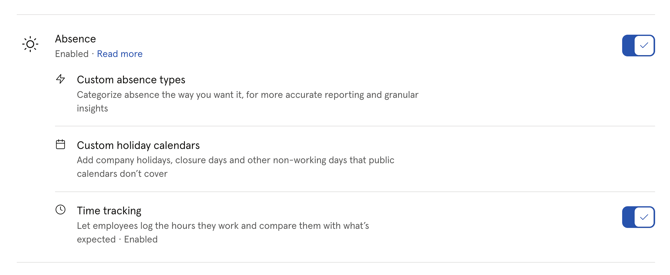
💡 Time tracking is part of the Absence module. The Absence module must be turned on before you can use time tracking.
🔗 Read more in Register and edit your hours, Everyone’s hours and Time tracking in the app.
Roles and access
| Access | Role |
|---|---|
| Register, edit and delete your own hours | All employees. No role is required. |
| See, register, edit and delete hours for other employees | User role: See and edit → Absence, over the employees in question. This includes the Supervisor role when absence access is set to “Full access”. |
| Turn time tracking on or off | Administrators with access to Manage modules and features |
⚠️ The system role Absence → Absence management does not give access to other employees’ hours on its own. To see and manage hours for others, you need a user role with absence access over those employees.
🔗 Read more in Roles, approvals and notifications in absence.
Turn on time tracking
- Go to Settings → Manage modules and features.
- Make sure the Absence module is turned on.
- Under Absence, turn on Time tracking.
💡When you turn time tracking off, no data is lost. Registered hours are hidden until you turn it on again.
💡 Make sure your employees have a work schedule before you start. Without a work schedule, Huma can’t tell which days are workdays. Those days show No work schedule.
🔗 Read more in Work schedules.
How time tracking works with absence and work schedules
Time tracking uses the same information as the Absence module.
| On the day | What you see |
|---|---|
| Workday | Hours registered, or nothing yet |
| Approved or pending absence | The absence type. Partial absence is shown with its percentage. Pending absence is marked as a request. |
| Public holiday or custom holiday | The holiday’s name |
| Not a workday in the work schedule | Not a workday |
| No work schedule assigned | No work schedule |
Some rules for registering hours:
- Enter hours as 7.5 or 7:30.
- One entry can be at most 24 hours.
- You can register more than one entry on the same day.
- You can add a note to each entry, up to 1,000 characters.
- You can register hours up to one year back or one year ahead.
🔗 Read more in Register and edit your hours and Custom holiday calendars.
Days with nothing logged
A day is marked Nothing logged when all of these apply:
- The day is in the past. Today is never marked.
- It’s a workday in the employee’s work schedule.
- No hours are registered.
- Approved and pending absence together cover less than a full day.
- The employee was not deactivated on that day.
💡 You see this status in Your hours, in the dashboard widget, in Everyone’s hours and in the Huma app.
💡 A day with nothing logged is not the same as a day with zero hours. It only means that no hours have been registered yet.
What time tracking does not include
The first version of time tracking is deliberately simple. It does not include:
- Approval of hours
- Overtime, flexitime or a time bank
- Export of hours
- Transfer of hours to payroll systems or other integrations
FAQ
Which plans include time tracking?
Time tracking is a paid add-on to the Standard and Premium plans. Contact support@hu.ma if you want to add it to your subscription.
Can employees register hours on public holidays and days off?
Yes. Hours can be registered on any day, including holidays and days that aren’t workdays.
Does absence count as registered hours?
No. Absence is shown next to the hours but is not added to them. A day with full-day absence is not marked as Nothing logged.
Why can’t I see the Everyone’s hours tab?
The tab is only shown if you have a user role with absence access over at least one employee. The system role Absence management alone is not enough.
Can employees register hours in the Huma app?
Yes. Employees can register, edit and delete their own hours in the app. The overview of other employees’ hours is only available on web.
Can I register hours for an employee who has been deactivated?
No. You can see their earlier days, but you can’t register or edit hours for them.
Can I export hours or send them to our payroll system?
Not yet. Time tracking does not include export or integrations.