
Table of Contents
Step 1: Set up your organisation structure
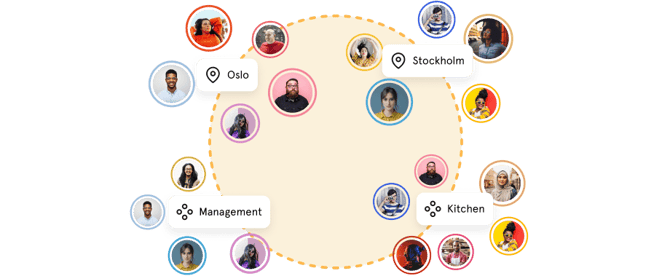
The first thing to do is set up the structure that reflects how your organisation works. In Huma, you organise employees into three types of groups:
-
Company — the legal entity or business unit. Useful if you have multiple companies within the same Huma account, each with their own payroll integration or settings.
-
Location — a physical office, site, or department. Use this to group employees who work in the same place or under the same regional structure.
-
Team — a functional or project-based group that cuts across locations. Use this to group employees who work together regardless of where they are based.
An employee can belong to multiple groups at the same time, for example, a person can be part of the Oslo location and the Marketing team simultaneously.
Example: A Norwegian retail company has three locations; Oslo, Bergen, and Trondheim. Their Huma structure might look like this:
-
Company: Retail AS
-
Locations: Oslo, Bergen, Trondheim
-
Teams: Store staff, Admin, HR, Management
This structure means the HR manager can share documents with all of HR, send news to a specific location, and give the store manager in Bergen access only to employees in their location.
💡 Getting your structure right from the start matters. It controls access, determines who sees what, and forms the backbone of everything from absence management to document sharing.
🔗 Read more about Companies, Teams and locations in Huma.
Step 2: Add and invite your employees
Once your structure is in place, you can start adding your employees to Huma. There are three ways to do this:
-
Add one person — fill out the employee's details manually. When adding a single person, you can assign their supervisor and add them to the relevant groups (teams and locations) straight away. This saves you from having to set it up separately afterwards.
-
Import multiple people — download Huma's import template, fill it in with your employee data, and upload it directly into Huma. Everything you fill in is automatically added to each employee's profile.
-
Import via an integration — connect Huma to your existing payroll or HR system to import and sync employee data automatically.
💡 Whichever method you use, we recommend filling in as much information as possible when adding employees. The more complete the data is from the start, the less manual work you will have to do later.
💡 When your employees are added, you can send them an invitation so they can log in and access their own profile. You can select the language of the invitation, add a personalised welcome message, and preview it before sending.
💡 You do not have to invite everyone at once. Many administrators prefer to get the system fully configured first, and then invite employees when everything is ready.

🔗 Read more about how to add people to Huma.
🔗 Read more about how to invite employees.
Step 3: Set up roles and access
Roles control what each person can see and do in Huma. Before your employees log in, it is worth making sure that the right people have the right access.
A few things to keep in mind:
-
System roles give access to organisation-wide settings and admin functions — not to employee profiles
-
User roles control what a person can see and do on employee profiles, at the field level
-
The user role must be granted over the right group for it to take effect
💡 This is one of the areas where new administrators most often need to make a few adjustments. Taking the time to set up roles correctly from the start will save you a lot of troubleshooting later.
🔗 Read more about roles in Huma.
Step 4: Activate your modules
Huma comes with a set of modules that you can turn on or off depending on what your organisation needs. Modules that are turned off are completely hidden from your users, which keeps the interface clean and relevant.
Common modules to consider activating early on:
-
Absence — for managing vacation, sick leave, and other absence types
-
Documents — for storing and sharing employee documents
-
Onboarding and offboarding — for structured employee transitions
-
Handbook — for sharing policies and internal information
-
Tasks — for assigning and tracking tasks across your organisation
You can activate and deactivate modules at any time, and no data is lost when a module is turned off.
🔗 Read more about modules in Huma.
What's next
You have now set up the foundation of your Huma account. From here, you can explore each module in more detail and configure Huma further to match your organisation's needs.
A few good next steps:
-
Download the 🔗 Huma app so your employees can access Huma on the go
-
Explore our Knowledge Base for in-depth guides on every module
-
Check out our 🔗 Roadmap to follow upcoming features and submit your own ideas
Welcome to Huma, you're all set! 🎉