
Table of contents
- Roles and access
- Which integrations support absence sync?
- How to enable absence sync
- How absence sync works
- Before you start — map your absence types
- What triggers a sync
- When absence is removed from your payroll system
- What happens if something goes wrong
- FAQ
How absence works in integrations
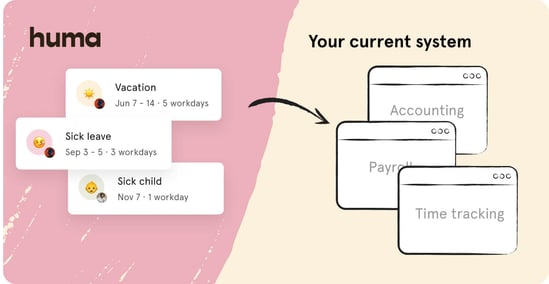
Absence sync lets Huma automatically send approved absence to your payroll or accounting system. This article explains how absence sync works across all integrations that support it.
Roles and access
| Role in Huma | System role with full access to Organization |
| Role in payroll system | Administrator access — varies by system. See your specific integration article for details. |
💡Managers with a user role that includes absence access can register and approve absence in Huma, but setting up and managing the integration itself requires a system role with full access to Organization.
Which integrations support absence sync?
Absence sync is currently supported by Tripletex, Visma.net Payroll, Fortnox, Unimicro and Xledger.
🔗 Tripletex · Visma.net Payroll · Fortnox · Unimicro · Xledger
How to enable absence sync
If you did not enable absence sync during initial setup, you can turn it on at any time.
- Go to your integration in Huma under Integrations
- Click ··· and select "Edit connection settings"
- Enable "Absence: Create, update and delete in Tripletex when updated in Huma"
- Map your absence types to the corresponding types in your payroll system
- Click "Save"
⚠️ Only absence approved in Huma after absence sync is activated will be transferred. Historical absence data is not transferred retroactively.
💡 Remember to map all absence types you want to sync before saving. Absence types that are not mapped will not be transferred even if absence sync is enabled.
How absence sync works
When absence sync is enabled, approved absence registered in Huma is automatically sent to your payroll system. Changes and deletions in Huma are also reflected in your payroll system.
Absence flows one way only: from Huma to your payroll system. Absence registered directly in your payroll system is not synced back to Huma.
⚠️ Historical absence data is not transferred automatically. Only absence that is approved in Huma after absence sync is activated will be sent to your payroll system.
Before you start — map your absence types
Before absence can sync, you must map each absence type in Huma to the corresponding type in your payroll system. This tells Huma where to send each type of absence.
- Go to your integration in Huma under Integrations
- Click ··· and select "Edit connection settings"
- Enable "Absence: Create, update and delete in Tripletex when updated in Huma"
- Map each Huma absence type to the corresponding type in your payroll system
- Exclude any types you do not want to transfer
- Click "Save"
💡 You can always edit your mappings by clicking ··· and "Map absence types."
💡 If an absence type is not mapped, absence of that type will not be synced, even if absence sync is enabled.
⚠️ If you change an absence type's mapping after absences have already been sent, those existing absences will no longer receive updates from Huma. They will need to be corrected manually in your payroll system.
What triggers a sync
An absence is sent to your payroll system when all of the following conditions are met:
- The employee is linked to the integration
- The absence is approved in Huma
- The absence has an end date
- The absence type is mapped to a type in your payroll system
Updates are sent automatically when the following change in Huma:
- Date or period
- Absence percentage or grade
- Note or comment
Deletions are sent when:
- The absence is deleted in Huma
- The absence is unapproved after previously being approved
- The end date is removed from the absence
When absence is removed from your payroll system
Huma will delete the corresponding absence in your payroll system when:
- The absence is deleted in Huma
- The absence is unapproved after previously being approved
- The end date is removed from the absence
⚠️ Some payroll systems lock timesheet entries after approval. If an absence record in your payroll system is locked, Huma cannot update or delete it. You must unlock or reject the record manually in your payroll system and then re-approve the absence in Huma.
What happens if something goes wrong
If Huma cannot sync an absence to your payroll system, the absence in Huma is marked as rejected. Huma notifies the employee, their absence manager, and any company absence managers.
Common causes of sync errors:
- The absence type is not mapped
- The employee is not linked to the integration
- The absence record is locked in your payroll system
- A required field is missing
💡 You can always find detailed error descriptions in the error log on the integration page in Huma.
FAQ
Does absence sync transfer historical absence?
No. Only absence approved in Huma after absence sync is activated is transferred. Historical absence must be entered manually in your payroll system if needed.
What happens if I disable absence sync?
Absence already sent to your payroll system remains there. No new absences will be sent, and changes or deletions in Huma will no longer be reflected in your payroll system.
Can I exclude certain absence types from syncing?
Yes. During the mapping step, you can choose to exclude specific absence types. Excluded types will not be synced regardless of the absence sync setting.
What if an absence is updated in my payroll system directly?
Huma does not read from your payroll system. If an absence is changed directly there, those changes will not appear in Huma and may be overwritten the next time Huma sends an update.
Why is an absence marked as rejected?
This means Huma tried to send the absence to your payroll system but something went wrong. Check the error log on the integration page in Huma for details on what needs to be corrected.
🔗 Getting started with Payroll & accounting integrations