
Table of contents
- Roles and access
- What is a Payroll & accounting integration?
- Before you start — checklist
- How authorization works
- Step 1 — Connect Huma to your system
- Step 2 — Configure what to sync
- Step 3 — Sync users
- Your integration is active — what now?
- Editing your connection settings
- Integrations
Getting started with Payroll & accounting integrations
This article covers what is common across all Payroll & accounting integrations. See your specific integration article for details that may vary. *Examples in this article use Tripletex.
⏱️ Allow 15–30 minutes for initial setup
👤 You need: yourself as a Huma administrator and access to your payroll or
accounting system.
✅ Nothing syncs until you're ready. You complete a manual sync step before the
integration goes live.
Roles and access
| Role in Huma | System role with full access to Organization |
| Role in payroll system | Administrator access — varies by system. See your specific integration article for details. |
🔗 Introduction to syncing positions to integrations.
🔗 Introduction to syncing salary to integrations.
🔗 Introduction to syncing absence to integrations.
What is a Payroll & accounting integration?
A Payroll & accounting integration connects Huma to your payroll or accounting system so data flows between them automatically. You avoid registering the same information in two places.
You choose exactly what is synced; users, positions, absence, and/or salary. Nothing is activated until you turn it on.
💡Data flows primarily from Huma to your payroll system. Changes made directly in the payroll system must be manually synced back to Huma.
💡 Each integration works slightly differently. This article covers what is common across all Payroll & accounting integrations. See your specific integration article for details that may vary.
Before you start — checklist
-
You have a System role with full access to Organization in Huma.
-
You have administrator access to your payroll or accounting system, or have someone with that access available during setup.
-
Employees who exist in both systems have the same email address in both, because this is how Huma matches users between systems.
-
You know which data you want to sync: users, positions, absence, and/or salary.
🔗 Not sure which integrations support absence or salary sync? Check the article for your specific integration.
How authorization works
To connect Huma to your payroll system, you need to authorize the connection. How this works depends on which integration you are setting up.
-
API key or token
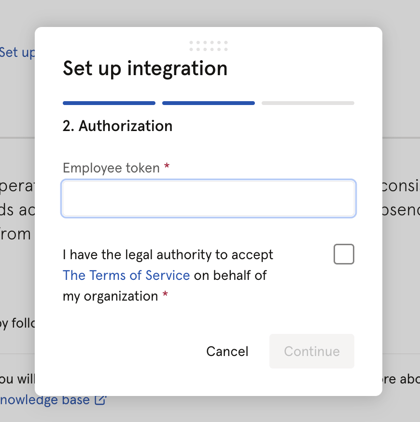
Some integrations (such as Tripletex) use an API key, a long password that you generate in your payroll system, copy, and paste into Huma. Huma uses this to establish a secure connection.
-
OAuth2
Other integrations (such as Fortnox, Visma.net Payroll, and Unimicro) use OAuth2, a login flow where you authorize Huma by logging in to your payroll system directly. No key needs to be copied manually.
🔗 See your specific integration article for exactly what you need to prepare.
Step 1 — Connect Huma to your system
- Log in to Huma and go to Integrations
- Find your integration in the list and click it
- Read through the information under "Overview" and "Details"
- Click "Set up" in the top right corner
- Give the connection a name
- Choose who should be part of this connection: all employees, or a specific team, location, or company
- Click "Continue"
- Complete the authorization step, either paste your API key or log in via OAuth2, depending on your integration
- Click "Continue"
- Now you choose which data types should flow between Huma and your payroll system. You can change these settings at any time.
💡See video with steps below.
Step 2 — Configure what to sync
Now you choose which data types should flow between Huma and your payroll system. You can change these settings at any time.
Not all options are available in every integration and you will only see what your integration supports.
⚠️ After this step the connection is now established but not yet active.
| What to sync | How it works | Important to know |
|---|---|---|
| Users | Choose whether employees added in Huma are created automatically in your payroll system. |
|
| Positions | Position changes in Huma are sent automatically to your payroll system. |
|
| Absence | Approved absence is sent automatically. Changes and deletions in Huma are reflected in your payroll system. |
|
| Salary | Salary data is sent when created or updated in Huma. |
|
Step 3 — Sync users
This is the most important step to activate the integration. Nothing syncs until you complete this.
- Click "Synchronize users" on the connection page
- 💡 Before you proceed: During this step, Huma will show you users with missing or conflicting values and ask how you want to handle them. You can choose to overwrite data in either direction, so it's important to know which system holds your most up-to-date information. If you're unsure, take a moment to review the list, correct any missing data, and decide where your master data lives before completing the sync.
- Review matching users — users found in both Huma and your payroll system with the same email address
- Click "View users" to see fields that don't match or are missing
- ⚠️ You may see yellow warning boxes highlighting users with missing required fields. These users will not be synced until the missing information is added in Huma.
- Handle any conflicts and click "Next"
- Review non-matching users — users that only exist in one of the systems
- Choose whether to create them in the other system, or leave them
- Choose direction: your payroll system → Huma, or Huma → your payroll system
- ⚠️ You may see yellow warning boxes highlighting users with missing required fields. These users will not be synced until the missing information is added in Huma.
- Click "Sync users"
- You will receive an email with the result of the sync.
⚠️ Users missing required fields will not be synced. Check the error log on the integration page in Huma for details.
💡 Huma uses email to identify and match users between systems. Make sure the email address is identical in both Huma and your payroll system before syncing.
Your integration is active — what now?
-
Automatic (real-time): Changes to supported fields in Huma are sent to your payroll system immediately.
-
Manual (when needed): Changes made directly in your payroll system are not automatically updated in Huma. Use "Sync users" to pull these in.
-
Salary and absence are only sent from Huma to the integration, and not the other way.
-
When an employee leaves:
-
- Deactivated in Huma → the employee is not deactivated in your payroll system, but is locked for further syncing
- Deleted in Huma → the employee is not deleted in your payroll system, and a manual sync will suggest recreating them
💡 Always check the error log on the integration page in Huma if something does not sync as expected.
🔗 See which fields that are supported for your integration.
Editing your connection settings
You can change your sync settings at any time after setup.
- Go to your integration in Huma under Integrations
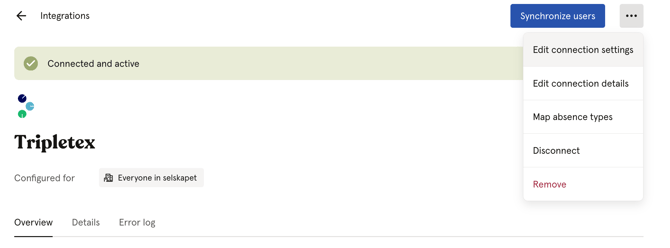
- Click the ··· menu in the top right corner
- Select "Edit connection settings"
- Make your changes and click "Save"
Your specific integration:
🔗 Tripletex · Visma.net Payroll · Fortnox · Unimicro · Crona Lön · Netvisor · Finago · Xledger