
Table of Contents
- What is a position?
- Roles and access
- Position fields
- Job title and description
- How to manage positions
- End employment
- Overview over positions
- FAQ
What is a position?
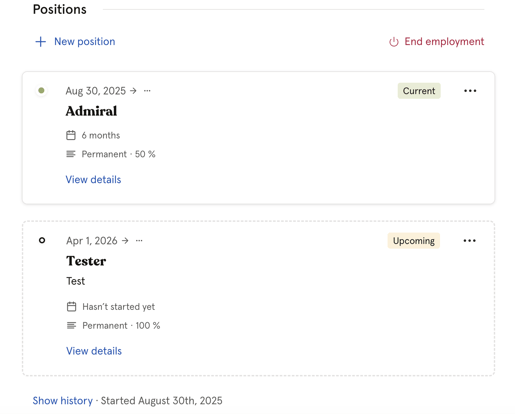
In Huma, all employment information is collected in the Positions section on each employee's profile. An employee can have one or multiple positions, each with its own job title, employment percentage, and contract details.
Positions can have three statuses:
-
Current — contract start date is in the past, or no date is set
-
Upcoming — contract start date is in the future
-
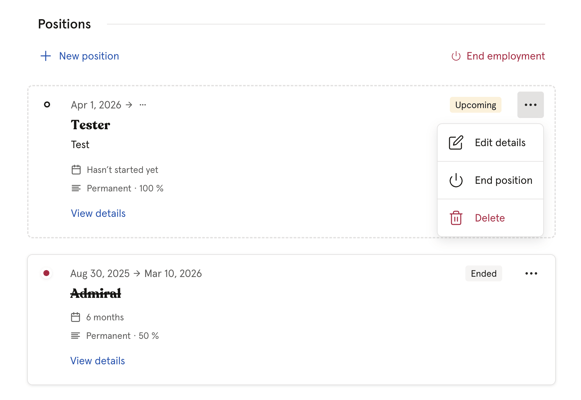
Ended — contract end date is in the past
Click "Show history" on the employee's profile to see all current, upcoming, and previous positions.
💡 A single employee can have overlapping positions with different employment percentages and job titles. If the combined employment percentage exceeds 100%, you will see a notification in the Position section.
Roles
Access to position fields is controlled by user roles. Job title and its default job description are always visible to everyone. All other fields are permission-controlled.
| Access | Role |
|---|---|
| Job title and default job description | Visible to everyone |
| Individual job description, Contract type, Employment percentage, Employment ID, Contract start date, First day of work, Probation end date, Notes, Country / Legislation | User role: See and edit → Employment: Employment details |
| End reason, Termination notice date, Last day of work, Contract end date | User role: See and edit → Employment: Termination |
🔗 Read more about roles in Huma.
Position fields
Employment details
-
Country / Legislation
-
Contract type
-
Employment percentage
-
Employment ID
-
Notes
Start details
-
Contract start date — the date the employment relationship formally begins, as stated in the employment contract. This may include periods before the first actual working day, such as training or administrative preparations.
-
First day of work — the actual first day the employee shows up and starts performing work tasks.
-
Probation end date
Seniority
-
Seniority — determined by the duration of the positions
-
Relevant experience — subtract or add relevant experience earned outside of Huma
-
Total seniority — determined by the duration of positions and relevant experience
Termination details
-
End reason and note — end reasons are predefined and cannot be edited
-
Termination notice date
-
Last day of work — the final day the employee is actively working and performing their duties
-
Contract end date — the official date the employment relationship ends, as stated in the contract. This may include notice periods, garden leave, or other formalities after the last day of work.
Job title and job description
When adding or editing a position, you can select a job title from the list of job titles created in System settings.
Each job title can have a default job description, a text describing the responsibilities and requirements of the role. When you select a job title on a position, the default description is shown automatically.
If the employee's responsibilities differ from the standard description, you can add a custom job description directly on the position. A custom description overrides the default job title description for that specific employee.
💡 Job title and its default job description are always visible to everyone. A custom job description is only visible to users with the "Employment details" user role.
🔗 Read more about job titles and how to manage them in System settings.
How to manage positions
How to add a new postion
-
Go to the "People module"
-
Navigate to the employee and scroll down to "Positions"
-
Click " + New position"
-
Fill out details
-
Click "Add position"
How to edit a position
-
Go to the "People module"
-
Navigate to the employee and scroll down to "Positions"
-
Click on the "three dots" and "Edit details"
-
Edit fields and click "Save"
-
Choose whether to update the current position or create a new position based on your edits
How to delete a position
-
Go to the "People module"
-
Navigate to the employee and scroll down to "Positions"
-
Click on the "three dots" and "Delete"
-
Type "Delete" and click "Delete"
- This action cannot be undone
How to end a position
-
Go to the "People module"
-
Navigate to the employee and scroll down to "Positions"
-
Click on the "three dots" and "End position"
-
Fill out details and end position
- You can always go back to the same position and clear the end details to make it active again
End employment
To wrap up an employment, you must finish all ongoing and upcoming positions.
- Go to the "People module"
- Navigate to the employee and scroll down to "Positions"
- Click "End employment"
- End or delete positions
- The end date of the last position will be used as the official employment end date.
- Start a process, add task and/or deactivate the employee account
🔗 How to keep important employee data after they leave.

Overview over positions
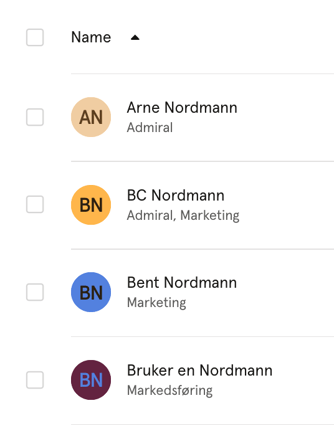
You can get an overview over your employees postion within the People and/or Insight module.
- People: The job title in the people list now reflects the current position
- People: Filter on "Job title" in the people list
- Insights: Contract type insights now reflect the number of positions
FAQ
Positions are new in Huma. What should I do now?
Your existing employment data has already been moved to the Position and Employment sections on each employee profile, so nothing has been lost.
We recommend reviewing each employee’s Position and completing any missing information, such as contract details, or other fields relevant to the position.
What happens with integrations?
We have also introduced Employment history to many of our integrations. We recommend you to have an active integrations with "Positions fields" sync turned on, before you start to add position details in Huma.
What is happening with the current employment information?
All current employment data will be turned into a position. You will find all your previous data in the "Employment" and "Position" section on employees profile.
Which position is used as the employee’s main position when they have multiple positions?
Huma selects one position as the employee’s Primary position. This is the position used in other parts of the system, for example when inserting smart fields in Smart Documents.
- Last created
- Highest mployment percentage
- Contract type: Permanent
Is it possible to import all positions for all my employees?
Not yet. In this version, you can import one position per person.
Who has access to see positions?
It depends on permissions. Job title and its default job description are always visible. The rest of the position fields are permission-controlled. For more information, see the “Roles” section in the article above.
I want to export all position data for employees
For now, the export includes only one position per employee. If you need data from other positions, adjust the date range for that specific position in the People export.
🔗 Read more about the People export here.
What happens if the total employment percentage exceeds 100%?
If the combined employment percentage across an employee’s positions exceeds 100%, you’ll see a notification in the Position section.
I have an employee with multiple positions.
In Huma, an employee can have multiple positions, including overlapping ones. Each position can have its own employment percentage, job title, and other details. If the total employment percentage across positions exceeds 100%, you’ll see a notification in the Position section.
Should I start a new onboarding in Huma when an employee changes to a new position?
We recommend you to use a "Process" instead. You can create a general or specific template to use when onboarding employees into a new position.
🔗 Read more about Processes here.
How can I register seniority in Huma that was earned in another company, so it counts toward total experience in our organization?
If an employee has relevant experience that is not reflected in the positions registered in Huma, you can account for it in the Employment section by adding or subtracting Relevant experience, as described here.
Is salary linked to a position?
No. Salary is not directly linked to a position. However, a salary will appear in the position overview if the salary period overlaps with the position period.
If you end a position while a salary is still active, Huma will notify you so the salary can be handled.
Can I create custom contract types?
No. Contract types in Huma are predefined and cannot be customised. The available options are: Permanent, Temporary, Seasonal, Casual, Trainee, Job training program, Consultant, Freelance, Third party and Other.