
Table of Contents
- Whistleblowing in the app
- Roles and access
- Submit a report
- Your anonymity
- Handle a case
- What to do on web
- FAQ
Whistleblowing in the app
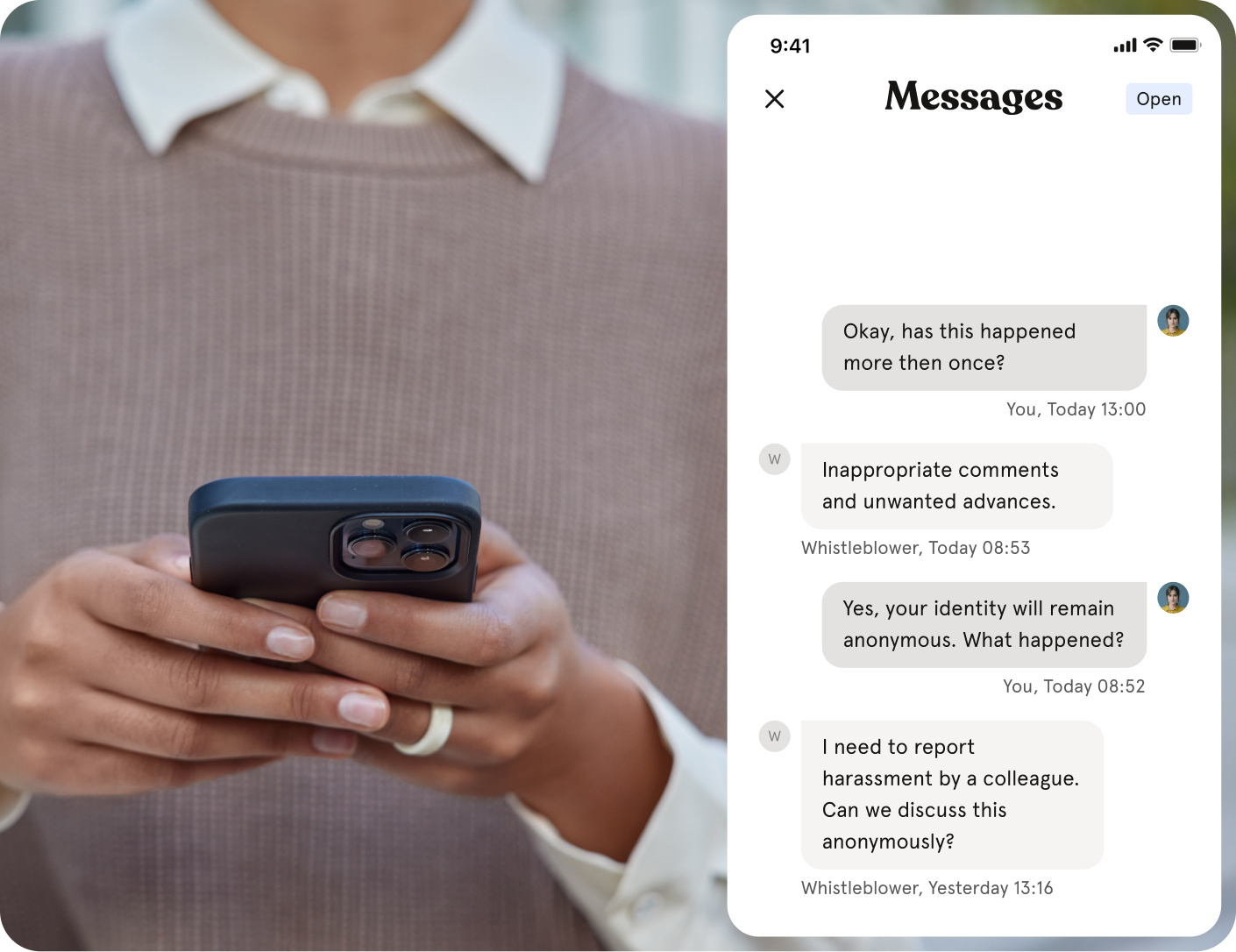
The app gives you quick access to whistleblowing, wherever you are. What you see in the Menu depends on your role:
- Whistleblower Portal: for all employees. Opens the portal where you can submit a report or follow up on your case.
- Whistleblowing: for case handlers. Lets you handle whistleblowing cases directly in the app.
Roles and access
| Access | Role |
|---|---|
| Open the Whistleblower Portal from the app | All employees, when whistleblowing is set up for your organisation |
| See and handle whistleblowing cases | Users with access to manage whistleblowing |
💡 Whistleblowing must be set up on web before it is shown in the app.
🔗 Read more about whistleblowing in Huma
Submit a report
- Tap "Menu"
- Tap "Whistleblower Portal"
- Describe the incident or behaviour you want to report
- Choose whether you want to remain anonymous or provide your name
- Submit the report
- Save your access code somewhere safe
📱 On iPhone: The portal opens in your browser.
🤖 On Android: The portal opens in a full-screen window in the app. You can copy your access code directly from the app.
⚠️ If you lose your access code, you cannot access your case again. Store it somewhere safe.
🔗 Read more about submitting a whistleblowing report
Your anonymity
The app does not send your name or account details to the Whistleblower Portal. Opening the portal from the app is just as anonymous as using the portal link directly.
💡 Huma does not track IP addresses, geolocation, browser fingerprints or other identifying information about reporters.
Handle a case
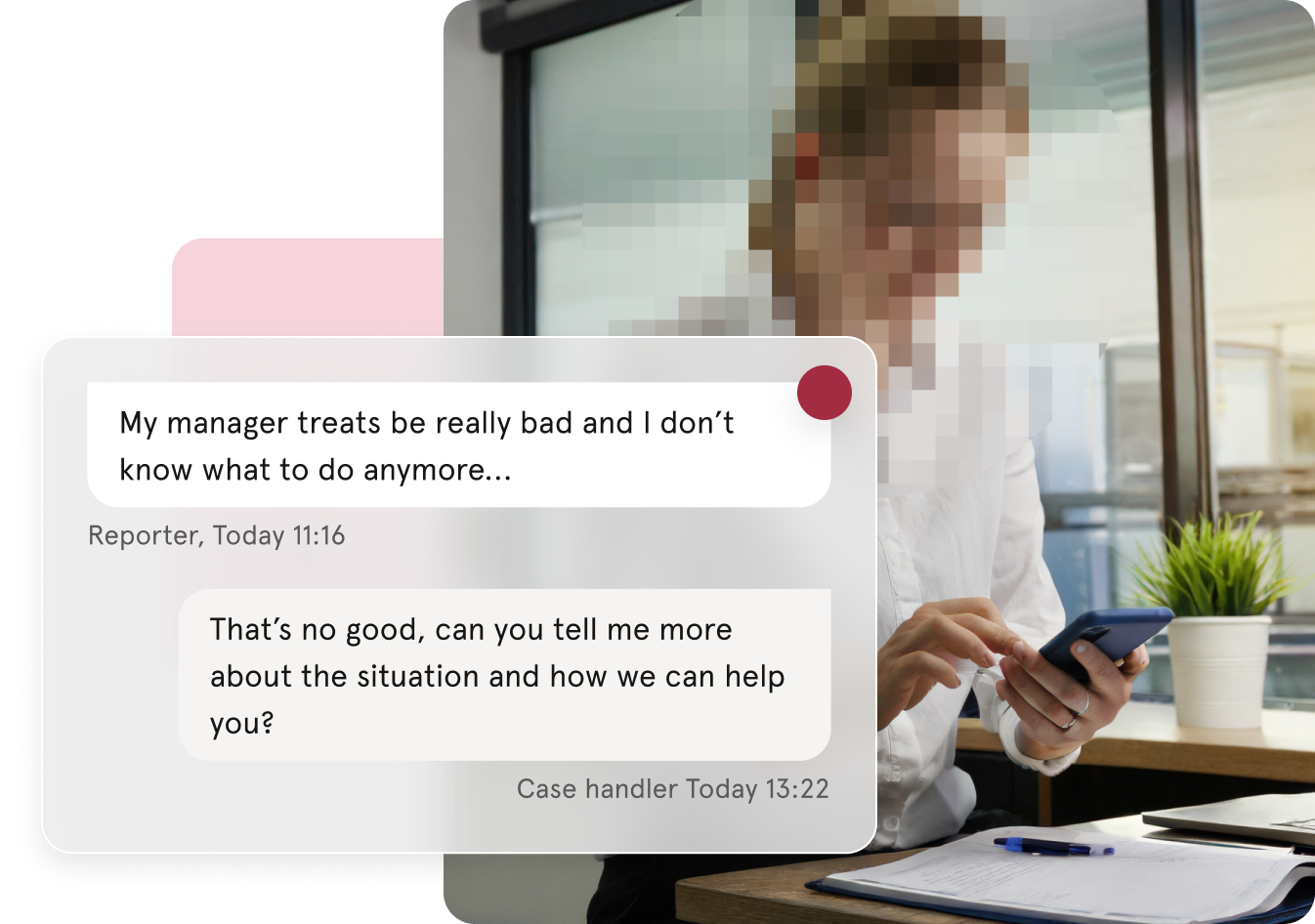
If you are a case handler, tap "Whistleblowing" in the Menu to see your cases.
Cases are shown in two lists:
- Unresolved cases: cases that are not closed
- Archive: closed cases
A case can have these statuses:
| Status | What it means |
|---|---|
| Unseen | The report has been received, but no case handler has opened it |
| Seen | A case handler has opened the report |
| Open | The case has been acknowledged, and the case handler is working on it |
| Closed | The case has been concluded |
To handle a case:
- Tap the case to open it
- Acknowledge the case to start the conversation with the whistleblower
- Send messages to the whistleblower in the case
- Tap "Close case" when the case is done. You can add a closing message.
⚠️ When a case is closed, neither party can send more messages until it is reopened.
💡 Case handlers see unhandled whistleblowing cases on the dashboard.
🔗 Read more about handling a whistleblowing case
What to do on web
Some settings are only available in Huma on web:
- Set up the Whistleblowing module
- Choose who should be case handlers
- Find and share the portal link with your employees
FAQ
Will my employer know I submitted a report from the app?
No. The app does not send your name or account details to the portal. If you choose to remain anonymous, your identity is not shared with case handlers or anyone else.
Why don't I see the Whistleblower Portal in the app?
Whistleblowing must be set up for your organisation. Contact your administrator if you think it should be available.
Can I follow up on my case in the app?
Yes. Open the Whistleblower Portal from the Menu and enter your access code.
Do I need the app to submit a report?
No. The portal is also available through a link from your organisation. You do not need a Huma account to submit a report.
What happens if a case is not acknowledged in time?
The case is marked as past the deadline for acknowledgment. Case handlers should acknowledge reports as soon as possible.