
Table of Contents
- Roles and access
- Where to register hours
- Register hours from the dashboard
- Register hours on the Time tracking page
- Register hours with Quick search
- Edit or delete hours
- Copy last week
- FAQ
Roles and access
| Access | Role |
|---|---|
| Register, edit and delete your own hours | All employees. No role is required. |
| Register, edit and delete hours for other employees | User role: See and edit → Absence, over the employees in question |
💡 Time tracking must be turned on for your organisation before you can register hours.
🔗 Read more in Time tracking in Huma.
Where to register hours
You can register hours in these places:
| Place | Best for |
|---|---|
| The Time tracking widget on the dashboard | Quick registration for this week, last week or next week |
| Time tracking → Your hours in the main menu | Any day, in a week or month view, with Quick add |
| Quick search (Cmd + K or Ctrl + K) | Registering hours from anywhere in Huma |
| The Huma app | Registering your own hours from your phone |
💡 Each day shows your hours, absence and holidays. Past workdays without hours are marked Nothing logged.
🔗 Read more in Time tracking in the app.
Register hours from the dashboard
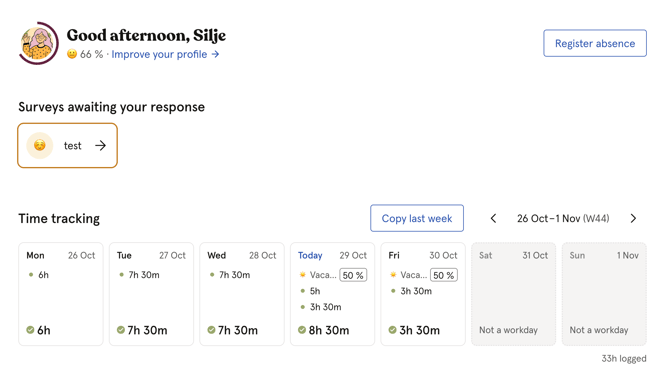
The widget shows this week, with one card per day and the total hours logged for the week. Use the arrows to go back to last week or forward to next week.
- Click a day.
- If the day is empty, the Register hours window opens straight away.
- If the day already has hours or absence, a menu opens. Click Register hours.
- Enter your hours under Hours, for example 7.5 or 7:30. You can also click one of the shortcuts under the field: 4, 6, 7.5 or 8 hours.
- Add a Note if you want to.
- Click Register.
💡 Click Go to Time tracking at the bottom of the widget to open the Time tracking page.
Register hours on the Time tracking page
- Go to Time tracking in the main menu.
- Open the Your hours tab.
- Choose Week or Month under Period.
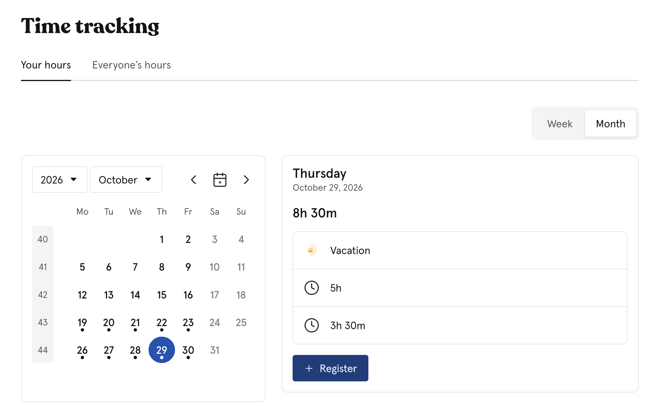
- Click the day you want to register hours on. The day’s details are shown below the week or next to the month.
- Click Register.
- Enter your hours, or click one of the shortcuts, and add an optional note.
- Click Register.
Quick add
On an empty day, the day’s details show Quick add. Click 4, 6, 7.5 or 8 hours to register them on the day in one click. If the day before has hours, you can also click Same as the day before to copy them. Click Undo if you change your mind.
In the month view, a dot means the day has hours or absence. A cross means nothing was logged on a past workday.
💡 You can register more than one entry on the same day. Each entry is shown separately, and the day shows the total.
💡 Your hours opens in the week view. If you switch to the month view, Huma remembers your choice until you close the browser tab.
Register hours with Quick search
You can register hours from anywhere in Huma with Quick search.
- Press Cmd + K (Mac) or Ctrl + K (Windows), or click Quick search.
- Type Register hours. You can also type the hours and the day, for example “7.5 hours tomorrow” or “8 hours Friday”.
- Choose Register hours in the list. Your hours opens with the form filled in.
- Check the date and hours, and add a note if you want to.
- Click Register.
💡 You can write the hours in your own language or in English, for example “7,5 timer” or “8 hours 30 min”.
Edit or delete hours
To edit hours:
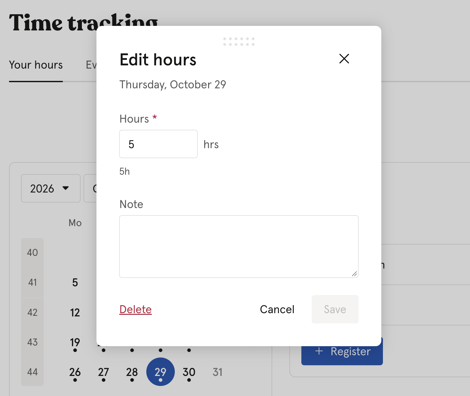
- Click the day, in the widget or on the Time tracking page.
- Click the entry you want to change.
- Change the hours or the note.
- Click Save.
You can’t move an entry to another date. To move it, delete the entry and register it again on the right day.
To delete hours:
- Open the entry as described above.
- Click Delete.
- Confirm with Delete.
⚠️ Deleted hours can’t be restored.
Copy last week
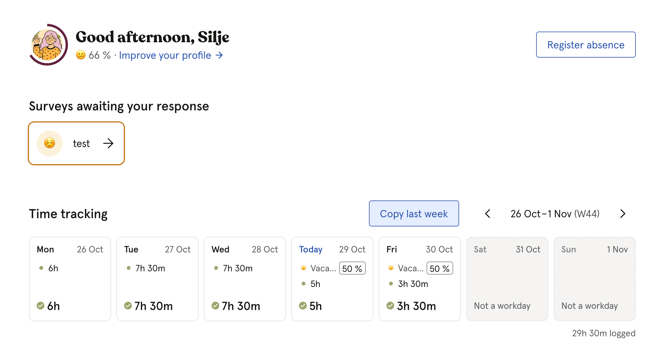
If your weeks are often the same, you can copy last week’s hours into this week from the dashboard widget.
- Make sure the widget shows this week.
- Click Copy last week.
- If you already have hours on some of the days, choose how to copy:
- Fill empty days: Days this week that already have hours are left as they are.
- Replace this week: Hours on the days that get last week’s hours are deleted and replaced.
- Click Copy.
How the copy works:
- Each entry is copied to the same weekday this week, with the same hours and note.
- Hours are only copied to workdays without absence. Days off, holidays and days with absence are skipped.
- If all the days that would get last week’s hours already have hours, Fill empty days can’t be chosen.
- After copying, you can click Undo to remove the copied hours.
⚠️ When you choose Replace this week, the hours that are replaced are deleted. Undo removes the copied hours, but it doesn’t bring back the hours that were deleted.
The button is unavailable in these cases. Hover over it to see why.
- The widget shows a week other than this week.
- Last week has no hours to copy.
- All of last week’s hours would land on days off this week.
- Last week’s hours are already in this week.
FAQ
How do I enter half hours?
Enter 7.5 or 7:30. Both mean seven and a half hours.
Can I register hours for a day in the future?
Yes. You can register hours up to one year back or one year ahead.
Why can’t I copy last week?
The button only works when the widget shows this week. Last week must also have hours that can land on a workday without absence this week, and this week can’t already match last week.
Why don’t I see Quick add on a day?
Quick add is only shown on days without hours and without absence, on the Your hours tab.
Can I register hours on a day with absence?
Yes. You can still register hours on the day, for example if you worked part of a day with partial absence.
Can my manager see and change my hours?
Yes. Managers with absence access over you can see, register, edit and delete your hours.